
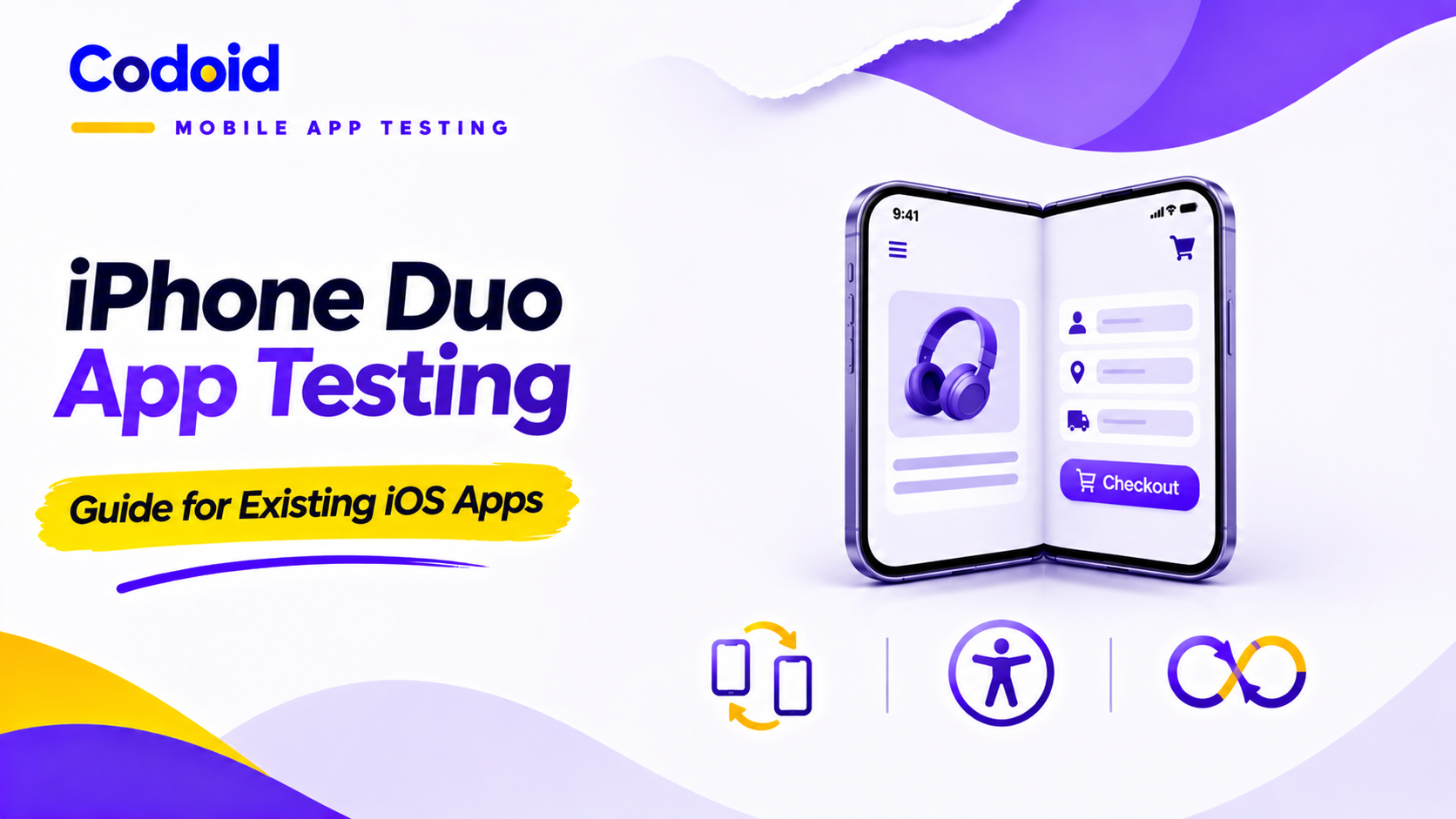
For iPhone Duo app testing on an existing mobile app, compare the unchanged release with the candidate build across each required device pose (closed, open, or partially folded). Test rotation as a separate condition. Use the Simulator for repeatable transitions, verify that users can finish important tasks without losing state, and reserve hardware-dependent claims for physical-device evidence. Teams that want expert help can pair this approach with Codoid’s mobile app testing services. The starting point is the software development kit (SDK) used to build the app. Apple documents SDK-dependent presentation behavior: a compatibility layout is not automatically a defect, and recompilation alone does not establish correct adaptation.
This iPhone Duo app testing guide assumes you already have an iOS app. It covers compatibility, layout regression, an optional Appium example, and release evidence, not Android-to-iOS porting. The shopping scenarios and expected-state schematic are illustrative, use synthetic data, and are not client results.
Related Blogs
Mobile App Cold-Start Testing: Launch Time & Failures
Appium Parallel Testing: Prevent iOS Port Conflicts & Mix-Ups
Table of Content
- Build behavior
- Environment
- Test matrix
- Layout and accessibility
- State continuity
- Optional Appium
- Release gates
- Conclusion
1. iPhone Duo App Testing: Understand What Changes for Your Existing App
Existing-build compatibility versus an updated build
Begin with the build SDK, not just the iOS version installed on the device. Apple describes these presentation differences.
- iOS 26 or earlier
- Documented presentation: On the inner display, a centered app window has surrounding space; the outer layout avoids the status bar and camera.
- What to evaluate: Can users complete existing journeys within that compatibility presentation?
- iOS 27
- Documented presentation: The app expands across most of the inner display while avoiding the right-side status-bar area.
- What to evaluate: Does content resize without hiding actions or losing state?
- iOS 27.1 or later
- Documented presentation: The app can use the full display, with system bars adopting vertical presentation.
- What to evaluate: Do navigation, custom controls, and content remain usable after adaptation?
Preserve the current-release artifact and record its provenance. Rebuilding old source with a newer SDK creates another test artifact; do not label it the unchanged production binary.
Define the experience your release promises
Write separate acceptance criteria for functional compatibility and adaptive presentation. Compatibility means the agreed journeys remain usable. Adaptation means the candidate also meets the layouts and transitions specified by product and design.
For example, the existing release might pass checkout in a compatibility window, while the candidate must support the larger layout without losing the cart. Neither decision should rest on appearance alone. Apple’s iPhone Duo preparation guide recommends checking resizing, folded layouts, and navigation-bar placement; optional experiences should enter the release gate only when your app implements them.
2. Set Up Your iPhone Duo App Testing Environment
Record the build, SDK, operating system, and tooling versions
Create an environment record with the app version/build, build SDK, source revision where available, distribution channel, and artifact hash. Record the unique device identifier (UDID), runtime version/build, Xcode and macOS versions, account state, feature flags, locale, text size, orientation, and backend configuration. Section 6 adds the automation-specific manifest.
As of the research date, Apple lists Xcode 27.2, released October 29, 2026, and Xcode 27.3 beta, released November 3, 2026. Keep beta coverage separate from the release baseline, and check the selected Xcode version’s macOS requirements before setup.
Build and run the app in the iPhone Duo Simulator
With source access, select the application’s scheme in Xcode, install any missing platform support, choose the iPhone Duo Simulator as the run destination, and use Product > Run. Apple’s Simulator workflow opens the simulated device in Device Hub. Obtain a Simulator-targeted build from development when you do not build the project yourself.
Use Device Hub’s controls to open, close, partially fold, and rotate the device. Before introducing transitions into iPhone Duo app testing, establish an ordinary smoke-test pass: launch, sign in, open the principal screen, and complete one important task. Apple introduced this Duo testing workflow with Xcode 27.1.
Establish a physical-device baseline for iPhone Duo app testing
Test the existing distributed release through its authorized installation channel. Test the candidate separately using your team’s approved distribution or development-signing process. Xcode development deployment requires device pairing and appropriate signing.
Keep the two runs comparable: use equivalent synthetic accounts, feature flags, backend responses, and settings. When only the installed release is available, start with that physical-device baseline and request a suitable development artifact for Simulator work.
Do not use Simulator timing as a physical-device performance result. Apple explicitly distinguishes simulated features and performance from real hardware.
3. Build a Risk-Based Device and Transition Matrix for iPhone Duo App Testing
Cover displays, poses, orientation, and multitasking
Apple’s guidance covers both displays, different poses, rotation, and Split View. Translate that guidance into explicit test conditions rather than a single “foldable supported” checkbox.
Use the following recommended starting matrix for iPhone Duo app testing, adjusting it to your supported experience:
- Launch closed; launch open
- Representative task: Sign in and open the cart.
- Expected outcome and evidence: The correct screen loads; retain build, pose and screenshot.
- Closed → open → closed
- Representative task: Edit delivery details without submitting.
- Expected outcome and evidence: Exact values and validation state survive; compare before/after fields.
- Closed → partial → closed AND open → partial → open
- Representative task: Use the same unsubmitted form or media controls.
- Expected outcome and evidence: Compare both entry histories; record prior/current pose, angle, orientation, SDK and runtime.
- Rotate in each required pose
- Representative task: Open a sheet, menu or keyboard.
- Expected outcome and evidence: Actions remain reachable; record clipped content or misplaced overlays.
- Move between Split View positions
- Representative task: Navigate from a list to a selected item.
- Expected outcome and evidence: Selection and navigation remain coherent; record window position.
- Transition during a pending request
- Representative task: Submit a synthetic order with a controlled delayed response.
- Expected outcome and evidence: UI outcome agrees with the server record; retain correlation identifiers.
- Camera inactive → active → inactive, with transitions (where supported)
- Representative task: Start and stop capture or a video call; fold and unfold.
- Expected outcome and evidence: Controls avoid active occlusion; camera and preview match the intended view; layout recovers after capture stops.
Approach partial folding from both closed and fully open states. A maintainer report on Appium describes history-dependent behavior in a particular environment; treat it as a reason to test both paths, not a universal defect. Ninety degrees is an illustrative test point, not a certified layout breakpoint.
Combine transitions with important application states
Prioritize authenticated sessions, unsaved forms, a visible keyboard, selected list items, modal dialogs, loading indicators, and failed requests. Add empty, long, and maximum-length content where the application accepts it.
Avoid multiplying every setting by every state without considering risk. Cover critical journeys in every required pose, then select additional combinations around fragile layouts and business-critical actions. Record omitted combinations and the reason for deferring them. These are test-design recommendations, not an Apple-mandated exhaustive suite.
Apply extra coverage only to features your app supports. For multiple scenes (separate app windows), open different drafts in two scenes and check independent values, selection and focus after presentation changes; scope locators to the intended scene. For simultaneous-display experiences, verify that private content stays off unintended displays. These are risk-based checks, not requirements to add those features.
Also exercise a supported long-translation locale and right-to-left layout where applicable. Record unsupported combinations explicitly instead of marking them passed.
4. Verify Layout, Navigation, and Accessibility in iPhone Duo App Testing
Check content bounds, safe areas, and the folding region
Inspect each view, sheet, and popover after a transition. Apple identifies fold-region interference, awkward presentation, and resizing problems as specific checks for Duo.
For the shopping example, verify that the address field, error message, price, and Continue button remain readable and reachable. Compare image cropping against the approved design, not against a requirement that every pixel remain unchanged.
Test controls near every edge. Apple notes that safe areas and layout margins can be asymmetric, including when vertical controls appear on different sides in Split View. Background artwork extending behind a bar is not equivalent to an interactive button being obscured.
For camera-enabled journeys, compare the inner camera region while inactive and active. Apple documents that the inner front camera can occlude content when active. Check custom controls, camera/preview selection during transitions, and layout restoration after capture ends; use physical hardware for capture-quality evidence.
When source is available, use this diagnostic handoff to connect an observed symptom to an investigation, not to declare the cause without debugging. Without source, attach the same geometry and reproduction evidence.
- Observed symptom: Content clips or retains an old width.
- Code pattern to investigate: Screen-sized or cached bounds, including UIScreen.main.bounds; compare current container/scene geometry.
- Focused retest: Resize during the task and repeat after relaunch; include both partial-fold entry directions.
- Observed symptom: Wrong pane or layout appears after resizing.
- Code pattern to investigate: Orientation or device-idiom branches; assumptions that regular width means iPad.
- Focused retest: Keep orientation fixed while changing available space, then rotate; log traits and bounds.
- Observed symptom: Back or another custom action is hidden.
- Code pattern to investigate: Custom bars, fixed coordinates or equal-inset assumptions; inspect each safe area independently.
- Focused retest: Repeat navigation in both displays and both Split View positions; verify the action outcome.
Validate vertical bars, overflow actions, and navigation
Check each primary action before and after the interface changes: Back, search, cart, account, filters, and submission. Where an action moves into overflow, confirm that it remains discoverable, has the correct label, and still operates on the selected item. Apple recommends organizing bars so frequently used controls remain available when space is constrained.
Include nested navigation and dismissed dialogs. Require Back to return to the expected screen with the correct selection, not simply to produce any visible change. Re-find controls after transitions instead of treating their previous position as the expected location.
Repeat key tasks with larger text and assistive technologies
Repeat complete journeys with larger accessibility text sizes and relevant assistive technologies. Apple’s accessibility testing guidance emphasizes task completion across settings and devices.
For checkout, check whether VoiceOver can find the address field, announce its error, reach Continue, and preserve a sensible focus position after resizing. Test large text with long labels and verify that validation does not depend only on color.
Select Voice Control, Switch Control, reduced-motion and media checks according to the actual journeys. Record task outcomes, not just whether the setting could be enabled.
Use Accessibility Inspector audits to supplement these iPhone Duo app testing checks. They can flag issues such as clipping, missing descriptions, and contrast, but clearing all audit findings does not prove full accessibility. Complete physical-device assistive-technology testing before sign-off.
5. iPhone Duo App Testing for State Continuity and Failure Recovery
Fold and unfold during forms, navigation, and media use
For each transition, specify the state that must survive and the change that is allowed. Preserve the selected product or logical reading position where required; do not require identical scroll coordinates across different layouts.
Illustrative form-retention test: Start with a synthetic signed-in account and an unsubmitted delivery form. Enter an address and postcode, leave the keyboard visible, unfold the device, rotate it, and close it again. Check the exact values, selected delivery option, validation messages, and ability to continue. Capture before-and-after field values and screenshots, then complete the form.
Illustrative expected-state schematic: not screenshots or executed results. Use the same recorded build and runtime throughout.
- START: CLOSED
- Entered postcode: 600001
- Unsubmitted delivery form
- AFTER OPENING
- Expected postcode: 600001
- Values and validation retained
- AFTER CLOSING
- Expected postcode: 600001
- Values retained; Continue remains usable
Compare actual field assertions with these expectations, then finish the task. A matching screenshot alone does not establish successful submission.
Run invalid and boundary inputs separately. Include an empty required field and the documented maximum-length address. For media, define whether playback should continue or pause, then verify the playhead and controls against that requirement.
Change pose during authentication and network operations
Use a controlled environment to distinguish application state from request completion.
Illustrative pending-order test: Create a disposable cart and delay the response to its submission. Change pose while the request is pending. Restore the response and compare the confirmation screen with the backend order record.
Repeat with a timeout, a rejected request, and a response lost after the server commits the order. For a journey intended to create one order, require one business operation even if the retry policy permits multiple HTTP requests. Use the application’s correlation or idempotency identifiers where supported; do not infer duplication merely from request count.
Exercise double taps and concurrent interactions during the transition. Check that retry, cancellation, and restored connectivity produce an understandable outcome without clearing recoverable input or presenting false success.
During authentication or permission prompts, test success, cancellation, denial, and interruption. Define whether the operation should resume or require a new attempt. Use sandbox services and synthetic accounts rather than real purchases or production fault injection.
Repeat transitions and test recovery paths
Repeat a documented open–close sequence while retaining the same form or selected item. Choose the repetition count for your risk model; it is not a platform certification threshold. Look for accumulating state errors, stale overlays, and repeated side effects.
Test background/foreground transitions and process relaunch separately. Do not require unsaved data to survive termination unless the product contract promises restoration. For launch-specific coverage, use Codoid’s Mobile App Cold-Start Testing guide rather than combining launch timing with in-session transition results.
6. Extend Your Existing Appium Regression Suite for iPhone Duo App Testing
Optional: Appium integration. Use this section to extend an existing XCUITest suite; manual-testing readers can continue to section 7 for release criteria.
Configure a supported session and identify the target display
Appium documents Duo sessions from XCUITest driver 12.17.0 and Xcode 27.1. The current guide covers Simulator and real-device sessions; only the Simulator supports the simulated hinge setter. Platform minimums are not an execution-verified environment.
The reference below preserves the original pinned illustration. “Proposed” means a documentation-based choice; record exact installed versions and validate the integrated combination before calling it tested.
- Xcode / host macOS
- Reference or requirement: Proposed Xcode 27.2 (27B52); Apple lists macOS Tahoe 26.6+.
- What to record before an integrated run: Actual Xcode build, selected developer directory, macOS version/build and host architecture.
- Runtime / device
- Reference or requirement: Proposed iOS 27.2 Duo Simulator.
- What to record before an integrated run: Exact installed runtime version/build, device type and UDID.
- Appium / XCUITest
- Reference or requirement: Driver 12.22.0; declared Appium peer range ^3.0.0-rc.2.
- What to record before an integrated run: Exact chosen Appium 3 release, installed driver and dependency lock. Server patch is not supplied or validated here.
- Node.js / npm
- Reference or requirement: Driver engines: ^20.19.0 || ^22.12.0 || >=24.0.0; npm >=10.
- What to record before an integrated run: Exact installed Node/npm versions; also check the selected server’s requirements.
- WebDriverAgent (WDA)
- Reference or requirement: Driver dependency range ^16.17.2.
- What to record before an integrated run: Resolved WDA package and build identity; a range is not an installed version.
- Python client
- Reference or requirement: Python 3.10+ for this example; Appium-Python-Client 5.3.1 / Selenium 4.37.0.
- What to record before an integrated run: Exact Python version and resolved environment lock.
- Application / test state
- Reference or requirement: Instrumented candidate Simulator build; synthetic account.
- What to record before an integrated run: Artifact SHA-256 and build SDK, source revision, flags, backend, locale, orientation and initial pose.
Install the proposed Python dependencies in a dedicated environment; this does not install or validate the Appium server, driver, Xcode, or app.
python3 -m venv .venv
source .venv/bin/activate
python -m pip install \
  Appium-Python-Client==5.3.1 selenium==4.37.0
Fixture contract: supply a candidate Simulator build; a working XCUITest session with platformName: iOS, appium:automationName: XCUITest and the chosen UDID; native context; zero implicit wait; and one foreground app scene. The fixture must start closed, select the outer display, open the unsubmitted delivery form, enter the synthetic postcode once, and provide the resolved environment manifest. It owns failure logging and teardown, including driver.quit().
This is not the unchanged distributed release: adding test instrumentation or rebuilding creates another artifact. Continue to test the original installed release using its available UI and authorized physical-device checks. Do not present the instrumented candidate’s results as proof about that binary.
Enumerate displays with mobile: listDisplays and calibrate IDs using metadata and visible UI. Supply keys closed, open, partial_from_closed and partial_from_open; the partial entries may share an ID, but must reflect the intended display for each entry history. The helper re-enumerates after transitions; it does not infer which display is visible.
Change the simulated hinge angle and wait for meaningful outcomes
The pinned 12.22 setter submits an event without waiting for completion. Poll hinge readback, select the intended display and wait for application readiness. The correction added in 13.0.7 does not remove these checks or justify silently upgrading the example.
The example app exposes delivery.postcode and checkout.layoutState. The latter returns closed-ready, open-ready or folded-ready only after the expected layout settles, not merely when a hinge event arrives. These are app-defined accessibility identifiers and values, not Apple APIs. Independently validate the marker and adapt its values to the app’s layout contract.
Code status: illustrative integration, not device-execution verified. Python syntax and 17 local tests using dependency/device doubles were checked; no real Appium/Selenium installation, Simulator, physical Duo or application was executed.
Start with postcode 600001 already entered. The helper checks the initial closed state and both partial-fold entry paths without retyping the value. It rejects any existing case directory before issuing transition commands.
import json
from pathlib import Path

from appium.webdriver.common.appiumby import AppiumBy
from appium.webdriver.webdriver import WebDriver
from selenium.common.exceptions import StaleElementReferenceException
from selenium.webdriver.support.ui import WebDriverWait


def verify_form_continuity(
    driver: WebDriver,
    display_ids: dict[str, int],
    expected_postcode: str,
    evidence_dir: Path,
    environment: dict[str, object],
) -> None:
    """Reject reused case paths; fixture owns setup and teardown."""
    keys = {"closed", "open", "partial_from_closed", "partial_from_open"}
    if set(display_ids) != keys:
        raise ValueError("Provide a calibrated display ID for each history")
    if any(type(v) is not int or v < 0 for v in display_ids.values()):
        raise ValueError("Display IDs must be nonnegative integers")
    if display_ids["closed"] == display_ids["open"]:
        raise ValueError("Closed and open displays must be distinct")
    if not isinstance(expected_postcode, str) or not expected_postcode:
        raise ValueError("Provide the already-entered synthetic postcode")
    if driver.current_context != "NATIVE_APP":
        raise ValueError("Use a prepared native-context session")
    steps = [
        (90, "partial_from_closed", "folded-ready"),
        (0, "closed", "closed-ready"),
        (180, "open", "open-ready"),
        (90, "partial_from_open", "folded-ready"),
        (180, "open", "open-ready"),
        (0, "closed", "closed-ready"),
    ]
    manifest = json.dumps({
        "environment": environment, "display_ids": display_ids,
        "initial_pose": "closed", "steps": steps,
    }, indent=2, allow_nan=False)
    evidence_dir.mkdir(parents=True, exist_ok=False)
    with (evidence_dir / "manifest.json").open("x", encoding="utf-8") as f:
        f.write(manifest)
    driver.implicitly_wait(0)
    wait = WebDriverWait(
        driver, 20, poll_frequency=0.25,
        ignored_exceptions=(StaleElementReferenceException,),
    )

    def select_display(key: str) -> None:
        displays = driver.execute_script("mobile: listDisplays")
        if display_ids[key] not in {item["id"] for item in displays}:
            raise RuntimeError("Display mapping requires recalibration")
        driver.update_settings({"currentDisplayId": display_ids[key]})

    def value_is(element_id: str, expected: str) -> bool:
        element = driver.find_element(AppiumBy.ACCESSIBILITY_ID, element_id)
        return element.is_displayed() and (
            element.get_attribute("value") == expected
        )

    def check_state(ready: str) -> None:
        wait.until(lambda _: value_is("checkout.layoutState", ready))
        wait.until(lambda _: value_is("delivery.postcode", expected_postcode),
                   "Postcode was not retained")

    angle = float(driver.execute_script("mobile: getSimulatedHingeAngle"))
    if not abs(angle) <= 2.0:
        raise RuntimeError("Fixture must start closed; do not reset here")
    select_display("closed")
    check_state("closed-ready")
    if not driver.save_screenshot(str(evidence_dir / "00-closed.png")):
        raise RuntimeError("Initial screenshot could not be saved")
    for index, (angle, key, ready) in enumerate(steps, start=1):
        driver.execute_script("mobile: setSimulatedHingeAngle", {"angle": angle})
        wait.until(lambda d: abs(float(d.execute_script(
            "mobile: getSimulatedHingeAngle"
        )) - angle) <= 2.0, "Hinge readback outside tolerance")
        select_display(key)
        check_state(ready)
        path = evidence_dir / f"{index:02d}-{key}-{angle}.png"
        if not driver.save_screenshot(str(path)):
            raise RuntimeError("Screenshot could not be saved")
Invocation inside the prepared fixture (the named inputs are fixture outputs, not supplied sample IDs):
from datetime import datetime, timezone
from pathlib import Path
from uuid import uuid4

from duo_continuity import verify_form_continuity

# The fixture supplies driver, app_artifact_sha256, simulator_udid,
# calibrated_display_ids, and environment_manifest after preparing the form.
run_id = datetime.now(timezone.utc).strftime("%Y%m%dT%H%M%SZ")
run_id += "-" + uuid4().hex[:12]
case_dir = (Path("evidence") / app_artifact_sha256 / simulator_udid
            / run_id / "form-continuity")
verify_form_continuity(
    driver, calibrated_display_ids, "600001", case_dir,
    environment_manifest,
)
# Do not pre-create case_dir. The helper creates it exclusively.
# A retry must use a new run_id; the surrounding fixture must always quit driver.
Use filesystem-safe artifact hashes and UDIDs, a fresh run identifier, and a separate case directory. Do not pre-create the leaf directory. A retry gets a new run ID; deliberately reusing the old path must raise FileExistsError without changing prior files. Selenium’s screenshot writer can replace an existing filename, so the path guard is essential.
The hinge range is 0–180 degrees. Ninety degrees, the two-degree tolerance and the 20-second polling timeout are illustrative harness settings, not Apple accuracy guarantees, layout thresholds or performance budgets. Calibrate them without relaxing checks to hide a failure.
Before relying on the integrated helper, deliberately lose the postcode, withhold readiness, supply a missing display ID and fail screenshot writing. Each case must fail or be reported as blocked, never pass. Repeat with a reused evidence path and confirm the first run’s manifest and images remain unchanged.
The runner should attach the last requested transition, prior/current pose, available hinge readback, display list, selected display and Appium logs. Collect a failure screenshot only when possible, without masking the original exception. Retain synthetic or redacted evidence and apply your access/retention policy.
This helper does not rotate the device or exercise Split View; run those cases separately. It also does not prove geometry, keyboard behavior, accessibility, multi-scene correctness or successful submission. Finish the task and check the business outcome separately. For stable identification, see Codoid’s Appium Locator Strategy guide.
Diagnose automation failures before logging app defects
In iPhone Duo app testing, a wrong-display screenshot is not proof of an app defect. currentDisplayId selects the display used for screenshots and relevant actions; hinge changes do not update it. Restart an existing XCTest recording when changing its display.
Keep the pinned example separate from upgrade advice. Releases 13.0.7 and 13.0.8 record hinge-correction and Back-navigation fixes. Driver 13.0.9 declares Appium ^4.0.0-beta.6, not the example’s Appium 3 range; reassess the full dependency set before upgrading (see Codoid’s Appium 3 migration guide).
Maintainer reports are environment-specific troubleshooting evidence. Reproduce a failure manually and on the candidate before assigning it to the app, runtime or harness. Record unavailable tooling and uncalibrated displays as blocked, not passed.
Related Blogs
Appium Hybrid App Testing: WebViews, Permissions, and Context Switching
Android Background Restriction Testing: Doze, WorkManager & ADB
7. Complete Real-Device Validation and Set iPhone Duo App Testing Release Criteria
Validate hardware-dependent and real-interaction workflows
iPhone Duo uses side-button Touch ID. Where your app supports biometric authentication, test success, rejection, cancellation, unavailable enrollment, and the permitted fallback. Do not carry over an assumption that every supported iPhone uses Face ID.
On physical hardware, exercise applicable camera permissions, active/inactive inner-camera occlusion, camera direction and preview behavior during transitions, touch reachability near the fold, and natural holding positions. Confirm layout restoration after capture stops. For performance, define start/end events, repeat count, device conditions and an acceptable budget before measuring.
Appium can automate supported interactions on real Duo devices, but its simulated hinge setter cannot physically fold one. A person or separately validated hardware fixture must perform that transition. Simulator success does not replace these checks.
Compare the current release and candidate build
Repeat critical journeys on both builds, then rerun the candidate on representative existing supported devices. Keep SDK-dependent presentation expectations separate from behavioral assertions.
Include both a clean candidate installation and an upgrade from the current release when that upgrade is supported. Check retained accounts, carts, preferences, and any locally stored drafts. For rollback planning, distinguish disabling a new feature from downgrading an installed binary; validate only the recovery mechanisms your distribution process actually supports.
Build an evidence-based iPhone Duo app testing release checklist
Use the following recommended iPhone Duo app testing release gates, with severity and performance thresholds agreed by the team:
- Critical journeys
- Evidence required: Current-release and candidate results across required poses
- Release decision: No unresolved blocking functional failures
- State and request integrity
- Evidence required: Field assertions, request identifiers, and server outcomes
- Release decision: No unexplained data loss, false success, or duplicate business effects
- Layout and accessibility
- Evidence required: Screenshots, task results, and accessibility findings
- Release decision: Required controls remain usable; blocking barriers are resolved
- Hardware and performance
- Evidence required: Physical-device results with recorded conditions
- Release decision: Agreed device-dependent checks and budgets are satisfied
- Reproducibility and coverage
- Evidence required: Build IDs, environment manifest, logs, and blocked-test list
- Release decision: Unperformed or blocked critical tests remain visible and owned
Record pass, fail, blocked, and not run separately. A release report should explain what was verified, what remains uncertain, and who accepted any residual risk.
In iPhone Duo app testing, compare the unchanged release with the candidate, and require critical tasks to survive each required transition. Use physical-device evidence for hardware-dependent checks before making the release decision.
For help planning compatibility and regression coverage, explore Codoid’s mobile app testing services. Share the current build, target SDK and critical journeys so the required device, tooling and evidence scope can be agreed.
Conclusion
Successful iPhone Duo app testing starts with the build SDK, separates compatibility from adaptation, and treats every fold, unfold and rotation as a state-continuity check rather than a visual one. Use the Simulator for repeatable transitions, physical hardware for Touch ID, camera and performance evidence, and a clear release checklist that keeps blocked or unrun tests visible.
If your team needs support with iPhone Duo app testing, from risk-based device matrices to Appium regression automation, Codoid’s mobile app testing services can help you plan and execute it.
Frequently Asked Questions
-
Does an existing app need recompilation?
Not merely to use Apple's compatibility presentation. Rebuilding with an appropriate newer SDK enables different display behavior and requires regression testing; compatibility is not evidence that your specific workflows are defect-free.
-
Can testing begin without a physical Duo?
Yes. Use a Simulator-targeted build; an installed device binary is not that artifact. With only the distributed app, begin with authorized physical-device UI checks and request a separate Simulator build. Xcode 27.1 is the documented Duo tooling minimum; section 6 separates platform minimums from the proposed automation environment.
-
Why does an older build occupy less display space?
That can be the expected SDK-dependent compatibility layout. Check the build SDK before logging unused space as a defect.
-
Can Appium automate fold transitions?
Appium can request hinge changes on a Duo Simulator; it cannot physically fold a real device. A pass requires the intended angle, display, app state and task outcome, not merely a successful setter command. Section 6 covers version requirements and the reference illustration.

























Comments(0)