
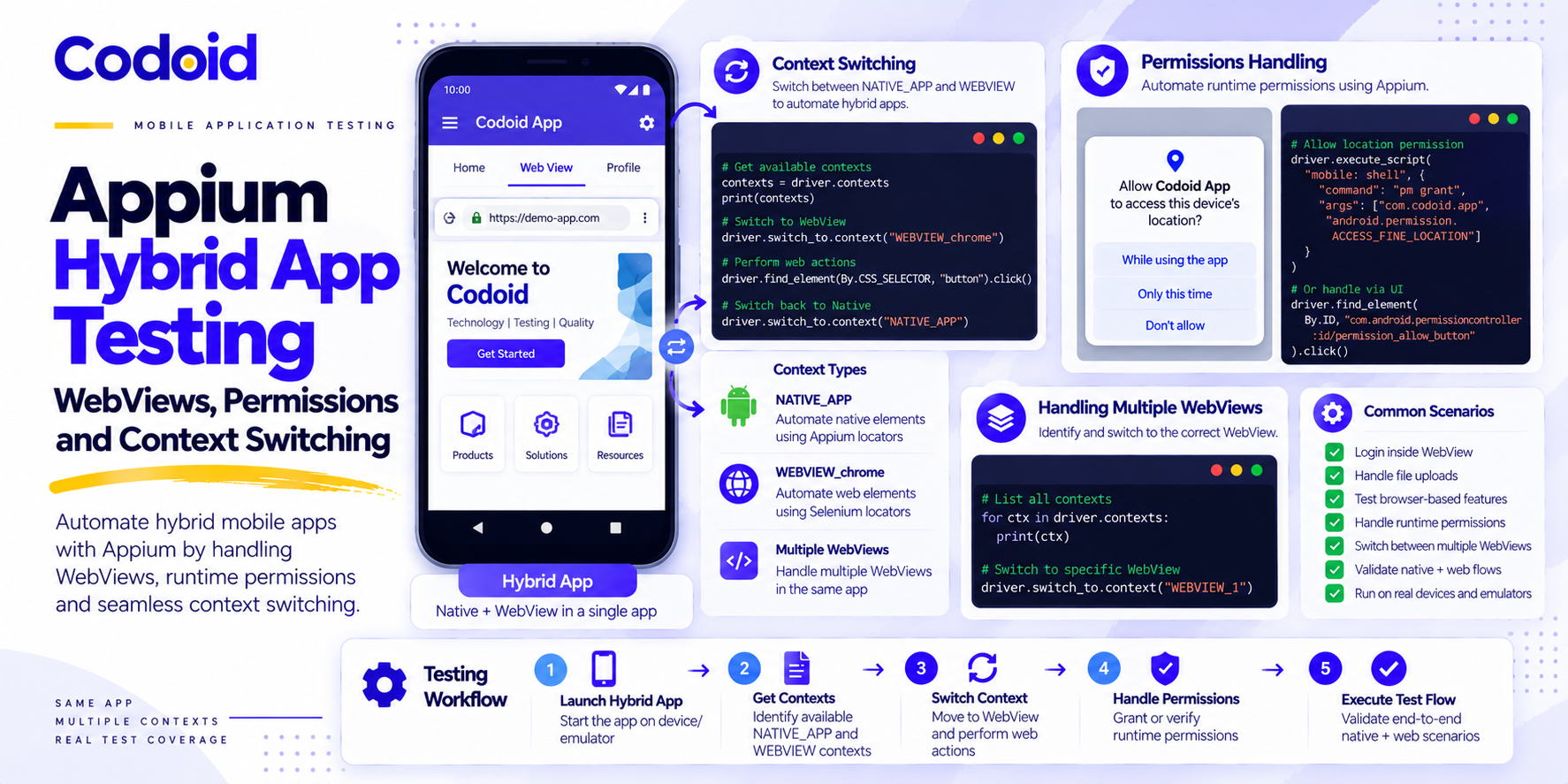
Your native-screen tests may be stable until a checkout, store finder, or account form opens inside a WebView. At that boundary, native locators no longer target the HTML page, and a successful context switch still does not guarantee that the right page or business record is ready. The reliable fix is to verify each transition, not merely make the error disappear. A hybrid mobile test can open a native screen, enter a WebView, trigger an operating-system permission prompt, and return to a native details screen within seconds. A successful Appium context switch does not prove the embedded page is ready, or that the same business record survived the transition. To test a hybrid app with Appium, first expose the WebView for inspection, discover its WEBVIEW context, switch to the correct page, verify a stable URL or page marker, perform the web action, then return to NATIVE_APP and assert the intended result. Android uses UiAutomator2 and ChromeDriver for Chromium-backed WebViews; iOS uses XCUITest with WebKit inspection. A successful Appium hybrid app testing strategy relies on understanding these mechanics.
Related Blogs
Android Background Restriction Testing: Doze, WorkManager & ADB
Local Network Testing: A QA Checklist for Mobile App Discovery
Table of Content
- 1. Quick start: switch from native to WebView in Python
- 2. Appium contexts, windows, and iframes
- 3. Android/iOS prerequisites and WebView inspection
- 4. Start a controlled Appium session
- 5. Select the right WebView and wait for readiness
- 6. Test operating-system and web-origin permissions
- 7. End-to-end store-finder flow and fixture contract
- 8. Diagnose failures and harden CI
1. Quick start: switch from native to WebView in Python
This five-step example is for a test build with exactly one target WebView and a known web origin. Complete the platform setup in Sections 3 and 4 first. For multiple WebViews, local content, or reused windows, use the identity-based helper in Section 5 instead of taking the first WEBVIEW entry.
- Step 1: Launch the app and keep the driver in NATIVE_APP.
- Step 2: Use a native accessibility locator to open the embedded web feature.
- Step 3: Wait for a WEBVIEW context, then switch; never assume contexts[1].
- Step 4: Confirm the intended origin and visible DOM marker before interacting.
- Step 5: Return to NATIVE_APP and verify the destination screen or business result.
from urllib.parse import urlsplit
from appium.webdriver.common.appiumby import AppiumBy
from selenium.webdriver.common.by import By
from selenium.webdriver.support.ui import WebDriverWait
from selenium.webdriver.support import expected_conditions as EC

wait = WebDriverWait(driver, 20)
driver.switch_to.context("NATIVE_APP")
wait.until(EC.element_to_be_clickable(
    (AppiumBy.ACCESSIBILITY_ID, "find-stores")
)).click()

web_context = wait.until(lambda d: next(
    (c for c in d.contexts if c.startswith("WEBVIEW")), False
))
driver.switch_to.context(web_context)

assert urlsplit(driver.current_url).hostname == "app.example.test"
wait.until(EC.visibility_of_element_located(
    (By.CSS_SELECTOR, '[data-testid="store-search"]')
))

# Perform a WebView action, then restore native automation.
driver.switch_to.context("NATIVE_APP")
wait.until(EC.visibility_of_element_located(
    (AppiumBy.ACCESSIBILITY_ID, "native-home")
))
This is a minimal teaching path, not a complete end-to-end business assertion. Its selector IDs, origin, and app behavior are placeholders. The production-minded strategy must also identify the right browser window, handle page recreation, and assert the selected record after returning to native mode.
2. Understand Appium contexts, browser windows, and iframes
Appium exposes NATIVE_APP and zero or more WEBVIEW contexts. NATIVE_APP searches the native UI hierarchy; WEBVIEW routes browser-oriented WebDriver commands to an inspectable web document. Switching contexts changes the automation target, it does not navigate the app or wait for a page to finish rendering. Appium Context Docs.
Native selectors and web selectors are different: use AppiumBy.ACCESSIBILITY_ID for an application-owned native accessibility identifier and By.CSS_SELECTOR for a stable HTML data-testid. Avoid coordinates, brittle absolute XPath paths, and translated strings when your team can expose intentional identifiers.
# Native screen
(AppiumBy.ACCESSIBILITY_ID, "find-stores")

# HTML element inside a WebView
(By.CSS_SELECTOR, '[data-testid="use-location"]')
Hybrid transition diagram: the destination must be asserted
- NATIVE_APP to WEBVIEW: store finder
- NATIVE_APP: permission prompt
- Native screen: URL + visible marker
- Expected OS prompt + choice
- NATIVE_APP: permission choice
- WEBVIEW: results
- NATIVE_APP: details
- Confirm decision
- Store ID present
- Same store ID + name
Diagram description: Open native navigation; enter the target WebView and check its identity; handle the expected operating-system prompt; re-enter the WebView and find a seeded result; verify that the same stable store ID appears in native details. An arrow denotes a boundary requiring a postcondition.
A WebView context is not an HTML iframe, and a browser window is not an Appium context. After selecting a WebView, use WebDriver window_handles for tabs/pages and switch_to.frame for frames. switch_to.default_content() returns to the top-level web document; switch_to.context(‘NATIVE_APP’) returns to native automation. Selenium Waits.
In short: contexts choose the automation mode (NATIVE_APP versus WEBVIEW); window handles choose a page or tab within the selected WebView; frame switching targets an iframe within that page. Switch to WEBVIEW first, then inspect window_handles. A simple hierarchy is: NATIVE_APP, WEBVIEW_chrome, window handle (main page or popup), iframe (if present).
3. Prepare Android and iOS WebViews for inspection
Proper inspection is a strict prerequisite for reliable Appium hybrid app testing.
Prerequisites and compatibility matrix
- Appium server: Android: Appium 3; Node.js ^20.19.0 or ^22.12.0 or >=24.0.0; npm 10+ | iOS: Appium 3; same Node/npm minimums
- Python examples: Android: Python 3.10+ (union/generic annotations) | iOS: Python 3.10+
- Platform driver: Android: UiAutomator2, Android SDK/ADB, Java, device or emulator | iOS: XCUITest, compatible macOS/Xcode, WebDriverAgent setup and signing
- Web inspection: Android: Debug/QA WebView inspection enabled | iOS: WKWebView inspection and Safari Web Inspector access
- Browser attach: Android: ChromeDriver to device WebView engine | iOS: XCUITest to WebKit connection
- State fixtures: Android: Permission history, location, seed data | iOS: Permission history, location, seed data
Node and npm requirements above are Appium 3 server requirements, not version claims about the UiAutomator2/XCUITest driver packages. Record and pin an actually tested combination of Appium server, both platform drivers, Python client, OS image, WebView engine, and build ID; do not invent a validated-version table. Appium Migration Guide, Appium Python Client.
Version scope: This article targets Appium Server 3 and Python 3.10 or later. Install the UiAutomator2/XCUITest drivers and Appium-Python-Client separately, then record the exact versions actually used by your project. The uploaded source does not establish a tested client/driver version matrix, so no exact client or driver versions are asserted here. Validate and pin the server, driver, client, OS, Xcode/SDK, and WebView/ChromeDriver combination before publication or CI rollout.
Capability naming: For Appium-specific capabilities in this Appium 3 guide, use the appium: vendor prefix (for example, appium:automationName and appium:autoWebview). Standard W3C capabilities such as platformName remain unprefixed.
Android: enable inspection only in the intended test build
For a genuine Android debug build, BuildConfig.DEBUG can gate WebView debugging. A dedicated QA flavor may be non-debuggable, so use an explicit QA-only build flag rather than assuming DEBUG is true. Configure the flag in the appropriate Gradle variant and keep it false in production. On WebView 113.0.5656.0 and later, Android automatically enables inspection when the application manifest declares android:debuggable=true; the explicit QA policy remains useful for clarity. Android WebView Docs.
import android.webkit.WebView;

// ENABLE_WEBVIEW_INSPECTION is generated for your QA build variant.
// Production variants must keep it false.
if (BuildConfig.ENABLE_WEBVIEW_INSPECTION) {
    WebView.setWebContentsDebuggingEnabled(true);
}
Preflight: open the feature on the device, confirm ADB sees the device (‘adb devices’), and inspect the page in desktop Chrome at chrome://inspect. If it is absent there, diagnose app/build inspection before changing Appium timeout values. A non-inspectable WebView can leave driver.contexts showing only NATIVE_APP. BrowserStack WebView Troubleshooting.
iOS: opt in to WKWebView inspection on supported OS versions
When linked against current WebKit SDKs, WKWebView.isInspectable is available on iOS 16.4 and later and defaults to false; guard it by OS availability. For apps linked against SDKs older than iOS 16.4, debug-build inspectability followed older behavior, so confirm both deployment OS and linked SDK. Enable Web Inspector on the device and check Safari’s Develop menu on the connected Mac. A working WebDriverAgent session alone does not prove WebKit attachment works. Apple Inspection Docs.
#if DEBUG
if #available(iOS 16.4, *) {
    webView.isInspectable = true
}
#endif
Map each Android WebView engine to a compatible ChromeDriver
ChromeDriver compatibility follows the Chromium/WebView engine installed on the test device, not the host computer browser and not simply the Android API level. Run ‘adb shell dumpsys webviewupdate’ to see the selected WebView provider, then inspect its actual version. For Chrome/WebView 115 or later, use Chrome for Testing build metadata to choose a compatible driver and record the mapping. ChromeDriver Version Selection.
- DEVICE/UDID: <emulator-A> | WEBVIEW ENGINE: <actual version> | CHROMEDRIVER BINARY: <server-host path/version> | VALIDATED: <date>
- DEVICE/UDID: <real-device-B> | WEBVIEW ENGINE: <actual version> | CHROMEDRIVER BINARY: <server-host path/version> | VALIDATED: <date>
For a homogeneous test pool, appium:chromedriverExecutable can point to a pinned driver on the Appium server host. For mixed engines, consider a tested appium:chromedriverExecutableDir strategy or carefully controlled automatic download. The appium-chromedriver project removed install-time auto-download in version 6; do not assume installing Appium will provision every required driver. appium-chromedriver.
# Controlled Appium 3 server on a trusted build agent:
appium server \
  --allow-insecure=uiautomator2:chromedriver_autodownload
That feature flag relaxes a narrow server security restriction. Do not use blanket relaxed-security mode on an untrusted or shared Appium endpoint. If using a cloud provider, follow its documented device/driver provisioning rather than injecting local machine paths. Appium Server Security.
Security warning: Enabling chromedriver_autodownload permits the Appium server to download and execute ChromeDriver binaries from the internet. Restrict it to trusted, isolated development/build agents and do not enable it on shared or production-facing Appium endpoints. For CI/CD and shared servers, pre-install compatible binaries and configure appium:chromedriverExecutable or appium:chromedriverExecutableDir instead.
4. Create a controlled Appium session
Install the server, platform drivers, and Python libraries separately; choose versions that your team has tested together. A local bootstrap is shown below. The XCUITest driver requires a supported Apple development environment for direct local device use.
npm install --global appium@3
appium driver install uiautomator2
appium driver install xcuitest
python -m pip install Appium-Python-Client pytest
node --version
npm --version
appium --version
appium driver list --installed
Driver factory for a local Appium server
This factory targets a locally reachable server at http://127.0.0.1:4723. appium:app and ChromeDriver paths are resolved by the Appium server machine, not by the Python test process when running remotely. Device clouds may instead require provider-specific uploaded-app references and capabilities. The factory deliberately begins in native mode and avoids automatic permission acceptance.
For WebView-first apps such as some Cordova, Ionic, or Capacitor applications, appium:autoWebview: true can request an automatic switch when the session starts. Keep it false when the test must first exercise native screens, and still verify the target context and page readiness. Creating a controlled session is the foundation of any Appium hybrid app testing framework.
from appium import webdriver
from appium.options.android import UiAutomator2Options
from appium.options.ios import XCUITestOptions

def create_driver(platform, app_ref, udid, chromedriver_path=None):
    common = {
        "appium:app": app_ref,
        "appium:udid": udid,
        "appium:autoWebview": False,
        "appium:noReset": False,
    }
    if platform == "android":
        if not chromedriver_path:
            raise ValueError("Set CHROMEDRIVER_PATH for this device.")
        options = UiAutomator2Options().load_capabilities({
            **common,
            "platformName": "Android",
            "appium:automationName": "UiAutomator2",
            "appium:autoGrantPermissions": False,
            "appium:chromedriverExecutable": chromedriver_path,
        })
    elif platform == "ios":
        options = XCUITestOptions().load_capabilities({
            **common,
            "platformName": "iOS",
            "appium:automationName": "XCUITest",
            "appium:autoAcceptAlerts": False,
            "appium:autoDismissAlerts": False,
        })
    else:
        raise ValueError(f"Unsupported platform: {platform}")

    driver = webdriver.Remote(
        "http://127.0.0.1:4723",
        options=options,
    )
    driver.implicitly_wait(0)
    return driver
Set implicit_wait(0) once in the session factory or shared fixture; never change it during each context polling attempt. noReset=false is not an adequate guarantee of first-install permission state, clean backend data, or cleared decision history. Use explicit state preparation for those conditions. Selenium Waits.
5. Discover, attach, and verify the correct WebView
Three-stage diagnostic sequence
- Discovery: driver.contexts contains at least one WEBVIEW candidate while the target feature is open.
- Attachment: switch_to.context succeeds, and a usable window_handles entry exposes a web document.
- Readiness: current_url matches the expected route and a visible, stable DOM marker identifies the intended screen.
Context names vary by platform and session. Android commonly exposes names such as WEBVIEW_com.example.app or WEBVIEW_chrome; iOS commonly exposes WEBVIEW_<process-id>. Treat these as examples, not guaranteed formats: discover contexts at runtime and match the WEBVIEW prefix rather than hardcoding a specific name.
For a typical HTTPS route, match exact hostname, optional path prefix, and the expected page marker. For file:, about:blank, custom schemes, or duplicated routes, use an application-specific page identifier rather than host-only matching. On iOS, driver-specific context metadata can help distinguish pages.
- HTTPS page: Exact host + pathname prefix + unique DOM marker
- Local file / app-local content: Expected URL scheme/path + unique screen marker
- about:blank / transient tab: Wait for navigation; do not accept generic markers
- Multiple identical windows: Stable record/page ID, window metadata, and app state
- Embedded iframe: WebView to window to frame; not a new Appium context
Reusable context helper: one target page, not contexts[1]
Call enter_webview(driver, host=’app.example.test’, marker='[data-testid=”store-search”]’, path_prefix=’/stores’). It returns the matching context name and leaves the driver on the correct window and top-level HTML document. This HTTPS helper is intentionally not a universal identifier for file: or custom-scheme pages. The core challenge in Appium hybrid app testing is reliably discovering and attaching to the correct WebView.
import logging
from urllib.parse import urlsplit
from appium.common.exceptions import NoSuchContextException
from selenium.common.exceptions import (
    NoSuchWindowException,
    StaleElementReferenceException,
    TimeoutException,
)
from selenium.webdriver.common.by import By
from selenium.webdriver.support.ui import WebDriverWait

log = logging.getLogger(__name__)
NATIVE = "NATIVE_APP"

def enter_webview(driver, *, host, marker, path_prefix=None, timeout=30):
    seen = []
    last_transient = None

    def probe(d):
        nonlocal seen, last_transient
        d.switch_to.context(NATIVE)
        seen = d.contexts
        for context in seen:
            if not context.startswith("WEBVIEW"):
                continue
            try:
                d.switch_to.context(context)
                for handle in d.window_handles:
                    d.switch_to.window(handle)
                    d.switch_to.default_content()
                    page = urlsplit(d.current_url)
                    if page.hostname != host:
                        continue
                    if path_prefix and not page.path.startswith(path_prefix):
                        continue
                    matches = d.find_elements(By.CSS_SELECTOR, marker)
                    if any(el.is_displayed() for el in matches):
                        return d.current_context
            except (
                NoSuchContextException,
                NoSuchWindowException,
                StaleElementReferenceException,
            ) as exc:
                last_transient = type(exc).__name__
                log.debug("Transient WebView discovery: %s", exc)
        d.switch_to.context(NATIVE)
        return False

    try:
        return WebDriverWait(
            driver, timeout, poll_frequency=0.5
        ).until(probe)
    except TimeoutException as exc:
        raise TimeoutException(
            f"No ready WebView: host={host!r}, "
            f"path={path_prefix!r}, marker={marker!r}; "
            f"contexts={seen}; transient={last_transient}"
        ) from exc
Retry only known transient discovery failures. Do not silence every WebDriver exception: broken sessions, invalid selectors, or incompatible drivers should remain visible. Keep element lookups fresh after page replacement and WebView recreation. The wait timeout does not cancel a longer underlying Appium command.
Iframe handling and application readiness
from selenium.webdriver.support import expected_conditions as EC

# After selecting a WebView and appropriate browser window:
WebDriverWait(driver, 10).until(
    EC.frame_to_be_available_and_switch_to_it((
        By.CSS_SELECTOR, 'iframe[data-testid="payment-frame"]'
    ))
)

# Interact inside the frame.
driver.switch_to.default_content()  # Top-level HTML document
driver.switch_to.context("NATIVE_APP")  # Native application UI
A fully loaded document can still be waiting for API data or client-side rendering. Wait for a business indicator such as a unique store ID or an enabled action, not simply for document.readyState=’complete’ or a vanished spinner. Use explicit waits consistently. Selenium Waits.
6. Test permissions as explicit operating-system and WebView states
Permission testing should not amount to accepting whatever alert appears. Separate a feature test needing a known grant from a dedicated permission-behavior test that must display the correct prompt, choose the intended option, and observe an explicit success or denial state. Handling these states correctly is critical for reliable Appium hybrid app testing.
Which layer initiates the permission request?
- Native bridge/plugin: HTML calls an app-owned native location or camera API. Test the OS permission state, bridge return value, and fallback.
- WebView browser API: HTML calls navigator.geolocation or getUserMedia. Test OS grant and the embedded origin’s permission handler.
- External picker/browser: Test the system UI and verified return or cancellation. The store-finder integration example below uses a native bridge, not navigator.geolocation.
Android and iOS permission-state matrix
- First request: Android: Clear grant and permission decision flags where needed; verify dialog | iOS: Reset supported permission, then verify the initial alert
- Already granted: Android: Pre-grant eligible runtime permission | iOS: Simulator permission JSON or supported setup route
- Denied: Android: Select inspected deny option; assert fallback and no false success | iOS: Select named alert button; assert denial fallback
- Once / limited: Android: Verify available temporary or approximate location controls | iOS: Test available While Using, Once, or limited controls
- Web-origin grant: Android: Check WebChromeClient origin/resource callback in addition to OS grant | iOS: Check embedded WebKit and origin behavior
Android appium:autoGrantPermissions prepares supported runtime permissions; it is not a substitute for testing the dialog. UiAutomator2’s mobile: changePermissions supports supported pm/appops operations. A permission change or reset may stop the app. A revoked grant does not necessarily recreate a truly first-ever prompt unless the relevant decision history is also reset. UiAutomator2 Driver.
# Fixture setup only: Android app-level grant
driver.execute_script("mobile: changePermissions", {
    "appPackage": "com.example.hybrid",
    "permissions": [
        "android.permission.ACCESS_COARSE_LOCATION",
        "android.permission.ACCESS_FINE_LOCATION",
    ],
    "action": "grant",
    "target": "pm",
})
On iOS Simulator, appium:permissions expects a JSON string, not a Python dictionary. This is distinct from XCUITest mobile: resetPermission, which supports configured resources on eligible simulators and real devices. Do not pre-grant permissions in a first-request prompt scenario. XCUITest Execute Methods.
import json

ios_permissions = json.dumps({
    "com.example.hybrid": {"location": "yes"}
})

# Only for intentional Simulator pre-grant capability:
# "appium:permissions": ios_permissions

driver.execute_script("mobile: resetPermission", {
    "service": "location"
})
Validate the prompt identity and the intended choice
System permission UI depends on OS version, language, and sometimes Android OEM. A permission adapter should require an inspected message locator and choice button on Android; on iOS, require a known alert fragment and the expected button from mobile: alert getButtons. Never dismiss an unrelated alert merely because a test is waiting for location permission. For precise/approximate and once/while-using semantics, verify the result separately.
from appium.webdriver.common.appiumby import AppiumBy
from selenium.webdriver.support import expected_conditions as EC

def respond_to_location_prompt(driver, cfg):
    driver.switch_to.context("NATIVE_APP")
    wait = WebDriverWait(driver, 15)
    platform = driver.capabilities["platformName"].lower()
    expected = cfg["expected_prompt_fragment"].casefold()

    if platform == "android":
        message = wait.until(EC.visibility_of_element_located((
            AppiumBy.ID, cfg["android_message_id"]
        )))
        if expected not in message.text.casefold():
            raise AssertionError("Unexpected Android permission prompt")
        wait.until(EC.element_to_be_clickable((
            AppiumBy.ID, cfg["android_choice_button_id"]
        ))).click()
    elif platform == "ios":
        alert = wait.until(EC.alert_is_present())
        if expected not in alert.text.casefold():
            raise AssertionError("Unexpected iOS permission prompt")
        buttons = driver.execute_script(
            "mobile: alert", {"action": "getButtons"}
        )
        label = cfg["ios_choice_label"]
        if label not in buttons:
            raise AssertionError(f"Unexpected buttons: {buttons}")
        driver.execute_script("mobile: alert", {
            "action": "accept",
            "buttonLabel": label,
        })
    else:
        raise ValueError(f"Unsupported platform: {platform}")
Configure android_message_id, android_choice_button_id, expected_prompt_fragment, and ios_choice_label from an inspected target. A first-permission test must fail if the expected prompt is absent; a denial test must prove the application’s fallback. Avoid using one global ‘accept all’ capability.
Worked browser-origin geolocation check (a different path)
If HTML invokes navigator.geolocation.getCurrentPosition rather than a native bridge, prepare the intended OS grant and embedded-origin policy, then exercise the browser API and verify the page’s explicit success or denial status. This illustrative UI contract assumes a trusted /web-location route with app-owned test markers; it does not replace the store-finder bridge scenario.
enter_webview(driver, host="app.example.test",
              path_prefix="/web-location",
              marker='[data-testid="web-geolocation"]')

driver.find_element(
    By.CSS_SELECTOR, '[data-testid="request-web-location"]'
).click()

state = WebDriverWait(driver, 15).until(
    lambda d: (
        d.find_element(By.CSS_SELECTOR, '[data-testid="geo-status"]')
        .get_attribute("data-state")
    ) in {"granted", "denied"}
)
assert state is True  # Then assert the expected specific state.
An Android WebChromeClient handler should allow only appropriate resources for a trusted origin and reject unexpected resources; WebView geolocation has its own callback. Expose a deterministic denial indicator rather than assuming that an OS grant guarantees browser-origin access. WebChromeClient Docs.
7. Cross-platform store-finder journey: fixtures and assertions
Scenario: from native home, open the store finder WebView, invoke a native location bridge, handle the expected OS location prompt, select seeded Store 42 inside the WebView, and verify that native details display the same stable record ID and name. This cross-platform journey demonstrates a full Appium hybrid app testing scenario.
Fixture contract: required before the example can run
- FIXTURE / ENVIRONMENT: PLATFORM | REQUIRED CONTRACT: android or ios
- FIXTURE / ENVIRONMENT: DEVICE_UDID | REQUIRED CONTRACT: Exclusive device/simulator per worker
- FIXTURE / ENVIRONMENT: APP_REF | REQUIRED CONTRACT: Server-side app path or cloud-provider ref
- FIXTURE / ENVIRONMENT: CHROMEDRIVER_PATH | REQUIRED CONTRACT: Android: engine-compatible server path
- FIXTURE / ENVIRONMENT: PERMISSION_PROMPT_CONFIG_JSON | REQUIRED CONTRACT: Inspected platform dialog and intended choice
- FIXTURE / ENVIRONMENT: qa_state | REQUIRED CONTRACT: Team-owned device/backend state adapter
- FIXTURE / ENVIRONMENT: store-42 | REQUIRED CONTRACT: Seeded unique store ID + display name
- FIXTURE / ENVIRONMENT: LOCATION_SEED | REQUIRED CONTRACT: Fixed coordinates within store coverage
The next fixtures provide pytest scaffolding for environment parsing, lifecycle, and prompt configuration. Their device/app values must be supplied. qa_state is an explicit integration point, not a standard Appium fixture. Your application team must implement its seed, reset, location, and cleanup methods. The store-finder example below is schematic until verified on an actual Android/iOS build; no device-run success is claimed.
# conftest.py: common pytest infrastructure
import json
import os
import pytest

@pytest.fixture
def driver():
    platform = os.environ["PLATFORM"].lower()
    d = create_driver(
        platform=platform,
        app_ref=os.environ["APP_REF"],
        udid=os.environ["DEVICE_UDID"],
        chromedriver_path=os.getenv("CHROMEDRIVER_PATH"),
    )
    try:
        yield d
    finally:
        d.quit()

@pytest.fixture
def permission_ui():
    return json.loads(
        os.environ["PERMISSION_PROMPT_CONFIG_JSON"]
    )
State adapter contract: seed data and reset permission history
Before exercising the first-request workflow, the device/backend adapter must set known coordinates, create the uniquely identifiable record, reset the OS permission request history (including prior denial), prepare the intended login state, and relaunch the app after resets when required. Its finalizer must clean seeded backend data. Isolate records and device state per parallel worker.
# Application-owned fixture contract (schematic).
# Implement 'qa_state' against your backend / device lab.
@pytest.fixture
def prepared_store(qa_state):
    qa_state.seed_store(
        store_id="store-42",
        display_name="Test Store 42",
        near=(12.95, 80.24),
    )
    qa_state.set_location(latitude=12.95, longitude=80.24)
    qa_state.reset_location_request_history()
    try:
        yield {"id": "store-42", "name": "Test Store 42"}
    finally:
        qa_state.delete_store("store-42")
        qa_state.clean_location_state()
Coordinate fixture ordering with session setup: an OS grant-state reset may stop an already running application, and some provider resets require an active session. On completion, verify that the test operated against the intended seed and the right build. Do not publish a fictional repository URL or a ‘validated on devices’ statement until the team runs this implementation.
End-to-end test: assert record identity across WEBVIEW to NATIVE_APP
def test_nearby_store(driver, permission_ui, prepared_store):
    expected_id = prepared_store["id"]
    expected_name = prepared_store["name"]
    wait = WebDriverWait(driver, 20)

    driver.switch_to.context("NATIVE_APP")
    wait.until(EC.element_to_be_clickable((
        AppiumBy.ACCESSIBILITY_ID, "find-stores"
    ))).click()

    enter_webview(
        driver, host="app.example.test",
        path_prefix="/stores",
        marker='[data-testid="store-search"]'
    )

    wait.until(EC.element_to_be_clickable((
        By.CSS_SELECTOR, '[data-testid="use-location"]'
    ))).click()

    # The WebView action invokes the app's native bridge.
    respond_to_location_prompt(driver, permission_ui)

    enter_webview(
        driver, host="app.example.test",
        path_prefix="/stores",
        marker='[data-testid="store-results"]'
    )

    store = wait.until(EC.element_to_be_clickable((
        By.CSS_SELECTOR, '[data-store-id="store-42"]'
    )))
    assert store.get_attribute("data-store-id") == expected_id
    store.click()

    driver.switch_to.context("NATIVE_APP")

    actual_id = wait.until(EC.visibility_of_element_located((
        AppiumBy.ACCESSIBILITY_ID, "store-id"
    ))).text
    actual_name = wait.until(EC.visibility_of_element_located((
        AppiumBy.ACCESSIBILITY_ID, "store-name"
    ))).text

    assert actual_id == expected_id
    assert actual_name == expected_name
The application must expose a stable store ID (for example, via a test-oriented accessibility property) on native details. Display text alone is not a unique record identifier. Replace app.example.test, test IDs, route prefix, and permission profiles with verified target-app values.
Minimum cross-platform behavioral matrix
- First-request accepted: Correct prompt, expected choice, same store ID
- Permission denied: Explicit fallback; no incorrect location success
- Already granted: Feature works without an unnecessary prompt
- Temporary or limited: Feature respects granted scope and later change
- Native modal cancelled: WebView resumes without false confirmation
- Background/resume: Expected state restored; no duplicate operation
- Web-origin denied: Page fallback, independent of OS grant
Related Blogs
Appium Locator Strategy: Accessibility IDs, Native Selectors, and XPath
Outsourced Mobile App Testing: Scope, Deliverables, Timelines & SLAs
8. Diagnose WebView failures and harden mobile CI
Use Appium Inspector and platform WebView tools
Appium Inspector (https://github.com/appium/appium-inspector) helps you explore the native hierarchy, inspect available contexts, and examine elements interactively before automating them. For Android, open chrome://inspect/#devices in desktop Chrome and inspect the target WebView DOM. For iOS, enable Web Inspector and use Safari’s Develop menu to select the connected simulator or device. Confirm the page, context, and selectors in these tools before changing waits or rewriting locators.
For example, a ChromeDriver mismatch may produce an error such as: “session not created: This version of ChromeDriver only supports Chrome version 114.” The version number is illustrative, not a claim about a current release. Compare the device’s actual WebView/Chromium version with the server-side ChromeDriver and choose a compatible binary.
Troubleshooting: symptom, likely cause, first check
- Symptom: Only NATIVE_APP | Likely Cause: WebView closed or not inspectable | First Check: Chrome inspect or Safari Develop; QA/debug build flag
- Symptom: WEBVIEW exists, attach fails | Likely Cause: Driver mismatch or WebKit connection | First Check: Android engine vs ChromeDriver; iOS WebKit logs
- Symptom: Wrong web page after switch | Likely Cause: Multiple windows/contexts | First Check: Match host, path, stable marker
- Symptom: URL correct, control missing | Likely Cause: Frame or async rendering | First Check: Check window, iframe and API
- Symptom: Prompt unexpectedly absent | Likely Cause: Previous permission state | First Check: Reset decisions; inspect state
- Symptom: OS grant, browser API fails | Likely Cause: Web-origin permission gate | First Check: Inspect WebChromeClient/WKWebView
- Symptom: Fails only in parallel CI | Likely Cause: Shared ports or seeded data | First Check: Per-worker device, ports, records
Capture the current context, discovered contexts, screenshot, relevant server/driver logs, and sanitized page metadata before cleanup. Avoid uploading raw page source or URL query parameters without data redaction. Screenshots themselves may contain credentials or personal data; apply least-privilege access and retention controls. BrowserStack WebView Troubleshooting, Codoid Appium Debugging Guide.
Safe pytest failure-artifact hook
This defensive example captures a screenshot and context names without masking the original exception when evidence collection fails. Use a CI artifacts directory and a unique test identifier. Treat all screenshots as potentially sensitive.
# conftest.py: best-effort evidence after failed test call
from pathlib import Path
import re

@pytest.hookimpl(hookwrapper=True)
def pytest_runtest_makereport(item, call):
    outcome = yield
    report = outcome.get_result()
    if report.when != "call" or not report.failed:
        return
    d = item.funcargs.get("driver")
    if d is None:
        return
    name = re.sub(r"[^A-Za-z0-9_.-]", "_", item.nodeid)
    output = Path("artifacts") / name
    output.mkdir(parents=True, exist_ok=True)
    try:
        d.save_screenshot(str(output / "failure.png"))
    except Exception:
        pass  # Keep the original test failure.
    try:
        (output / "contexts.txt").write_text(
            f"current={d.current_context}\ncontexts={d.contexts}\n",
            encoding="utf-8",
        )
    except Exception:
        pass
Record exact server/driver/client/device versions in CI metadata and pin validated combinations. In parallel Android execution, isolate systemPort and ChromeDriver port ranges; on iOS, isolate wdaLocalPort, derivedDataPath and related ports as required by the driver. Use separate backend records and permission/location fixtures per worker. UiAutomator2 Driver, XCUITest Hybrid Guide.
Retry observations, not irreversible actions
Polling for WEBVIEW discovery, a visible result, or a completed condition is reasonable. Do not blindly replay checkout, order submission, payments, or document upload after an ambiguous failure. First determine whether the operation already succeeded; use an application idempotency design when available. Keep business retries separate from synchronization retries.
Bad (fragile): switch immediately to a guessed context name, for example driver.switch_to.context(“WEBVIEW_1”). This assumes the context exists and has a stable name.
Good (robust): poll driver.contexts with WebDriverWait until a WEBVIEW context is available, then verify the expected URL/route and a visible, unique DOM marker. Use the identity-based enter_webview() helper in Section 5 when multiple contexts or windows are possible. Diagnosing failures efficiently is essential for robust Appium hybrid app testing.
Conclusion: verify the business result across every boundary
Reliable Appium hybrid app testing requires inspectable WebViews, compatible Android/iOS attachment, deliberate page identity, explicit readiness conditions, and reproducible permission states. Re-discover web controls after native dialogs or page recreation, and keep platform-specific UI behind small adapters. A successful store-finder test should prove that the unique store ID selected in the WebView is the same ID shown on the native details screen. Merely reaching WEBVIEW, or getting a green rerun, does not establish that the user journey worked.
Next step for mobile QA teams
Use the fixture contract, permission matrix, and symptom checklist in this article to review your hybrid-app regression suite. Codoid provides mobile test automation design, cross-platform regression coverage, and Appium reliability troubleshooting. Explore Codoid Mobile Test Automation services, its Appium 3 migration guide, and its Appium debugging guide. You can also check our broader mobile application testing services.

Struggling with Flaky Hybrid App Tests?
Talk to a Mobile QA ExpertFrequently Asked Questions
-
Why does Appium show only NATIVE_APP?
The WebView might not be open, might not be inspectable, or may lack a working platform debugging connection. Check QA build flags and Chrome DevTools/Safari Web Inspector before increasing wait times.
-
How do I switch from NATIVE_APP to a WebView in Python?
Wait until driver.contexts contains the intended WEBVIEW context, switch to it, select the correct window if needed, and assert the expected URL/route and a unique visible DOM marker. Avoid contexts[1] assumptions.
-
Can one ChromeDriver automate all Android WebViews?
No. Its compatibility must match the Chromium/WebView engine used on each Android device. Maintain a tested engine-to-driver mapping, or use a controlled discovery strategy that provisions compatible drivers.
-
Why does iOS XCUITest find native controls but not WKWebView content?
WebDriverAgent/native automation and WebKit inspectability are separate prerequisites. Check linked SDK and OS behavior, isInspectable where available, device Safari Web Inspector, and XCUITest hybrid attachment logs.
-
Is an iframe another Appium context?
No. Enter the appropriate WebView context and window first; then use standard WebDriver frame switching. switch_to.default_content() stays in the web context, while switch_to.context('NATIVE_APP') restores native automation.
-
Why can geolocation fail when OS permission is granted?
The embedded page may invoke a browser API with a separate origin-level decision or WebChromeClient callback. Identify whether the feature uses a native bridge, web API, or external picker, and verify the relevant denial/success state.
-
How can I reliably test the first permission prompt?
Reset supported grant and decision history to a genuinely not-requested state, relaunch if needed, verify that the expected OS prompt and choice are present, then assert the resulting behavior. Revocation alone may not reproduce a first-ever request.

























Comments(0)