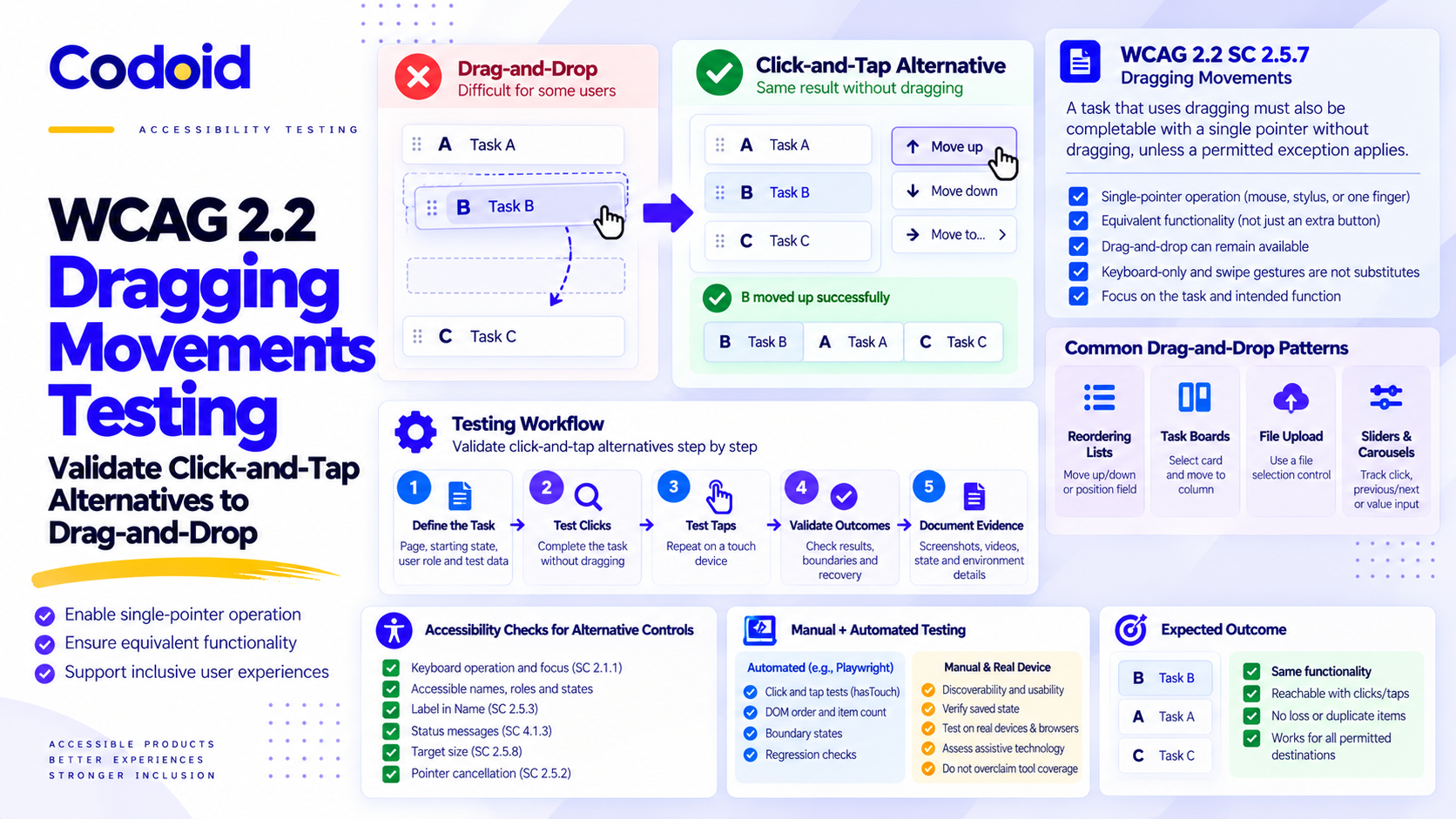
WCAG 2.2 dragging movements testing checks whether a task that uses dragging can also be completed with a single pointer without dragging, unless a permitted exception applies. Under the Web Content Accessibility Guidelines (WCAG) 2.2, Success Criterion (SC) 2.5.7 is a Level AA requirement focused on functionality, not merely the presence of an extra button. This matters because some people cannot reliably maintain pointer contact while moving an item. Click-and-tap alternatives let them complete the underlying task without that movement.
For QA, the practical question is: can a person reach the same result using clicks or taps? This guide covers desktop and mobile web interfaces. Its lists, task boards, and test data are illustrative, not client results. The focus is dragging alternatives, not a complete WCAG audit.
Related Blogs
Single-Page Application Accessibility: How to Test Keyboard Navigation, Focus, and ARIA
Table of Content
- What Does WCAG 2.2 SC 2.5.7 Require?
- Which Dragging Interactions Need an Alternative?
- Click-and-Tap Alternatives for Common Patterns
- How to Test Dragging Alternatives Step by Step
- Check the Accessibility of the Alternative Controls
- Automate Regression Checks Without Overclaiming Coverage
- How to Document a Dragging Movements Failure
- Release Checklist for Dragging Alternatives
What Does WCAG 2.2 SC 2.5.7 Require?
Dragging, single-pointer operation, and equivalent functionality
Dragging involves engaging an element, keeping the pointer pressed while repositioning it, and releasing it. A single pointer targets one location at a time, such as a mouse pointer, stylus, or one finger.
Single pointer does not mean single click. A user may select an item, open a destination menu, and select its new location through separate activations. W3C Technique G219 describes this approach. Techniques illustrate ways to satisfy WCAG; they are not mandatory implementation recipes.
Drag-and-drop can remain available. An equivalent non-dragging control may be a different component on the same page. Test the operation it enables: moving a card between columns is not necessarily the same function as reordering cards within a column.
Why keyboard support and swipe gestures are not interchangeable alternatives
Keyboard shortcuts alone do not satisfy SC 2.5.7. Pointer and keyboard accessibility are evaluated independently. A text field beside a slider can qualify as a pointer alternative because touch users can enter a value through an on-screen keyboard.
Do not substitute a swipe-only control. SC 2.5.1 separately addresses path-based and multipoint gestures; a path-based gesture depends on a particular movement path, whereas a dragging interaction need not. Some interactions require assessment against both criteria.
For the pointer test, avoid hardware-keyboard shortcuts. Test the text field’s actual touch-entry workflow rather than assuming that a successful automated value assignment proves it usable.
Which Dragging Interactions Need an Alternative?
Inventory authored interactions and their available actions
Create an inventory by function, not just by component. For each interaction, record the page, starting state, user role, permitted destinations or values, existing alternative, and evidence location.
For a task board, list cross-column moves, within-column ordering, and multi-item moves separately. For a slider, record its minimum, maximum, increments, and whether there are multiple handles. Include controls revealed only after selection and layouts that change at mobile widths.
Do not exempt a third-party widget merely because your team did not write its code. That is not one of SC 2.5.7’s stated exceptions. Identify who can fix it, but assess the user-facing operation.
Evaluate essential dragging and user-agent exceptions
“Essential” means removing the interaction would fundamentally change the information or functionality, with no conforming alternative. A preferred design or an expensive redesign is not, by itself, that justification.
Record the claimed exception, the underlying task, alternatives considered, and the reviewer’s rationale. Keep unresolved claims pending rather than marking them passed.
Illustrative decision: a team says a custom drag-only task board is “essential” because replacing its library is costly. Reject that rationale: changing the interaction need not change the task of moving a card, and a destination menu is a possible alternative. Unmodified browser scrolling is different because the browser supplies the interaction. Review the actual function; do not give maps, games, or drawing tools blanket exemptions.
Browser-provided scrolling, including ordinary CSS overflow scrolling, is outside this criterion’s scope. Content that suppresses native scrolling or implements its own scrolling mechanism must be assessed. The distinction is who implements the operation, not whether the interface visually resembles a scrollbar.
Click-and-Tap Alternatives for Common Drag-and-Drop Patterns
Reordering, moving items, and uploading files
W3C describes stepwise movement controls and destination menus. MDN demonstrates a file input alongside a drop zone. The list below contains recommended functional assertions, not additional WCAG requirements.
- Interaction: Sortable list | Candidate alternative: Move Up/Move Down controls or a position field | What to verify: The selected item reaches the intended position without losing or duplicating items.
- Interaction: Task board | Candidate alternative: Select a card, open Move to, and choose a column | What to verify: All permitted destinations remain reachable; assess within-column ordering separately.
- Interaction: File upload | Candidate alternative: A labeled file-selection control | What to verify: Equivalent accepted files, multi-file behavior where supported, validation, and upload outcomes.
For uploads, test the real file-picker entry point. Setting files directly through an automation API does not test whether a person can discover and activate that entry point.
Sliders, carousels, maps, and selection areas
W3C examples include track activation, directional map controls, and selecting rectangle corners separately. Its gesture guidance also illustrates previous/next controls for carousels.
- Interaction: Range slider | Candidate alternative: Tap the track, use increment controls, or enter a value | Recommended equivalence check: Required values and precision remain available; test limits and both handles where present.
- Interaction: Draggable carousel | Candidate alternative: Previous/Next buttons or slide selectors | Recommended equivalence check: Every relevant slide is reachable, including first/last behavior.
- Interaction: Map panning | Candidate alternative: Directional controls | Recommended equivalence check: Users can reach the required area; zoom controls alone do not perform panning.
- Interaction: Selection rectangle | Candidate alternative: Activate selection mode, then select opposite corners | Recommended equivalence check: The intended region can be selected, changed, and canceled without holding contact.
Avoid treating a control’s presence as proof of equivalence. For example, test a slider’s meaningful intermediate values, not only its endpoints. For a long list, also review whether repeated movement controls create unreasonable effort; record that usability concern separately from the criterion decision.
How to Test Dragging Alternatives Step by Step
Establish the baseline, then run mouse-only and touch-only tests
G219’s core procedure is to find dragging functions and check for a non-dragging single-pointer way to operate the same function. Expand that into the following recommended test workflow:
- Define the task and starting state. Record the build, browser, operating system, viewport, input method, permissions, and fixture data, the known starting dataset. Use synthetic items A, B, C and an authorized editor for the list example.
- Establish the expected result. Use the product requirement and, where useful, a separate drag run. Moving B before A should produce B, A, C. Reset before testing the alternative so the drag run cannot contaminate the result.
- Complete the alternative using clicks only. Open any required controls, perform the move, and confirm it where necessary. Do not use dragging or keyboard shortcuts to finish part of the task.
- Reset and repeat with taps on a supported touch device. Follow the touch-specific entry path. Check the resulting item order or destination, not merely a success message. Where saving is part of the task, verify the persisted state too.
Keep a separate keyboard-only run and assistive-technology run. Their results provide additional coverage; they should not replace the pointer-only evidence.
If the alternative appears only on hover, actively test how a touch user exposes it. If movement requires a menu, confirmation dialog, or save action, the pointer-only run must include those steps.
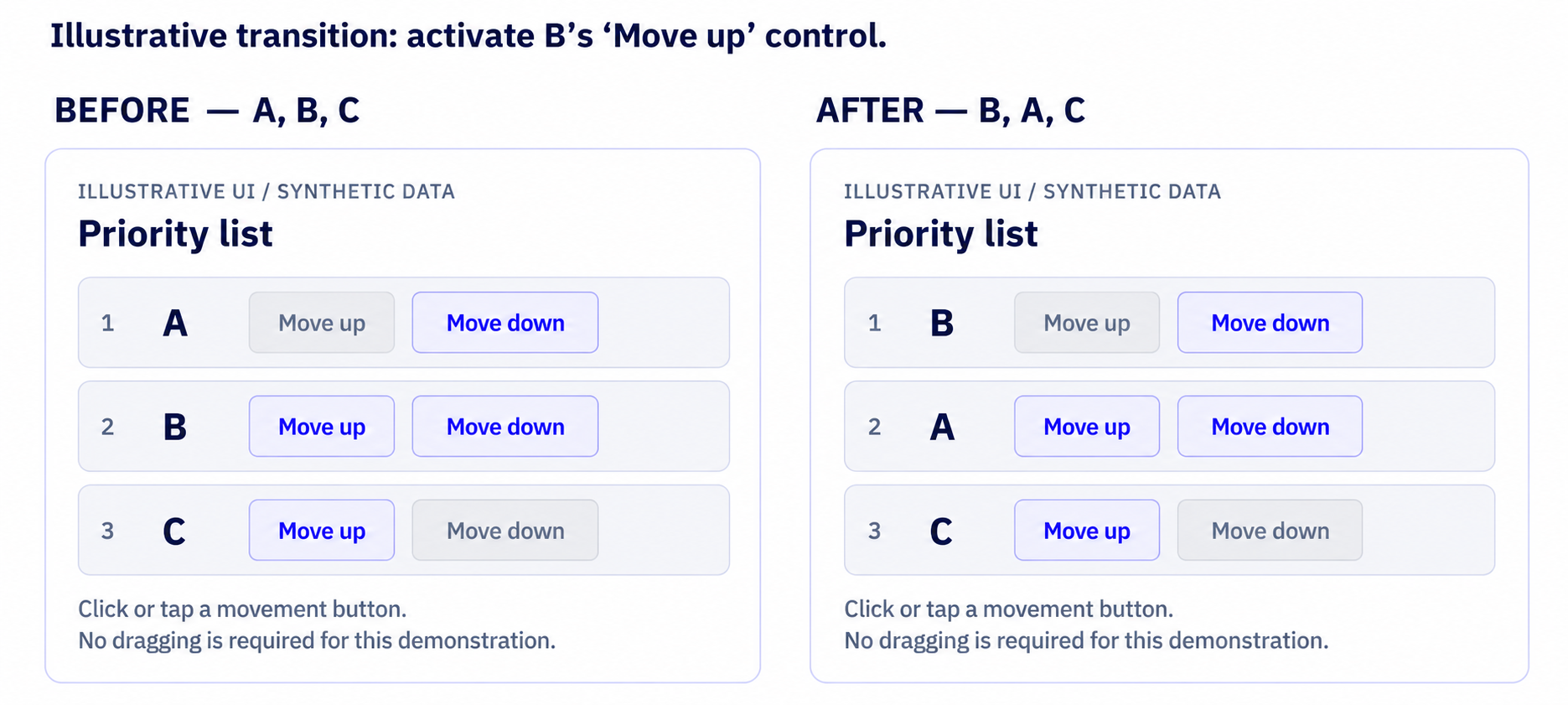
(Figure 1 description: Separate synthetic local UI captured before and after a click on B’s Move up button. The expected result is B, A, C with three items. This is not a client interface or evidence that the integration template below was executed.)
Validate equivalent outcomes, boundaries, and recovery
For an illustrative task board, start with T-17 in To Do and permission to move it to In Progress. Open Move to, select In Progress, and confirm if required. Verify that T-17 appears once in the destination, disappears from the source, and retains its title and identifier. If the move is saved, confirm it through the application’s source-of-truth record, such as an authoritative read API or permitted stored-record inspection; reloading the view is an additional check.
Keep three outcomes distinct: visible layout, Document Object Model (DOM) order, the order of elements in the page structure, and saved business order. A label-text assertion does not prove the visible layout or saved record matches it. Where order affects meaning, separately assess whether a correct reading sequence is programmatically determinable under SC 1.3.2.
Start with the core cases below. When batch movement is available, test selection and deselection as part of the pointer-only task, not just the Move to menu. G219 includes a multi-item selection pattern; the detailed assertions below are testing recommendations.
Core equivalence checks:
- Scenario: List movement | Input or action: Move B up in A, B, C; then move it down | Expected outcome and evidence: B, A, C, then A, B, C; unchanged identities and count. Capture before/after state.
- Scenario: List boundaries | Input or action: Inspect first-item Up and last-item Down | Expected outcome and evidence: Boundary behavior matches the design; no accidental wraparound or invalid position. Capture control states.
- Scenario: Empty destination | Input or action: Move T-17 into an empty permitted column | Expected outcome and evidence: The destination remains selectable and contains exactly T-17 after the move.
- Scenario: Pointer-only batch move | Input or action: With T-17, T-18, T-19 in To Do, click/tap-select T-17 and T-19; deselect T-19, reselect it, then move the selection to In Progress. | Expected outcome and evidence: Selection changes from {T-17, T-19} to {T-17}, then back to {T-17, T-19}. No modifier keys or lasso drag. Exactly those two items move once; T-18 stays unchanged. Capture selection states, IDs, counts, and destinations; check saved records when applicable.
- Scenario: Permissions | Input or action: Compare editor and read-only roles | Expected outcome and evidence: The alternative respects the same authorization rules; record any inconsistent availability or server response.
- Scenario: Cancellation | Input or action: Open Move to, choose a destination if staged, then cancel | Expected outcome and evidence: No committed move for a cancel-before-commit design; the card remains in its original location.
Extended regression checks:
Use these cases when the product saves changes or supports concurrent editing. They test the product’s recovery policy; they are not automatically separate SC 2.5.7 failures.
- Scenario: Repeated activation | Input or action: Repeat an absolute Move to In Progress submission while saving | Expected outcome and evidence: No duplicate card or duplicate business effect. For relative Move Up, verify the documented number of accepted moves instead.
- Scenario: Timeout or failed save | Input or action: Interrupt or delay the save in a controlled test environment | Expected outcome and evidence: No false saved state; an understandable error or pending state appears, with a pointer-operable recovery path.
- Scenario: Concurrent change | Input or action: Change the card from a second authorized session before confirming | Expected outcome and evidence: The documented conflict policy applies, and the UI reconciles with the authoritative state rather than silently displaying stale success.
Do not assume every timeout means the server rejected the move: check the saved state before retrying. Avoid prescribing rollback when the product legitimately retains a marked pending operation. Record the expected recovery policy before the test.
Classify the finding by the task that is blocked. A broken save is not automatically a dragging alternative failure.
Check the Accessibility of the Alternative Controls
Keyboard operation, focus, names, and feedback
A click-and-tap alternative needs its own accessibility checks. Evaluate keyboard operation under SC 2.1.1, rather than treating an SC 2.5.7 pass as keyboard evidence.
After a move, inspect the next focus position and subsequent navigation. Focus order must preserve meaning and operability; WCAG does not prescribe one universal destination after every reorder. Check visible keyboard focus and whether author-created content entirely obscures the focused component under the relevant focus criteria.
For controls, verify programmatically available names, roles, and relevant states. Give an icon-only movement button an appropriate accessible name, and inspect expanded/collapsed menu states and disabled boundaries.
Where a control has visible text, also check SC 2.5.3, Label in Name: its accessible name must contain that text. For visible “Move up,” the illustrative name “Move up: B” preserves the label and identifies the item. Starting the name with the label is a best practice, not a separate mandatory ordering rule. Inspect the actual computed name; an icon-only control has no visible-text label to compare.
Where the UI displays a non-focus-taking status such as “Moved to In Progress” or “Save failed,” assess its programmatic exposure under SC 4.1.3. This criterion concerns qualifying status messages, not every DOM update; do not require a live-region announcement for each reorder simply because the page changed.
For broader dynamic-interface coverage, see Codoid’s Single-Page Application Accessibility: How to Test Keyboard Navigation, Focus, and ARIA.
Target size and pointer cancellation
SC 2.5.8 specifies a minimum target size of 24 by 24 CSS pixels, subject to spacing, equivalent control, inline, user-agent, and essential-presentation exceptions. For the spacing exception, assess the specified 24-CSS-pixel-diameter circles, not a guessed gap between icons. Measure the clickable area, which may be larger than the visible symbol.
Check pointer cancellation under SC 2.5.2 separately. A common approach activates on release rather than on initial press. The criterion provides alternative ways to satisfy it; an Undo button is not universally required.
For a conventional movement button, test pressing it and releasing away from the target as a cancellation scenario. Also distinguish canceling a pointer activation from canceling an entire staged move: these are different tests.
Automate Regression Checks Without Overclaiming Coverage
A Playwright click-and-tap regression example
Automate an alternative only after its intended behavior is understood. Playwright’s locator actions support clicks and taps; taps require a context configured with hasTouch: true.
The following illustrative TypeScript test uses a Playwright Test 1.64 API baseline, Node.js 24.x, and Chromium. The release documentation and supported Node.js versions were checked during research. The code was syntax-checked, but it was not browser-executed or fully typechecked.
Fixture contract: this is an application-specific integration template, not a bundled application. Provide a local, non-production app at http://127.0.0.1:3000. The example test-only PUT /_test_lists/{id} creates a new list from {“items”:[“A”,”B”,”C”]} and returns 201. DELETE removes that list and returns 204, or 404 when absent. The page /qa/sortable?listId={id} loads it. Replace these illustrative routes with your protected test-data interface; never expose reset endpoints in production.
The list’s accessible name is “Priority list.” Each item contains a label-only element with data-testid=”item-label”. Visible “Move up” and “Move down” buttons have accessible names such as “Move up: B” and “Move down: B.” Boundary buttons remain present but disabled. Match the locators to the real UI contract.
The custom fixture below creates a uniquely identified A, B, C list for each test and retry, then attempts cleanup even after a failure. This isolates the two input modes; one worker alone would not reset server data. Setup calls prepare data only; the tested movement still uses the UI. Playwright documents API-based preparation of server state.
In a separate test project using Node.js 24.x, install the declared dependencies and Chromium. These shell commands are setup instructions, not a claim that installation succeeded here. Commit the generated lockfile for reproducibility.
npm init -y
npm install --save-dev --save-exact @playwright/[email protected] [email protected] @types/node@24
npx playwright install chromium
Save as dragging.spec.ts:
import { randomUUID } from 'node:crypto';
import { test as base, expect } from '@playwright/test';

const baseURL = 'http://127.0.0.1:3000';

// These test-only routes must be implemented by your application.
const test = base.extend<{ listURL: string }>({
  listURL: async ({ request }, use) => {
    const id = `drag-${randomUUID()}`;
    const endpoint = `${baseURL}/_test_/lists/${id}`;
    try {
      const seed = await request.put(endpoint, { data: { items: ['A', 'B', 'C'] } });
      expect(seed.status()).toBe(201);
      await use(`${baseURL}/qa/sortable?listId=${id}`);
    } finally {
      const cleanup = await request.delete(endpoint);
      expect([204, 404]).toContain(cleanup.status());
    }
  },
});

test.use({ browserName: 'chromium', trace: 'retain-on-failure' });

for (const mode of ['click', 'tap'] as const) {
  test.describe(`Reorder without dragging: ${mode}`, () => {
    test.use({
      hasTouch: mode === 'tap',
      viewport: mode === 'tap'
        ? { width: 390, height: 844 }
        : { width: 1280, height: 720 },
    });

    test('moves B up and back', async ({ page, listURL }) => {
      await page.goto(listURL);
      const list = page.getByRole('list', {
        name: 'Priority list',
        exact: true,
      });
      const labels = list.getByTestId('item-label');
      const upB = list.getByRole('button', {
        name: 'Move up: B',
        exact: true,
      });
      const downB = list.getByRole('button', {
        name: 'Move down: B',
        exact: true,
      });

      await expect(labels).toHaveText(['A', 'B', 'C']);
      await expect(list.getByRole('button', {
        name: 'Move down: C',
        exact: true,
      })).toBeDisabled();

      if (mode === 'tap') await upB.tap();
      else await upB.click();

      await expect(labels).toHaveText(['B', 'A', 'C']);
      await expect(list.getByRole('listitem')).toHaveCount(3);
      await expect(upB).toBeDisabled();

      if (mode === 'tap') await downB.tap();
      else await downB.click();

      await expect(labels).toHaveText(['A', 'B', 'C']);
      await expect(list.getByRole('listitem')).toHaveCount(3);
    });
  });
}
Save the following as tsconfig.json in the same directory. Playwright transforms TypeScript but does not perform full type checking; run the compiler separately before browser tests.
{
"compilerOptions": {
"target": "ES2022",
"module": "NodeNext",
"moduleResolution": "NodeNext",
"strict": true,
"noEmit": true,
"types": ["node"]
},
"include": ["dragging.spec.ts"]
}
With the local application running and the test-only routes available, run:
npx tsc -p tsconfig.json --noEmit
npx playwright test dragging.spec.ts --workers=1
This example checks DOM label order, item count, and selected boundary states with retrying assertions. It does not verify visible layout, saved order, every reachable position, focus, announcements, or cancellation. Add those checks where relevant.
Protect test evidence. Retain-on-failure tracing can capture DOM snapshots and network details; it does not sanitize sensitive data. Use synthetic fixtures, restrict artifact access, set a retention period, and inspect screenshots, snapshots, request/response data, and recordings before sharing. When safe redaction cannot be assured, recreate the evidence with sanitized test data rather than distributing it.
Do not use force: true to bypass a blocked control: it disables relevant actionability checks. Likewise, directly invoking an application move function would bypass the pointer alternative this test is intended to exercise.
What still requires manual and real-device evaluation
This tap run changes touch support and viewport size only; it does not emulate a specific handset. A touch-enabled browser context is not a real device. Repeat important flows on the supported device/browser combinations, including text-entry alternatives and controls that appear differently at touch layouts.
Check whether users can find the alternative, reach every intended operation, understand its result, and recover from mistakes. Assess assistive-technology behavior separately. Do not use a passing scanner result or a successful reorder test as a whole-site conformance conclusion: W3C explicitly requires knowledgeable human evaluation alongside tools.
How to Document a Dragging Movements Failure
Record the blocked operation and missing alternative
A useful defect identifies the exact operation, the attempted alternative, and the user impact. The following is a fictional reporting example, not an observed product finding.
- Summary: Priority list cannot be reordered using clicks or taps.
- Environment: Record build, page, actual browser/OS versions, device, viewport, and input method.
- Preconditions: Editor account; items A, B, C; B must be moved before A.
- Steps: Select B, inspect available actions, and attempt pointer-only reordering without dragging. Repeat on the supported touch configuration.
- Expected: A non-dragging single-pointer workflow produces B, A, C.
- Actual: Dragging and a keyboard shortcut work, but no click-or-tap workflow performs the move.
- Impact: A user who cannot maintain pointer contact while moving cannot complete the task using pointer input.
- Evidence: Attach reviewed recordings, control screenshots, state captures, and exception notes. Use synthetic data; restrict access and record the retention period.
When no applicable exception or equivalent alternative exists, this missing-alternative pattern corresponds to W3C failure F108. Set severity using task impact and product context; WCAG level is not a defect-priority scale.
Treat defect attachments like traces: review them for personal data, credentials, and confidential content; share through an access-controlled system and apply the agreed retention policy. A non-production environment is not a guarantee that its evidence is safe to share.
Separate conformance findings from functional and usability defects
Use these distinctions when triaging:
- Missing or unusable alternative: A visible Move button does not resolve the issue if it cannot perform the function and there is no other qualifying route. Assess the resulting gap against SC 2.5.7 and F108.
- Shared functional failure: If both dragging and the alternative fail during a service outage, record the functional defect and investigate its accessibility impact. Do not classify it as an SC 2.5.7 failure solely because the feature supports dragging.
- Additional usability concern: An operable alternative may still be difficult to discover or inefficient. Document the evidence and assess relevant requirements without automatically claiming that SC 2.5.7 specifies a maximum click count.
Use the following operation-level summary to keep evidence and decisions aligned. These are suggested reporting statuses, not additional WCAG requirements.
- Status: Pass for the assessed operation | Decision and supporting evidence: The applicable task can be completed through the non-dragging single-pointer route; retain environment, actions, and outcomes.
- Status: Fail | Decision and supporting evidence: No working equivalent route exists and no valid exception applies; record the blocked task and attempted alternatives.
- Status: Not applicable / justified exception | Decision and supporting evidence: No dragging function is present in the assessed scope, or a permitted exception is established. Record which rationale applies and its evidence.
- Status: Pending | Decision and supporting evidence: Coverage or evidence is incomplete, or an exception is unresolved. Assign an owner; do not record it as a pass.
Release Checklist for Dragging Alternatives
Use the following as a review aid for the assessed interactions, not as a certification checklist.
- Release question: Have all dragging functions and relevant states been inventoried? | Evidence to retain: Operation inventory, permissions, and supported platform matrix.
- Release question: Can each applicable function be completed without dragging? | Evidence to retain: Mouse-only and touch-only completion, including selection/deselection for batches, plus reviewed exception rationales.
- Release question: Do results and recovery match the product’s requirements? | Evidence to retain: Visible outcome, DOM assertions, meaningful reading sequence, saved-record checks where relevant, and recovery results.
- Release question: Are related accessibility checks tracked separately? | Evidence to retain: Keyboard, focus, names/roles/states, visible-label/name consistency, status messages, target size, and cancellation findings.
- Release question: Is the release decision traceable? | Evidence to retain: Regression results, manual coverage, unresolved issues, owners, retest evidence, and restricted evidence access/retention.
A useful release decision connects each dragging task to a tested pointer-only path, an equivalent outcome, and retained evidence. Track unresolved findings and retest the affected operation after remediation.
For help reviewing pointer alternatives alongside keyboard, focus, and assistive-technology behavior, and retesting remediation, explore Codoid’s Web Accessibility Testing Services or learn more about our broader web accessibility testing capabilities. Ensuring compliance with WCAG 2.2 dragging movements is an ongoing process that requires both automated and manual verification.

Need Help Auditing Dragging Alternatives?
Talk to an Accessibility ExpertFrequently Asked Questions
-
What is WCAG 2.2 dragging movements (SC 2.5.7)?
Success Criterion 2.5.7 is a Level AA requirement in WCAG 2.2 that states all functionality that uses a dragging movement for operation can be achieved by a single pointer without dragging, unless dragging is essential or the functionality is determined by the user agent and not modified by the author.
-
Does keyboard support satisfy the SC 2.5.7 requirement?
No. Keyboard shortcuts and keyboard accessibility are evaluated separately under SC 2.1.1. SC 2.5.7 specifically requires a single-pointer alternative (like clicks or taps) without requiring a dragging motion.
-
Is a swipe gesture an acceptable alternative to dragging?
No. Swipe gestures are path-based gestures covered by SC 2.5.1 (Pointer Gestures). A swipe still requires a specific movement path, whereas SC 2.5.7 requires an alternative that does not require dragging or path-based movement at all.
-
What are some common click-and-tap alternatives for drag-and-drop?
Common alternatives include providing "Move Up" and "Move Down" buttons for sortable lists, using a "Move to" destination menu for task boards, using a standard file input for uploads, or using directional controls for map panning.
-
How do you test a dragging alternative?
You define the expected outcome first. Then, you complete the task using only a mouse (clicks) to verify it reaches the same result, and reset the state to repeat the process using only taps on a touch device. Both tests must avoid keyboard shortcuts or dragging to complete the task.
-
What should you record when logging a dragging movement accessibility failure?
A good defect report should record the exact blocked operation, the attempted click-and-tap alternative, the user impact, and the environment details (browser, OS, device). It should also include evidence like screen recordings or screenshots using synthetic data.
-
Is browser-provided scrolling subject to SC 2.5.7?
No. Browser-provided scrolling, including ordinary CSS overflow scrolling, is outside the criterion's scope. However, if the content suppresses native scrolling and implements its own custom scrollbar or dragging mechanism, it must be assessed.





















Comments(0)