









How to do Accessibility Testing? A Complete Guide
As of 2024, the internet has a whopping 5.5 billion users on a global level (i.e) 68% of the entire global population is on the internet. There are various reasons for us to believe that the internet is one of the best innovations of this century as it has reshaped the course of our lives by providing us with access to information at our fingertips. But the question to be asked here is if this access is universal to all of us. Truth be told, no. There are about 1 Billion people with at least one form of disability. Web accessibility is the way to ensure that the basic right to information is fulfilled for the 1 billion people, and accessibility testing is the key to ensuring it.
Accessibility testing is definitely very different from regular testing types. Its unique nature might even instill fear in various testers to even try to learn about accessibility testing. Being a leading web-accessibility testing service provider, we have years of experience in this domain. Our dedicated team of testers has mastered the accessibility testing process to not only comply with the various guidelines but to also ensure access and a great user experience for people with disabilities. So in this blog, we will be extensively covering the concepts you will need to know to perform accessibility testing, how web accessibility is measured, the various steps involved in accessibility testing, and much more. Before we head to all that, let’s first clear the air from any and all misconceptions by debunking the myths surrounding accessibility testing.
Debunking the Popular Accessibility Myths
The most common accessibility myth is that web accessibility testing is expensive, time-consuming, hard to implement, and that it is not necessary as only a few people suffer from disabilities. But the reality is very different from these assumptions. So let’s take a look at other such accessibility myths and debunk them.
Accessibility is beneficial only to a very few people
15% of the entire world population suffers from at least one form of disability. So assuming that millions of people need not access your website or app is definitely not a logical decision even when thinking from a business perspective.
Accessibility is time-consuming & hard to implement
Talking about the business perspective, we can say without any doubt that accessibility testing is not time-consuming or hard to implement. If you have a capable accessibility testing team such as us, you will be able to ensure that your product can reach and be used by a wider audience.
Accessibility makes sites ugly
This is a factor that started out to be a real challenge during the early days of the internet. It is now an accessibility myth as many of the limitations of the past are no longer a problem now. So this should no longer be an excuse to have your site inaccessible as no WCAG guideline prevents us from using multimedia options such as images and videos. Moreover, there are different compliance levels that one can target to achieve. So attaining the least level of compliance will at least ensure most users get access to your content.
Accessibility is only optional
Technically accessibility is not optional for a website or app in different parts of the world. Since we primarily build our products to work on a global scale, it will be highly recommended to keep your product accessible so you can stay out of legal trouble.
Accessibility provides no other added value
This accessibility myth is so far away from reality as the efforts we take to make the site accessible can greatly enhance the overall user experience for all users and even improve your SEO performance as using descriptive anchor text, alt text, and titles make it easier for Google to crawl your site.
Accessibility Laws Around the World
| S. No | COUNTRY / REGION | LAW NAME | YEAR OF IMPLEMENTATION | SCOPE | WCAG VERSION |
|---|---|---|---|---|---|
| 1 | AUSTRALIA | Disability Discrimination Act 1992 | 1992 | Public Sector, Private Sector | WCAG 2.0 |
| 2 | CANADA | Canadian Human Rights Act | 1985 | Public Sector, Private Sector | WCAG 2.0 |
| 3 | CHINA | Law On The Protection Of Persons With Disabilities 1990 | 2008 | Public Sector, Private Sector | None |
| 4 | DENMARK | Agreement On The Use Of Open Standards For Software In The Public Sector, October 2007 (Danish) | 2007 | Public Sector | WCAG 2.0 |
| 5 | EUROPEAN | Web And Mobile Accessibility Directive | 2016 | Public Sector | WCAG 2.0 |
| 6 | FINLAND | Act On Electronic Services And Communication In The Public Sector | 2003 | Government | None |
| 7 | FRANCE | ” Law N° 2005-102 Of February 11, 2005 For Equal Rights And Opportunities, Participation And Citizenship Of People With Disabilities (French)” | 2005 | Public Sector | None |
| 8 | GERMANY | Act On Equal Opportunities For Persons With Disabilities (Disability Equality Act – BGG) (German | 2002 | Public Sector, Private Sector | None |
| 9 | HONG KONG(HKSAR) | Guidelines On Dissemination Of Information Through Government Websites | 1999 | Government | WCAG 2.0 |
| 10 | INDIA | Rights Of Persons With Disabilities Act, 2016 (RPD) | 2016 | Public Sector, Private Sector | None |
| 11 | IRELAND | The Disability Act, 2005 | 2005 | Public Sector | WCAG 2.0 |
| 12 | ISRAEL | Equal Rights Of Persons With Disabilities Act, As Amended | 1998 | Public Sector, Private Sector | WCAG 2.0 |
| 13 | ITALY | Law 9 January 2004, N. 4 “Provisions To Facilitate The Access Of Disabled People To IT Tools” (Stanca Law) (Italian) | 2004 | Public Sector, Government | WCAG 2.0 |
| 14 | JAPAN | Basic Act On The Formation Of An Advanced Information And Telecommunications Network Society | 2000 | Public Sector, Private Sector | None |
| 15 | NETHERLANDS | Procurement Act 2012 (Dutch) | 2016 | Government | WCAG 2.0 |
| 16 | NORWAY | “Regulations On Universal Design Of Information And Communication Technology (ICT) Solutions (Norwegian)” | 2013 | Public Sector, Private Sector | WCAG 2.0 |
| 17 | REPUBLIC OF KOREA | Act On Prohibition Of Discrimination Against Persons With Disabilities And Remedy For Rights, Etc. (Korean) | 2008 | Public Sector, Private Sector | WCAG 2.0 |
| 18 | SWEDEN | Discrimination Act (2008:567) | 2008 | Public Sector, Private Sector | None |
| 19 | SWITERZLAND | Federal Law On The Elimination Of Inequalities Affecting People With Disabilities (French) | 2002 | Public Sector, Private Sector | WCAG 2.0 |
| 20 | TAIWAN | Website Accessibility Guidelines Version 2.0 (Chinese (Zhōngwén), Chinese, Chinese) | 2017 | Public Sector | WCAG 2.0 |
| 21 | UNITED KINGDOM | Equality Act 2010 | 2010 | Public Sector, Private Sector | WCAG 2.0 |
| 22 | UNITED STATES | Section 508 Of The US Rehabilitation Act Of 1973, As Amended | 1998 | Government | WCAG 2.0 |
| 23 | EUROPE | European Accessibility Act (EAA) 2019 | 2025 | Public Sector, Private Sector | WCAG 2.2 |
Related Articles
Web Accessibility Laws: Is WCAG non-compliance punishable by law?
Accessibility Metrics: How is Web Accessibility Measured?
Though there are different laws that are followed around the world, a majority of them are based on WCAG (Web Content Accessibility Guidelines). W3C (World Wide Web Consortium) developed WCAG and published it for the first time in 1999 in an effort to ensure accessibility on the internet. When it comes to accessibility metrics, web accessibility can be measured using three conformance levels, namely Level A, Level AA, and Level AAA. These 3 WCAG Compliance Levels have numerous success criteria that ensure accessibility to people with various disabilities.
Understanding the 3 WCAG Compliance Levels:
- Level A Compliance: Minimum Level
- Level AA Compliance: Acceptable Level
- Level AAA Compliance: Optimal Level
WCAG has developed these compliance levels with 4 primary guiding principles in mind. These 4 aspects are commonly referred to with the acronym POUR.
- Perceivable
- Operable
- Understandable
- Robust
The perceivable, operable, and understandable principles are pretty self-explanatory as every user should be able to perceive the content, operate or navigate through it, and understand it as well. Robust is focused on ensuring that they can do all the 3 in various devices to decrease numerous limitations. WCAG was first introduced in 1999 and has been going through constant upgrades by adding success criteria to meet the various accessibility needs. The most recent version of WCAG is WCAG 2.2 which was officially released in October 2023.
The 3 WCAG compliance levels are built around these guiding principles. Each level of compliance is built around the previous level. To put it in simple terms, If you have to attain level AAA compliance, you should satisfy all the success criteria from the AA compliance level. Likewise, if you wish to comply with AA level compliance, you should have satisfied all the success criteria of level A. So level A compliance is the most basic of the 3 available WCAG compliance levels. Since there are also no partial WCAG compliance levels, even if your website doesn’t satisfy one of the required success criteria, it will be termed non-compliant.
Level A Compliance: Minimum Level
Level A is the most basic level of accessibility that every website should aim to comply with. It solves the primal problem of people with disabilities finding your website unusable. Since each compliance level is built around its preceding levels, level A compliance lays the foundation for everything. Now let’s take a look at the 30 success criteria at this level.
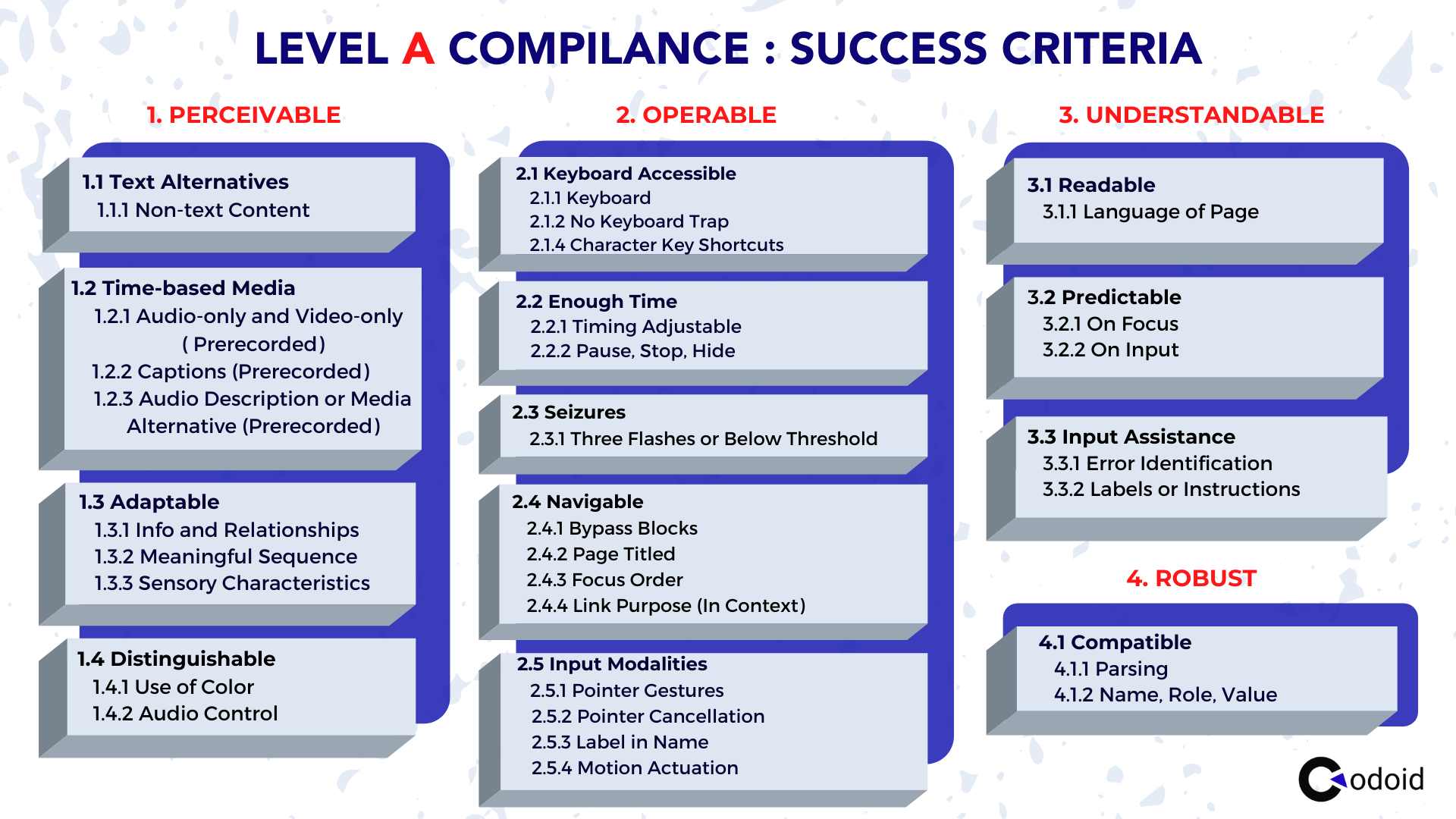
If you are very new to accessibility, you may not be able to comprehend everything mentioned in the list. But this level of compliance ensures that people with visual impairments will be able to use screen readers effectively with the help of proper page structure and media alternatives such as alt-text for images, subtitles for videos, and so on. But it definitely doesn’t solve all the problems. So let’s see what level AA compliance has to offer.
Level AA Compliance: Acceptable Level
If level A is the bare basics, then Level AA is the Acceptance level of compliance a website can look to achieve to enhance the user experience for disabled people. In addition to the 32 success criteria that have to be met in level A compliance, an additional 23 success criteria also have to be satisfied. Of the 55 total success criteria at level AA, let’s take a look at the success criteria exclusive to this level in a categorized way.
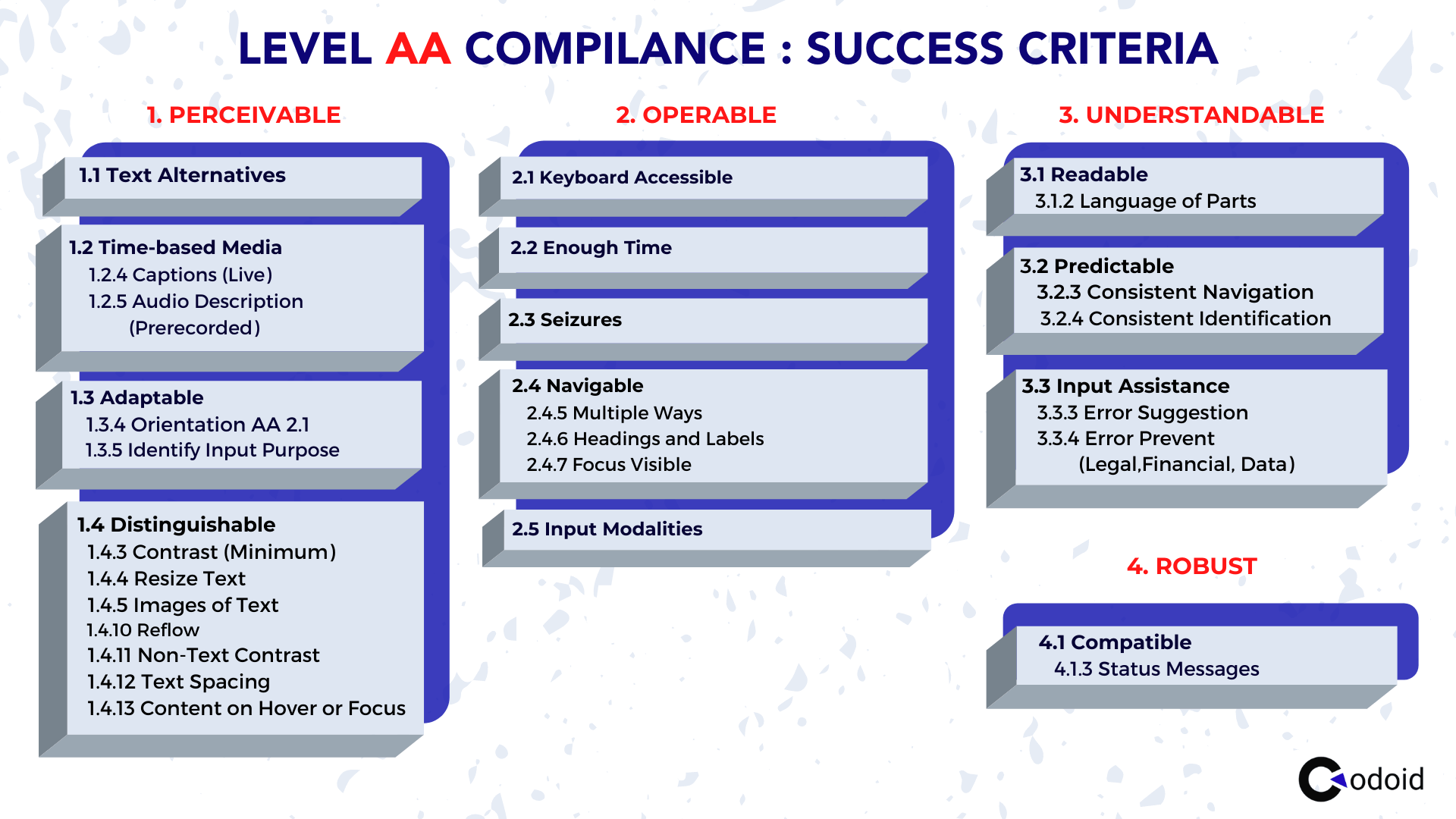
We can see the additional focus on notable aspects like color contrast levels, well-defined roles and labels in form labels, status messages, and so on.
Level AAA Compliance: Optimal Level
Level AAA is the highest level of accessibility compliance that has an additional 30 success criteria that have to be satisfied. So the grand total of success criteria to be met for this level of compliance is 85 as of writing this blog. It is also the most difficult level of compliance to attain. Though achieving this level of compliance is hard, it has to be done if you are looking to build a specialist site for accessibility. Here is a list of the 30 success criteria that are exclusive to level AAA.
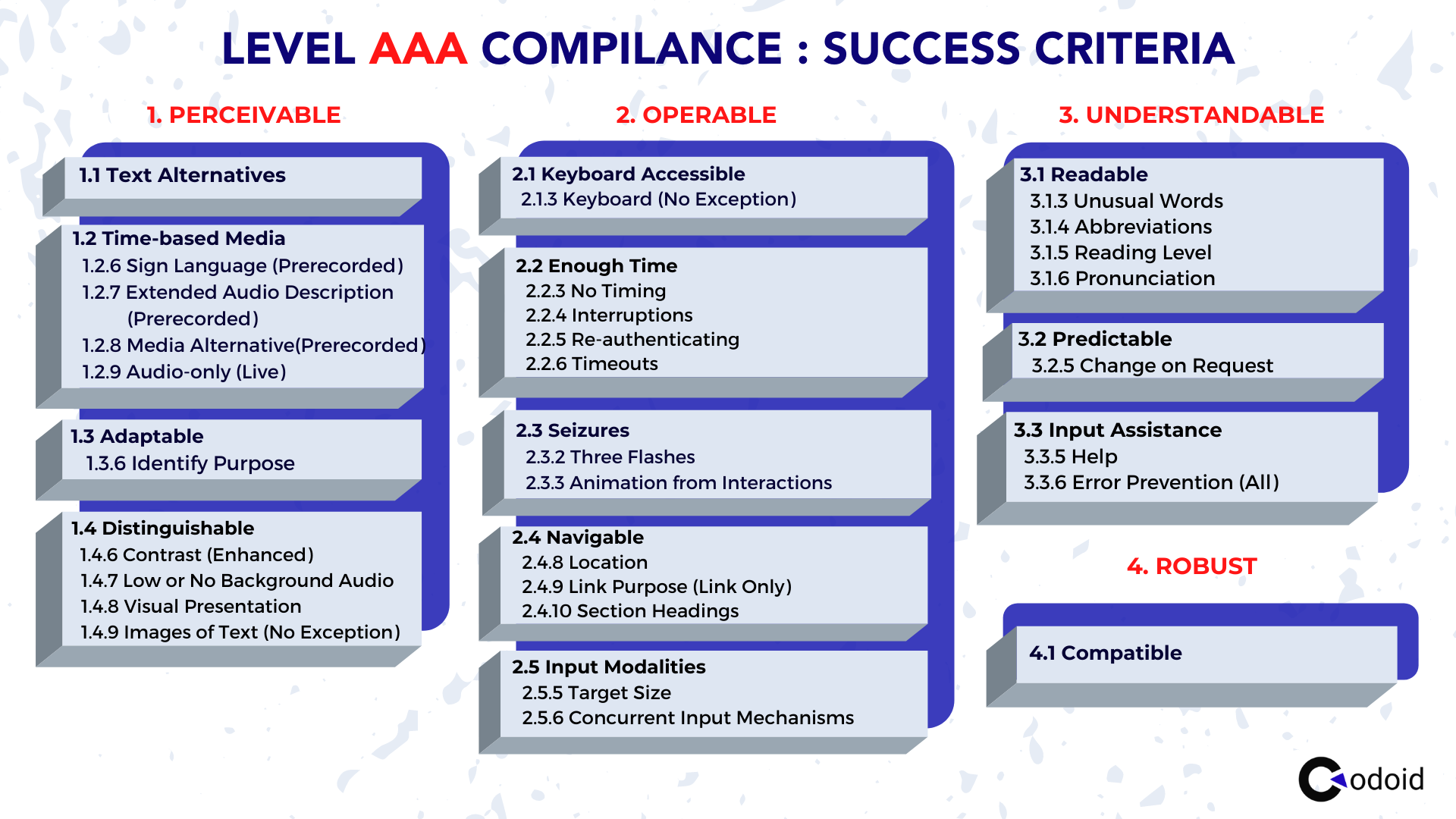
The level of difficulty in each of these success criteria is definitely high. For example, if you have a pre-recorded audio or video on your site, it definitely has to have sign language support. Since live videos are very uncommon on websites, the amount of work needed to achieve this is high. There are also focus areas such as mentioning the expanded form of abbreviations, providing context-sensitive help, and so on.
Which Disabilities Are Supported by WCAG?
Though there are numerous types of disabilities, not all disabilities are covered under the Web Content Accessibility Guidelines. Though there are new guidelines being added over time, as of now WCAG supports visual impairments, auditory disabilities, cognitive disabilities, and motor disabilities. The support is provided due to assistive technologies such as
- Screenreaders
- Braille Displays
- Text-to-speech systems
- Magnifiers
- Talking Devices
- Captioning
ARIA
Out of these assistive technologies, screen readers are the most used and so understanding what ARIA is and how it is used is an integral part of accessibility testing.
What is ARIA?
ARIA expanded as Accessible Rich Internet Applications, is a set of attributes that can be added to the HTML for developing more accessible web content applications. It is a W3C specification that fills in the gaps and makes up for the accessibility voids in regular HTML. It can be used to
- Help Screen readers and other assistive technologies perform better by improving the accessibility of interactive web elements.
- Enhances the Page Structure by defining helpful landmarks.
- Improves keyboard accessibility & interactivity.
Now let’s find out how ARIA improves accessibility by taking a look at the most commonly used ARIA attributes with the help of an example.
The most commonly used aria attributes:-
- 1. aria-checked.
- 2. Aria-disabled.
- 3. aria-expanded.
- 4. aria-haspopup.
- 5. Aria-hidden
- 6. Aria-labelledby
- 7. Aria-describedby
ARIA Attribute Example: Aria-checked
The aria-checked attribute can be used to denote the current state of checkboxes and radio buttons. So it will be able to indicate whether an element is checked or unchecked by using true and false statements. You can use JavaScript to ensure that the ARIA’s state changes when it is checked or unchecked.
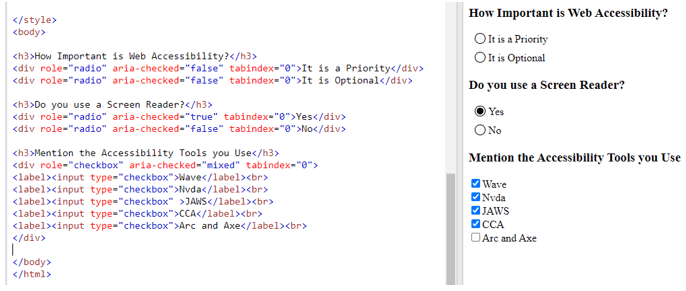
- aria-checked=”true” indicates the element is checked.
- aria-checked=”false” indicates the element is in an unchecked state.
- aria-checked=”mixed” indicates partial check for elements that have tri-states
As the name of all the other commonly used attributes suggests, they can be used to indicate if a list is expanded, if there is a pop-up, and so on.

Ensure your digital platforms are accessible to everyone. Start accessibility testing today to improve compliance and user experience.
Start Accessibility Testing NowWeb-Accessibility Testing Tutorial
Accessibility testing is very much different from the regular types of software testing and might seem daunting to many. As seen in the ‘How Accessibility is Measured’ section, there are 3 different WCAG compliance levels. So we will now be focusing on the various success criteria from the A-level compliance. To make it even easier for you to perform these tests, we have broken down the entire accessibility testing process based on the different web elements and content types we will generally add to a website. Once we have covered all that, we will then explore how to ensure general accessibility.
- Page Title
- Structure check
- Headings
- Tables
- Lists
- Forms, labels, and error
- Multimedia Content
- Images – Alt text
- Videos & Audios
- Closed captions & Transcripts
- Audio Description
- Animations, Moving and blinking Contents
- Color Contrast
- Keyboard Control & Interaction
- Input Modalities
- Zooming
Page Title
The page title is one of the most basic properties of a web page that helps us differentiate the numerous webpages that appear in the search results on Google or when multiple webpages are opened in a browser. We will easily be able to see and identify the difference. But if you’re using a screen reader, it will not read out the domain name. And if the Page Titles are similar, it’ll become hard for the user to know the difference. So make sure to test if the titles clearly convey what the webpage is about.
Best Practice:
<html>
<head>
<title>How to do accessibility testing</title>
</head>
</html>
Bad Practice:
<html>
<head>...</head>
	<body>...</body>
</html>
Places to Check:
- Browser Tab.
- Search Engine results page.
- Bookmarks.
- Title of other pages within the same website. (Eg. Blog Articles)
Structure check
Now that we have seen how the title can impact a disabled person’s usability, let’s shift to the structure of the webpage. A complicated structure can confuse even a regular end-user. So using a well-planned and clean structure will make it easier for regular users to scan through and read your content while making it accessible for people with cognitive and visual disabilities.
Checklist:
- 1. Check if the page has a defined header and footer.
- 2. Validate the main landmark and the complementary landmarks by navigating to specific sections.
- 3. Test the flow of the Heading structure.
- 4. If there are numbered lists, bullet lists, or tables, check if they are read properly by the screenreader.
- 5. Test if the bypass blocks work using a screen reader.
- 6. Check if the webpage is coded with human-readable language that can be programmatically determined by assistive technologies.
- 7. Check if the basic structural elements like sections, paragraphs, quotes(blackquotes), etc. have been defined properly.
- 8. Check for hyperlinks on the page and ensure that the anchor text is descriptive enough to convey the change of context to the user.
Headings
Headings in a webpage are very crucial as it outlines the main content of the page and helps convey which parts are important. So if your webpage has more than 1 Heading 1, doesn’t have any headings, or doesn’t follow a proper hierarchy, it will definitely cause confusion. That is why the heading structure flow is recommended to go from H1 to H6 even though it is not mandatory.
Best Practice:
*Heading level 1<h1>
    *Heading level 2<h2>
        *Heading level3<h3>
           *Heading level4<h4>
              *Heading level5<h5>
                 *Heading level6<h6>
        *Heading level3<h3>
           *Heading level4<h4>
              *Heading level5<h5>
                 *Heading level6<h6>
    *Heading level 2<h2>
       *Heading level3<h3>
          *Heading level4<h4>
Bad Practice:
   *Heading level 1<h1>
      *Heading level 2<h2>
         *Heading level3<h3>
            *Heading level 1<h1>
               *Heading level 4<h4>
                  *Heading level5<h5>
Tables
Tables are used to present the data in an organized way and in logical order. The table should have a table header, the table header should be marked up with ‘th’. And the data inside the cells should be marked up with ‘td’. If there are any highly complex tables, check if the scope header and id have been provided.
Good Practice:
<table>
	<tr>
		<th>Types of Disabilities</th>
		<th>Description</th>
</tr>
<tr>
<td>Vision</td>
<td>People who have low vision, complete blindness and partial blindness</td>
</tr>
</table>
Bad Practice:
<table>
	<tr>
<td>Vision</td>
<td>People who have low vision, complete blindness and partial blindness</td>
</tr>
</table>
Checklist:
- Verify if all the column or row data are read out along with the respective column or row headers.
- Ensure that the number of total rows and columns are properly readout.
- Check if the row and column numbers are correctly readout when the focus shifts to them.
Lists
Typing out over-long paragraphs and not using lists in pages can greatly reduce the readability for even regular users. The right usage of lists can make it very easy for people with visual impairments using screen readers or for even people suffering from disabilities like Dyslexia. But if the proper HTML coding isn’t used in the lists, screen readers might just read all the words together like a sentence and confuse the user. Since there are 3 types of lists (Unordered list, Ordered list, and Descriptive list), we have shown what the proper code structure will look like.
Good Practice
<ul>
	<li>Apple</li>
	<li>Orange</li>
</ul>
<ol>
‘	<li>Vision</li>
	<li>Speech</li>
</ol>
<dl>
	<dt>Disabilities</dt>
	<dd>Vision</dd>
	<dd>Speech</dd>
</dl>
Forms, labels, and error
Other common components seen in various websites are text boxes, buttons, dropdowns, and so on. Since the user should be able to interact with these web elements, it is important for them to have accessible names and proper ARIA labels for the screen reader to read them properly.
Checklist:
- 1. Check if proper attributes are used for all required fields as the screen reader should be able to announce to the user that it is a required field.
- 2. If there are any radio buttons, check if they are grouped together.
- 3. Check if all elements should receive focus when navigating using the tab key.
- 4. If there are any errors in an input field, check if the error is mentioned and read out by the screen reader.
- 5. Check if all the dropdown options have aria attributes like “aria-expanded” and “aria-collapsed”.
- 6. Verify that the pop-up content has an ARIA attribute as “aria-haspopup”.
- 7. Check if all buttons have proper ARIA labels that help the user understand their usage.
- 8. Verify that the aria attributes for alert contents are implemented correctly.
Multimedia Content
Multimedia content such as images, audio, and videos will not be accessible to people with various disabilities. But there are steps developers can take to make them accessible to all by
- Adding alt text or long descriptions to images.
- Adding Closed Captions, transcripts, and audio descriptions for videos and audios.
Images – Alt text
Alt-text is nothing but the alternative text that explains the purpose or content of images, charts, and flowcharts for the people who will not be able to see them. So when an image is bought to focus, the screen reader will be able to read out the provided alternative text. If it is a very complex visual that requires more than 140 characters, then we could opt to use long descriptions over alt text.
<div>
<img style=”” src=”” alt=”” width=””>
</div>
The job doesn’t end by checking if the alt text is present or not, we should ensure that the alt text fulfills its purpose by carrying out the checks from the below checklist.
Checklist
- 1. Check if the alt text is descriptive enough to convey the intent or info from the image.
- 2. Be clear when using terms prone to misconception like ‘Apple’. Users might get confused if we are talking about the company named Apple or the fruit named Apple.
- 3. Make sure the alt text is not used as a holder of keywords for the various SEO needs.
- 4. Text alternatives are not needed for decorative images as they will not affect the user in understanding the main content of the page. For example, consider a tick mark near the text that says “Checkpoint”. Here it is not mandatory to mention the tick mark.
Videos & Audios
Things get a little more complicated when other multimedia contents such as videos and audio have to be added. We would have to verify if these multimedia contents are supported by closed captions, audio descriptions, or transcripts. Let’s take a look at each of these assistive technologies.
Closed captions & Transcripts
A visually impaired person will be able to understand the context of videos with dialogues or conversations. But what if a person with a hearing disability watches the same video? Though there are auto-generated captions, they are not that reliable. That is why it is important to include closed captions or transcripts for all the videos/audio you add. Though transcripts are not mandatory, they will be effective when used for podcasts, interviews, or conversations. So a person with hearing impairment can read the transcript if they wish to.
Checklist:
- 1. Check if the closed captions are in sync with the video.
- 2. Validate if the subtitles have been mapped word-by-word.
- 3. Make sure the closed captions are visible within the player.
- 4. If it is a conversational video, make sure the name of the speaker is also mentioned.
- 5. Check if all the numeric values are mentioned properly.
- 6. Make sure the closed captions mention important background audio elements such as applause, silence, background score, footsteps, and so on.
Audio Description
But what if the video doesn’t have any or much dialogues or conversations? What if the visuals are a key to understanding the video? Then employing subtitles alone will never be enough. That is where audio descriptions come into play as they will describe all the actions that are happening in the visual and help users understand it clearly.
Checklist
- 1. Ensure the description makes it possible for visually impaired users to create a clear mental image in their minds.
- 2. Make sure the audio description covers every action, activity, silence, animation, expression, facial expression, and so on.
- 3. The paused screen when the audio description is playing should be clearly visible and no text, image, or element should be blurred or misaligned.
- 4. Check if all the on-screen text is available correctly in the audio description.
- 5. Validate if all the activities and on-screen elements are in sync with the Audio description.
- 6. The screen should be paused at the same instance which is being described in the audio description.
Animations, Moving and blinking Contents
Animations, scroll effects, and such dynamic content are being widely used on various websites. As debunked earlier, accessibility guidelines don’t prevent us from doing so. Rather, it just guides us in implementing it in the right and usable way.
Checklist
- 1. Ensure all animations that are over 5 seconds in length have the provision to play, pause, or stop them.
- 2. If there are any blinking or flashing contents, ensure that it doesn’t flash more than 3 times in one second as it might affect people prone to seizures.
Color Contrast
A general rule to keep in mind when developing or adding such content is to ensure there is proper color contrast between the background color and foreground elements such as text, buttons, graphs, and so on. Be it a table, image, video, form, or any content type we have seen, a lack of proper color usage can make it hard for even regular users to view the content without any difficulty. So it is needless to say that people with low vision or color blindness will find it impossible to access the content. The preferred color of the background is white and the foreground is black.
Now that we have covered all the aspects of adding different types and categories of content, let’s progress to the usage aspects that you must know when it comes to accessibility testing.
Related Articles
Keyboard Control & Interaction
People with visual impairments and motor disabilities will not be able to use a mouse in the same way a regular user can. So using braille keyboards or regular will be the only option they have. The most important key on the keyboard will be the ‘Tab’ key as it will help navigate to all the interactive web elements. You can use the ‘Shift+Tab’ keys combination to move in the backward direction.
- Test if all the web elements receive focus when you hit the tab key. Also, check if the focus shifts from that element when the tab key is pressed again.
- The element in focus will be highlighted with a gray outline. So, test if it is visible as it will be helpful for people with motor disabilities.
- Ensure that the focus order is from left to right or right to left based on the language in use.
- For web elements such as drop-down lists, ensure that all the options are read out by the screen reader when navigating using the arrow keys.
- If there is any video or a carousel, the user must be able to control (Pause/Play/Volume Control) it using the keyboard actions alone.
- Likewise, if there are any auto-play functionalities, check if the playback stops in 3 seconds or provides an option to control the playback.
- If an interactive element does not receive the tab focus, then the element should be coded with “tab index=0”.
- Ensures keyboard focus is at least partially visible, preventing it from being hidden behind elements like sticky headers.
- Ensure focus indicator meets minimum ratio size 3:1
- Ensure that alternative single-pointer interactions for drag-and-drop functionalities.
- Validate interactive elements should meet a minimum target size of 24×24 CSS pixels.
Input Modalities
To make it easier for the users to access the web page with different input options such as the touchscreen on mobiles, and tablets without using the keyboard. While thinking about checking the web page without keyboard keys, we can use pointer cancellation, pointer gestures, and motion actuation.
Zooming
Since there are various types of visual impairments, people with low vision might be able to access the content on the webpage without the use of a screen reader. So we have to zoom in and view the page at 200 and 400% zoom levels and check for
- Text Overlaps
- Truncating issues
Other Checks
From all the points we have discussed above, it is obvious that any instructions or key elements that are crucial for understanding and operating the content should not rely only on sensory characteristics. For example, if there is a form to be completed, then the completion of the form shouldn’t be denoted with a bell sound alone as people who have hearing impairments will not be able to access it. Likewise, showing just a visual or color change to denote completion will also not be accessible to all.
If there are any defined time limits, make sure that people with disabilities will be able to use them correctly. So if we take a session expiration as an example.
- Check if the user is able to turn off or adjust the time limit before it starts.
- The adjusting limit should be at least 10 times more than the default setting.
- Make sure there are accessible warning messages before expiration and that there is at least a 20-second time gap for the user to extend the session with a simple action such as typing the space key.
- It is important to keep in mind that there are exceptions for expirations such as an online test as the ability to extend the provided time limit would invalidate the existence of a time limit. Likewise, these criteria can be exempted if the time limit is more than 20 hours or if a real-time event such as an auction is being conducted.
Most common Accessibility issues
So what kind of issues can you expect when following the above-mentioned checklist? Here’s a list of the most common accessibility issues that will give you a heads up about the various issues you will encounter when performing accessibility testing. Please note that this is not a comprehensive list and that you have to keep your eyes open for any unexpected accessibility issues that might come your way.
- 1. Heading level issues
- 2. Incorrect implementation of list tags
- 3. Missing alt-text for images
- 4. Incorrect focus order
- 5. Missing tab focus for interactive web elements
- 6. Poor Color Contrast
- 7. Incorrect reading order
- 8. Missing ARIA labels
- 9. State not announced.
- 10. Improper table implementation
- 11. Inability to access the contents using keyboard keys
- 12. Content is not visible at 400 % and 200% zoom levels
- 13. Screen reader not notifying alert messages
- 14. Screen reader not reading the dropdown list
- 15. Lack of expanded and collapsed state implementation
- 16. Missing closed captions, audio descriptions, or video transcripts for videos
Challenges of Accessibility Testing
There is no task without any challenges and Accessibility Testing also does come with its own share of challenges.
Dynamic Websites
Dynamic websites tend to have 100 or 1000’s changes every minute or every hour. So implementing web accessibility for dynamic content inside such web pages is considered to be very hard due to the presence of third-party content like ads and other such factors.
Large Websites
Though it would be easier to work with static content in comparison, it would still be a mammoth challenge if it has to be implemented for over 1000 pages in retrospect. So the next major challenge in implementing accessibility is the scale of the website as the more the number of pages, the higher the variety of content that will be available.
Limited Automation Scope
The scope for automating web accessibility tests is very low as even if we write scripts to detect the images with or without alt-text, it only solves half the problem. What if the alt-text is present but not descriptive enough or relevant to that image? We would once again need a manual tester to validate it. Lack of conformance verification is what makes scaling web accessibility tests with automation a challenge.
Test Artifacts over the User Experience
The focus of WCAG and its success criteria are primarily on technical artifacts and not on the user’s journey and goals. To put it in simple terms, their guidelines are only focused on the webpage as seen earlier, and not on the user experience. The clear gap between accessibility and the user experience can be bridged if the accessibility testing team focused on the user experience while performing testing. And that is why we ensure to train our accessibility testers to test by keeping the user experience in mind.
Web Accessibility Testing Tools
Since disabled people use various assistive technologies, as a tester you should know how to use those technologies too. That’s just the first step, as you should also use the assistive technology in a way that a real person with disabilities will use it. Putting yourself in their perspective is the key to maximizing the scope of usage. There are dedicated screen readers that come with built-in various devices and platforms. Though there will be various similarities when it comes to the usage of these screen readers, you should know how to use them individually.
Inbuilt List of Screen Readers
- Narrator for Windows
- ORCA for Linux
- Voiceover for macOS and iOS
- Talkback for Android
- ChromeVox for Chromebooks
Other Popular Screen Readers
- JAWS for Windows (Commercial)
- NVDA for Windows (Free)
Related Articles
How to use the ChromeVox Screen Reader for Accessibility Testing?
Apart from these assistive technologies, we also employ a set of tools to ease the accessibility testing process. While no tool will work without human validation, it is still handy to have such options to speed up the evaluation process. In order to speed things up, even more, we also use various browser extensions and bookmarklets such as,
- Wave
- Color Contrast Analyzer
- arc & axe
Conclusion
So that pretty much sums everything up you will need to know to get started with accessibility testing. We hope you found our guide easier to understand when compared to the other conventional options as we have broken down the checks based on the different web elements as they are more tangible. Make sure to subscribe to our newsletter as we will be posting such highly useful content on a weekly basis. Have any doubts? Ask them in the comments section and we will try our best to answer them.