























Accessibility has become a critical requirement in modern web development. Organizations are expected to ensure that their digital products are usable by people with disabilities, including individuals who rely on assistive technologies such as screen readers, keyboard navigation, and voice interfaces. Standards like Web Content Accessibility Guidelines (WCAG) define how websites should be structured to ensure inclusivity. However, accessibility testing can be time-consuming. QA engineers and developers often spend hours navigating complex DOM structures, verifying ARIA attributes, checking semantic HTML, and confirming that components behave correctly with assistive technologies. This is where AI for accessibility is beginning to transform the testing process.
AI-powered debugging tools can analyze web page structures, assist testers in understanding element relationships, and highlight accessibility issues that might otherwise require manual inspection. One such feature is Debug with AI in Chrome DevTools, which allows testers to ask natural-language questions about the DOM structure and quickly identify accessibility-related issues. Instead of manually searching through deeply nested HTML structures, testers can use AI assistance to inspect elements, verify labels, check roles, and detect structural problems affecting accessibility. This dramatically speeds up troubleshooting and helps teams catch accessibility gaps earlier in the development lifecycle.
From an accessibility perspective, Debug with AI can help testers validate key attributes used by assistive technologies such as ARIA roles, labels, semantic HTML structure, and relationships between elements. It also helps identify incorrectly rendered components, missing attributes, and potential keyboard navigation problems. However, while AI tools significantly improve efficiency, they cannot fully replace manual accessibility testing. Human validation is still required for tasks like color contrast checks, screen reader verification, and usability evaluation.
In This Guide, We’ll Explore
- How AI for accessibility improves UI testing
- How to enable Debug with AI in Chrome DevTools
- What accessibility checks can be automated with AI
- Which accessibility requirements still require manual testing
- Best practices for combining AI-powered tools with traditional accessibility audits
What Is AI for Accessibility?
AI for accessibility refers to the use of artificial intelligence to help identify, analyze, and improve accessibility in digital products.
In software testing, AI can assist with:
- DOM structure analysis
- Detection of missing accessibility attributes
- Semantic HTML validation
- Identifying incorrect ARIA roles
- Highlighting keyboard navigation issues
- Understanding complex UI components
Instead of manually analyzing HTML markup, testers can ask AI tools questions like:
- “Does this form field have a proper label?”
- “Which ARIA role is assigned to this component?”
- “Is the heading hierarchy correct on this page?”
The AI engine analyzes the DOM and returns explanations or potential issues. This capability significantly reduces the effort required for early-stage accessibility validation.
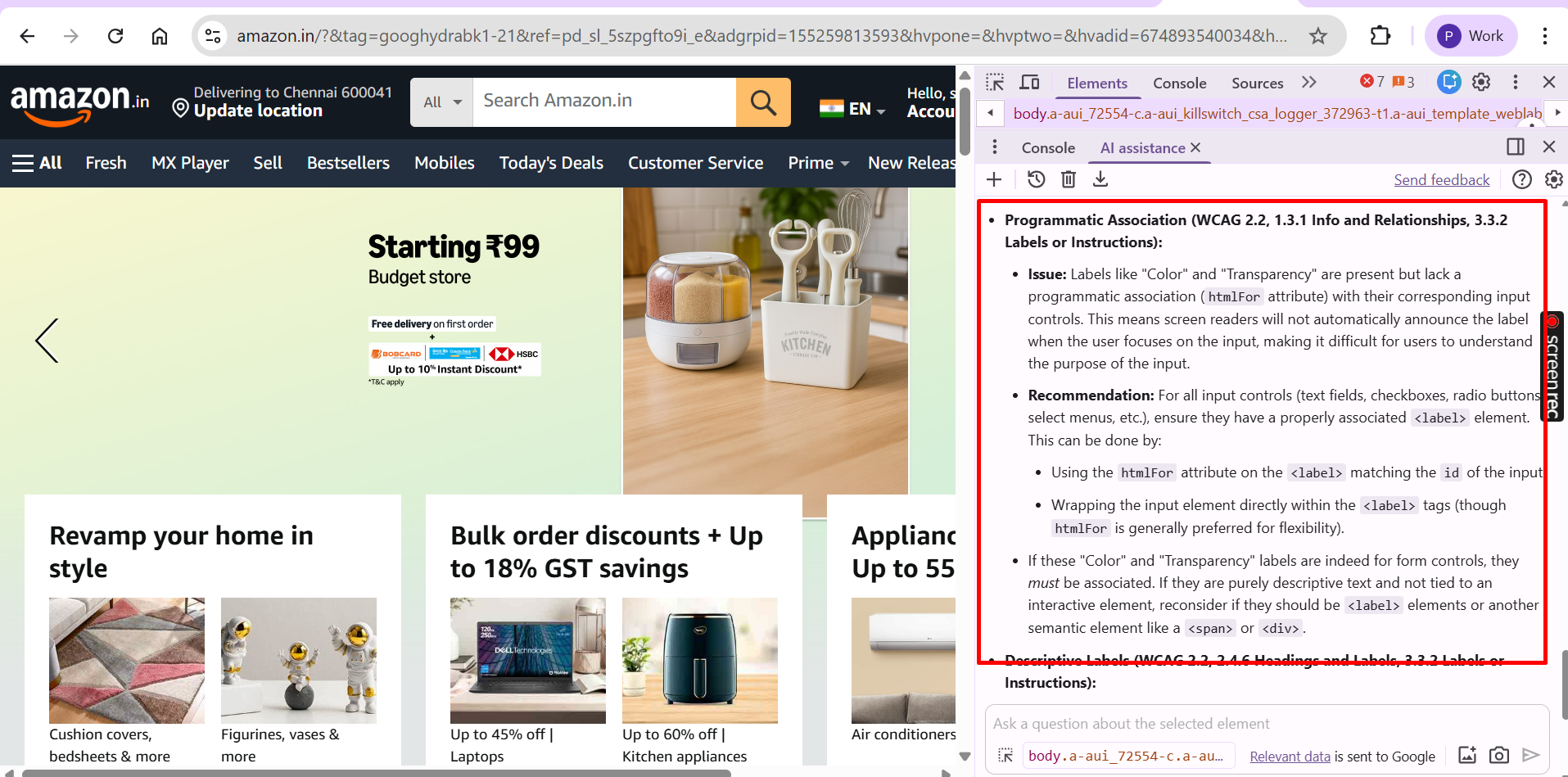
What Is “Debug with AI” in Chrome DevTools?
Debug with AI is an AI-powered feature integrated into Chrome DevTools that helps developers and testers analyze DOM structures using natural language prompts.
The tool allows users to:
- Inspect selected DOM elements
- Understand hierarchical relationships between components
- Identify structural or semantic issues
- Validate accessibility attributes
- Investigate dynamically rendered UI components
Instead of manually scanning the DOM tree, testers can simply ask AI to analyze elements and explain their structure. From an accessibility testing perspective, this helps testers quickly verify ARIA attributes, roles, labels, semantic HTML elements, and relationships between UI components.
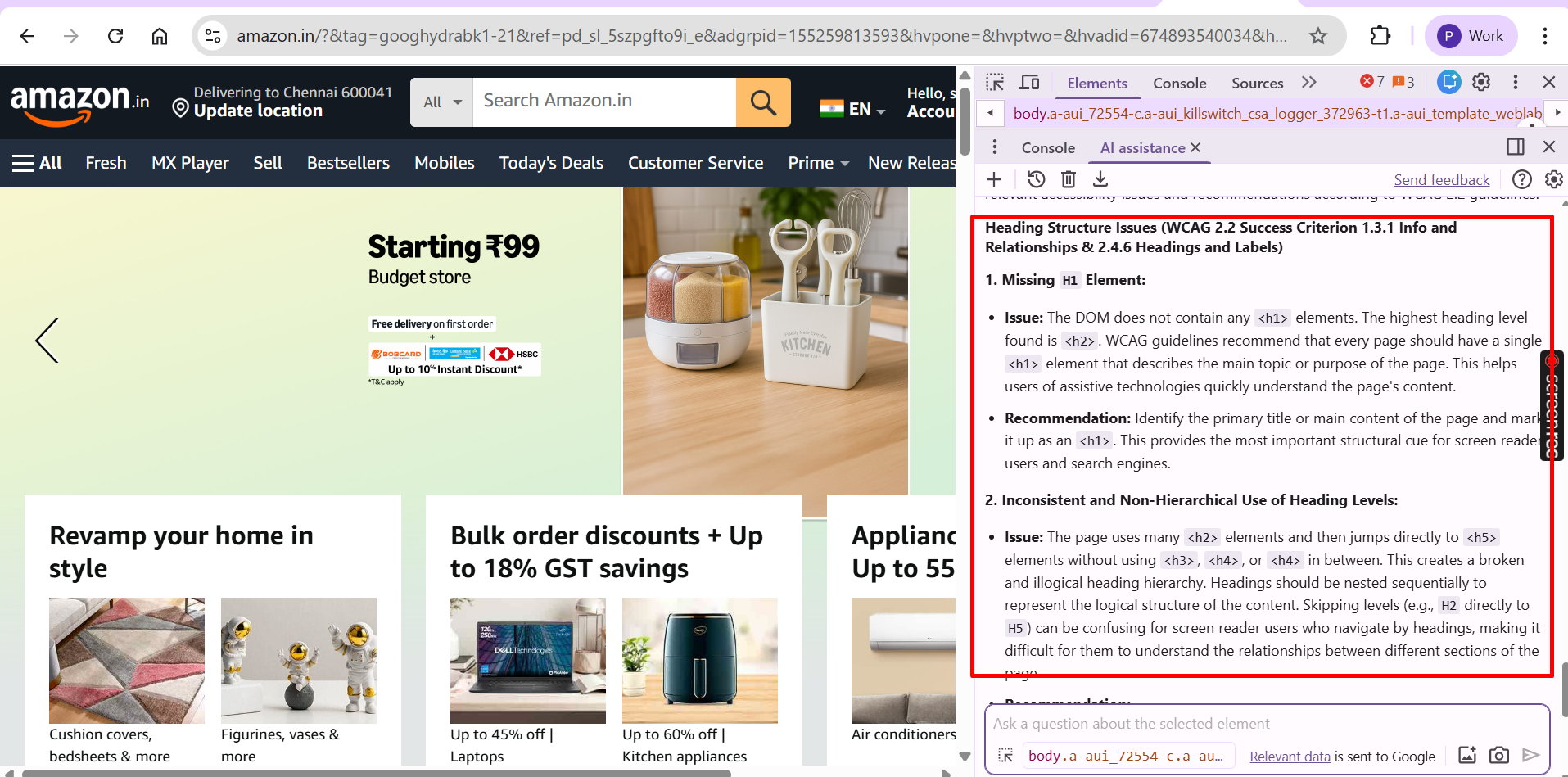
How to Enable Debug with AI in Chrome DevTools
Step 1: Open Chrome Developer Tools
You can open DevTools using:
- Ctrl + Shift + I
- F12
These shortcuts open the browser developer panel, where debugging tools are available.
Step 2: Access the Debug with AI Option
- Right-click the menu item next to Settings in DevTools
- Select Debug with AI
Step 3: Enable AI Settings
- Open Settings
- Enable all AI-related options
Step 4: Open the AI Assistance Panel
Once enabled:
- The AI assistance panel appears
- You can start entering prompts
Example prompts:
- Explain the structure of this DOM element
- Check accessibility attributes for this component
- Identify missing labels or roles
This allows testers to analyze accessibility issues directly within the DevTools environment.
How AI Helps Analyze DOM Structure for Accessibility
Modern web applications use frameworks like React, Angular, and Vue that generate dynamic DOM structures. These structures can be deeply nested and difficult to analyze manually. AI-powered debugging tools simplify this process.
Key Capabilities
AI can:
- Understand nested DOM hierarchies
- Identify missing accessibility attributes
- Detect semantic markup issues
- Explain relationships between UI components
- Highlight accessibility risks
For example, a tester inspecting a custom dropdown component might ask: “Does this element expose the correct role for assistive technologies?”
The AI tool can analyze the DOM and report whether the component uses roles like:
- role=”button”
- role=”menu”
- role=”listbox”
If roles are missing or incorrect, the tester can quickly identify the problem. :contentReference[oaicite:9]{index=9}
Accessibility Checks That AI Can Help Validate
Using Chrome DevTools with AI assistance, testers can validate several accessibility checkpoints covering structural requirements defined in WCAG 2.2.
1. Heading Structure
Headings must follow a logical hierarchy to provide structure for screen readers.
- H1 – Page Title
- H2 – Section Title
- H3 – Subsection Title
AI can help testers confirm proper heading levels, logical structure, and missing headings.
2. Meaningful Text Content
Text should clearly describe the purpose of the content or control.
Example:
- ❌ “Click here”
- ✔ “Download accessibility checklist”
3. Semantic List Structures
Lists should use semantic HTML elements such as:
- <ul> – unordered lists
- <ol> – ordered lists
- <dl> – description lists
4. Form Field Labels
Every form control must have an associated label.
<label for="email">Email Address</label>
<input id="email" type="email">
5. Role Attributes
Interactive elements should expose proper roles for assistive technologies.
- role=”button”
- role=”navigation”
- role=”dialog”
6. Programmatic Association
- aria-describedby
- aria-labelledby
7. Descriptive Labels
- ✔ “Search products”
- ❌ “Submit”
8. Language of the Page
<html lang="en">
9. Missing or Empty Alt Attributes
<img src="chart.png" alt="Monthly revenue growth chart">
Accessibility Coverage Achieved with DevTools
Using Chrome DevTools debugging features and AI assistance, testers can validate approximately 35% of accessibility checks automatically. However, this does not replace full accessibility audits.
Accessibility Checks That Still Require Manual Testing
- Color contrast validation
- Zoom and responsive behavior
- Error identification and prevention
- Keyboard navigation
- Screen reader output validation
- Alternative text quality
- Multimedia accessibility (captions and transcripts)
- Sensory characteristics
- Content on hover or focus
- Text spacing validation
- Time limits and seizure prevention
- Unexpected context changes
Related Blogs
Benefits of Using AI for Accessibility Testing
| S. No | Benefit | Description |
|---|---|---|
| 1 | Faster DOM Analysis | AI quickly explains complex DOM structures |
| 2 | Reduced Manual Inspection | Testers spend less time navigating HTML trees |
| 3 | Early Issue Detection | Accessibility problems identified earlier |
| 4 | Better Developer Collaboration | AI explanations help developers understand issues |
| 5 | Increased Testing Efficiency | Testers validate more scenarios faster |
Best Practices for Using AI in Accessibility Testing
- Combine AI with manual accessibility testing
- Validate results against WCAG 2.2 standards
- Test using real assistive technologies (NVDA, JAWS, VoiceOver)
- Include accessibility testing early in the development lifecycle
- Document accessibility issues clearly with screenshots and WCAG references
Conclusion
AI is transforming the way teams approach accessibility testing. Tools like Debug with AI in Chrome DevTools make it easier for testers to understand DOM structures, verify accessibility attributes, and detect structural issues faster. By allowing testers to ask natural-language questions about web elements, AI simplifies complex debugging tasks and accelerates the accessibility validation process.
However, AI tools cannot fully replace manual accessibility testing. Critical requirements such as keyboard navigation, screen reader behavior, color contrast, and usability still require human verification. In practice, the most effective strategy is a hybrid approach: using AI-powered tools for fast structural validation while performing manual audits to ensure full WCAG compliance. By integrating AI into accessibility workflows, teams can detect issues earlier, reduce debugging time, and build more inclusive digital experiences for all users.
Frequently Asked Questions
-
What is AI for accessibility?
AI for accessibility refers to the use of artificial intelligence to identify, analyze, and improve accessibility in digital products such as websites and applications. AI tools can detect issues like missing ARIA attributes, incorrect semantic HTML, and inaccessible UI components, helping developers and testers create experiences that work better for users with disabilities.
-
How does AI help improve web accessibility?
AI improves web accessibility by automatically analyzing page structures and identifying potential issues that affect assistive technologies.
AI tools can help detect:
Missing ARIA roles and attributes
Incorrect heading hierarchy
Missing form labels
Images without alt text
Improper semantic HTML elements
This allows testers to identify accessibility gaps earlier in the development process. -
Can AI fully automate accessibility testing?
No, AI cannot fully automate accessibility testing. While AI tools can detect structural issues and automate many checks, manual testing is still required to verify usability and assistive technology compatibility.
Manual testing is needed for:
Screen reader validation
Keyboard navigation testing
Color contrast verification
Error messaging and usability evaluation
AI tools typically support partial accessibility testing but cannot replace a full accessibility audit. -
What tools use AI for accessibility testing?
Several modern tools use AI to assist with accessibility testing, including:
Chrome DevTools Debug with AI
AI-powered testing assistants
Automated accessibility scanners
DOM analysis tools
These tools help testers quickly understand page structure and identify accessibility issues. -
What accessibility issues can AI detect automatically?
AI-based accessibility tools can automatically detect issues such as:
Missing alt attributes on images
Incorrect ARIA roles
Missing form field labels
Improper heading structure
Missing language attributes
Non-semantic HTML structures
These checks help ensure assistive technologies can correctly interpret web content. -
What accessibility standard should websites follow?
Most websites follow the Web Content Accessibility Guidelines (WCAG) to ensure accessibility compliance. WCAG provides recommendations for making digital content accessible to users with disabilities, including those who rely on screen readers, keyboard navigation, and other assistive technologies.






























Comments(0)