by admin | Oct 2, 2018 | Automation Testing, Fixed, Blog |
As a programmer or tester who work with python, we often need to get data from excel or we need to write data to excel in our code; there are many packages out there that help you with that exact task.
However, the one we would recommend is openpyxl because it is simple, effective and it works with excel formulas too. This blog post contains information that one needs to know to work with openpyxl.
As usual we need to install the package before we use it in our code and the simplest way to install openpyxl is to use pip as shown below.
A workbook is a openpyxl object that contains all the data in an excel file, you can create a new workbook from scratch (without any data) or you can create a workbook from an excel file that already exists.
from openpyxl import Workbook, load_workbook

#creating an empty workbook
new_workbook=Workbook()

#creating a workbook from file
wokbook_from_file=load_workbook(file_name)
#<file_name> is the path and the name of the excel file as a string
If you create a empty workbook it will have one sheet with sheet name “Sheet”, you can access this sheet with active attribute of the workbook.
default_sheet=new_workbook.active
To create a new sheet use the method create_sheet()
new_sheet=new_workbook.create_sheet(sheet_name)
#<sheet_name> is the name of the sheet to be given to the given sheet

'''creating a sheet with <sheet_name> as sheet name that is the same as another sheet that already exists will create a sheet with <sheet_name><unique_number> as sheet name, where the unique_number is sequentially generated number starting at 1'''
To copy the content of one sheet to a new sheet, ie to create a new sheet with content of an existing sheet use the copy_worksheet() method.
copy_sheet= new_workbook.copy_worksheet(new_sheet)

#to copy a sheet you must pass the source sheet object not just its name
The names of all the sheets in a workbook can be accessed with the attribute sheetnames
copy_sheet= new_workbook.copy_worksheet(new_sheet)

#to copy a sheet you must pass the source sheet object not just its name
The name of any give sheet can be accessed and changed using the title attribute of the sheet.
print(new_sheet.title)
new_sheet.title=new_title
If you have a workbook that contains a sheet to which you only know the name of, the sheet can be accessed just like you access the value in a dict to which the key is known.
sheet= new_workbook[sheet_name]
#<sheet_name> is the name of the sheet as a string.
# just like in a dict if a sheet with <sheet_name> as name is not present in the workbook a KeyError is #raised
If you wish to iterate through all the sheets in a workbook, you can do that by iterating the workbook as you would iterate a list.
for sheet in new_workbook:
	print(sheet.title)
Now onto the important part, To access a cell and to write data to cell, use the slice operator as you would in a dict.
#assign value to a single cell
sheet['A1']=10
#notice the key to a cell is a string, that is the same as the name of the cell as it would appear in excel.

#get value from a single cell
print(sheet['A1'].value)
#notice you need to get the value attribute of a cell to get the data stored in that cell.
You can access value in many cells by using any one of the following methods which suits your need.
cell_range=sheet['A1':'D4']
#this will return all the cells as a tuple of rows in a tuple, to access the data from the cell inside this use.

for row in sheet['A1':'D4']:
	for cell in row:
		print(cell.value)
#this will print all the value from A1 to D4 in the order A1,A2,...A4,B1,...B4,C1,...C4,D1,...D4
#to access an entire column
row_a=sheet['A']
for cell in row_a:
	print(cell.value)

#similarly you can access an entire row
row_1=sheet[1]
for cell in row_1:
	print(cell.value)

#to access multiple columns
for col in sheet['A':'B']:
	for cell in col:
		print(cell.value)

#to access multiple rows
for row in sheet[1:5]:
	for cell in row:
		print(cell.value)
To access and set value to a cell use the meths cell().
#access single cell
cell_a1=sheet.cell(row_index,col_index)
#where row_index is int that indicates the nth row in which the cell is located
# and <col_index> is int that indicates the column in which the cell is located, 1 for A , 2 for B, …
#so for A1 cell row_index =1 and col_index=1
print(cell_a1.value)

#to set value to a cell
sheet.cell(row_index,col_index,value)
#where row_index is int that indicates the nth row in which the cell is located,
# col_index is int that indicates the column in which the cell is located, 1 for A , 2 for B, …
#and value is the value to be assigned to the cell
To iterate through rows or columns, iter_rows() and iter_cols() can be used respectively.
#iterate rows
for row in sheet.iter_rows(min_row=1,max_row=10,min_col=1,max_col=10):
	for cell in row:
		print(cell.value)
# min_ro, max_row, min_col and max_col are starting row, final row, starting column and final column #respectively; all the values are int and the parameters should be entered as keyword argument

#iterate columns
for col in sheet.iter_cols(min_row=1,max_row=10,min_col=1,max_col=10):
	for cell in col:
		print(cell.value)
# min_ro, max_row, min_col and max_col are starting row, final row, starting column and final column #respectively; all the values are int and the parameters should be entered as keyword argument
#the only difference between iter_rows() and iter_cols() is that iter_rows() returns a tuple of row tuple and iter_cols() returns a tuple of column tuple.
To add new row to a sheet use the append method.
sheet.append([‘col1’,’col2’])
sheet.append(1,2)
Not all the package allows for insertion and deletion but it is a time saving feature that you will not know the importance of until you use it. This package makes it easy to do just simple use insert_rows(), insert_cols(),delete_rows() and delete_cols().
sheet.insert_rows(index,number_of_rows)
#inserts number_of_rows rows in position index

sheet.delete_cols(index,number_of_cols)
#deletes number_of_cols from index position, ie deletes cols from index to #index+number_of_cols
All the action that were done to and with the data were done in memory to commit the same information to storage.(i.e) to write the data to a file, you must not forget to save it by using the save method of workbook.
new_workbook.save(file_name_and_extension)

#where the <file_name_and_extension> is the name and extension, example “test.xlsx”
# the extension must be xlsx if you want to open the file MS Excel.
For those who do not know, pandas is a python package provides a very useful data structure called data frame. This post will not go in to details about pandas but only provide information on how to opnenpyxl and pandas interact.
To create a workbook from dataframe, you need to import dataframe_to_row method.
from openpyxl.utils.dataframe import dataframe_to_row
new_workbook=Workbook()
defalut_sheet=new_workbook.active

for row in dataframe_to_row (<dataframe>,index=True,header=True):
	defalut_sheet.append(row)

	To convert a workbook to a dataframe, follow these steps.

import pandas as pd
data=[]
for row in sheet.values:
	data.append(row)
df=pd.DataFrame(data)
When you need to work with a large data sets read only and write only modes will be very useful.
Read only mode allows you to read a large file without moving the entire data contained within it to memory. To read a file in read only mode you need to make the read_only flag True while reading a file.
wokbook_from_large_file=load_workbook(file_name,read_only =True)

#in red only mode the formulas will not be evaluated but appear as row strings.
Similarly when you want to dump a lot of data to a file use write only mode. To create a write only workbook make the write_only flag True. Unlike normal workbook a write only workbook will not have a default sheet and all the sheets should be added; data cannot be read from a write only workbook and write only workbooks can only be saved only once.
new_workbook=Workbook(write_only =True)

#data can only be written to a write only workbook using append() method.

by admin | Mar 30, 2017 | Automation Testing, Blog |
Writing acceptance tests in Gherkin format helps the agile team to collaborate effectively. Implementing Cucumberjs step definitions using Protractor makes easier to define automated acceptance tests and encourages effective team collaboration.

In this blog post, you will learn how to setup Protractor, CucumberJS, and Gulp with an example.
Gulp Installation
Automation – gulp is a toolkit that helps you automate painful or time-consuming tasks in your development workflow.
Cucumber + Protractor Folder Structure
+--------Root
|        +---features
|        |   +-------app1
|        |   |       +---feature
|        |   |           sample.feature
|        |   |       +---pages
|        |   |       +---step_definitions
|        +---support
|        |   |
|        +---config
|        |   |
|        |   |
|        +---reports
|        |   |
|        conf.js
|        gulpfile.js
|        package.json
Install Required Packages
After installing Gulp CLI and setting up folder struture, you can install the dependencies in package.json.
package.json
{
  "name": "protractor-demo",
  "version": "0.0.0",
  "main": "conf.js",
  "scripts": {
    "test": "echo "Error: no test specified" && exit 1"
  },
  "dependencies": {
    "app-root-path": "^2.0.1",
    "chai": "^3.5.0",
    "cucumber": "^1.3.2",
    "gulp": "^3.9.1",
    "gulp-protractor": "^4.1.0",
    "gulp-protractor-cucumber-html-report": "^0.1.3",
    "protractor-cucumber-framework": "^1.0.2",
    "relative-path": "^1.1.0"
  }
}
Feature File
The below feature contains one scenario for https://www.room77.com
Feature: Search Hotels
  @smoke
  Scenario: Search hotels with an invaild city
    Given As a room77 user, I launch room77 app
    When I search hotels with "asdfsdf"
    Then I should see "Please type in a location" alert
Step Definitions
var p = require('relative-path');
var expect = require('chai').expect;
var homePage=require(p('../pages/home_page'));

var myStepDefinitionsWrapper = function () {

    this.Given(/^As a room77 user, I launch room77 app$/, function () {
        browser.get("https://www.room77.com");
        return browser.waitForAngular();
    });

    this.When(/^I search hotels with "([^"]*)"$/, function (city) {
        homePage.enterSearch(city);
        homePage.clickSearch();
        return browser.sleep(1000);
    });

    this.Then(/^I should see "Please type in a location" alert$/, function () {
        return alert=browser.switchTo().alert().accept();
    });
};
module.exports = myStepDefinitionsWrapper;
conf.js
exports.config = {
    defaultTimeoutInterval: 25000,
    getPageTimeout: 60000,
    allScriptsTimeout: 500000,
    framework: 'custom',
    frameworkPath: require.resolve('protractor-cucumber-framework'),
    capabilities: {
        'browserName': 'chrome',
    },

    specs: [
        'features/*/*/*.feature'
    ],

    baseURL: 'https://www.room77.com',

    cucumberOpts: {
        format: ['json:reports/results.json', 'pretty'],
        require: ['features/*/*/*steps.js','support/env.js'],
        profile: false,
        'no-source': true
    }
};
Gulp File
var gulp = require('gulp');
var protractor = require("gulp-protractor").protractor;
var reporter = require("gulp-protractor-cucumber-html-report");

gulp.task("execute",function () {
        return gulp.src([])
            .pipe(protractor({
                configFile: "conf.js"
            }))
            .on('error', function(e) { throw e })
    }
);

gulp.task("report", function () {
    gulp.src("reports/results.json")
        .pipe(reporter({
            dest: "reports"
        }));
});

by admin | Mar 19, 2017 | Automation Testing, Blog |
If you google the definition of Acceptance Testing, you will get different definitions. Without knowing what acceptance testing is, it is impossible for your team to conclude user stories development.
What is acceptance testing?
Acceptance tests validate that a story has been developed with the functionality the customer team had in mind when they wrote the story.-By Mike Cohn
Why developers can’t write acceptance tests?
Developers can think about acceptance tests for a user story but should not write since they are not part of Customer team (testers, product manager, real users and other stakeholders).
Write acceptance tests before starting a story development
Acceptance tests should be written before coding. It helps a developer to remain focused on a story during coding and concludes a user story development.
Why CodeceptJS?
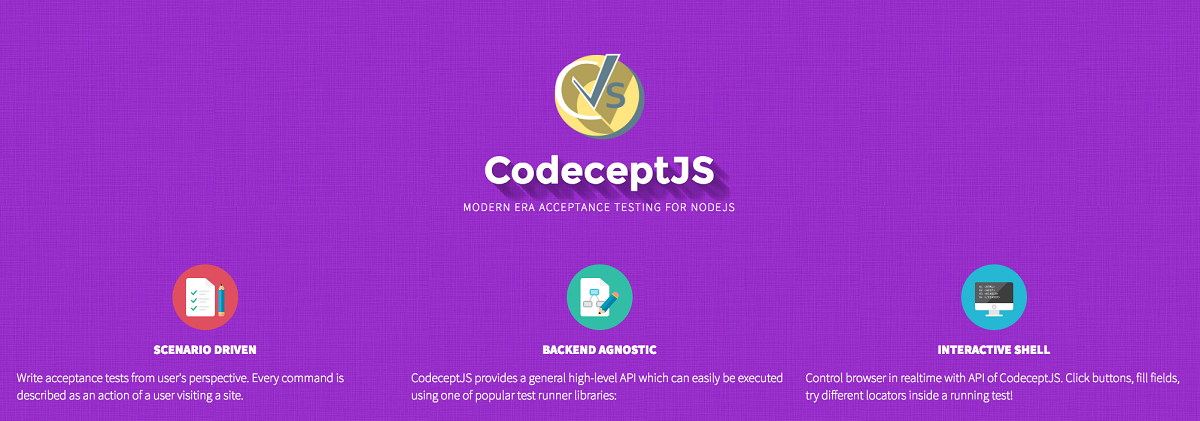
Automating acceptance tests is good. However, the written automated acceptance tests should be understood by a business person. CodeceptJS helps you to write acceptance tests from user’s perspective, every command is described as an action of a user visiting a site, and supports WebDriverIO, Protractor, Selenium WebDriver JS, NightmareJS or others…
How to create a script
- Install
npm install -g codeceptjs
- After installing codeceptjs, run the below command. You will be asked for tests location and the helpers.
Once the setup is done, you can see the below configurations in codecept.json
{
  "tests": "./tests/*_test.js",
  "timeout": 10000,
  "output": "./output",
  "helpers": {
    "WebDriverIO": {
      "url": "https://codoid.com",
      "browser": "chrome"
    }
  },
  "include": {},
  "bootstrap": false,
  "mocha": {},
  "name": "codeceptjs-demo"
}
- Depending on a helper you’ve chosen you will be asked to install corresponding package manually in the end of init.
npm install -g webdriverio
- Tests can be easily created by running
The simplest test will look like this:
Feature('codoid');
Scenario('test something', (I) => {
    I.amOnPage('/');
    I.click("Contact us")
});
That’s it. The above-listed steps are just a reference. However, the following link CodeceptJS Quickstart provides all the details to configure CodeceptJS.

by admin | Feb 28, 2017 | Automation Testing, Blog |
Suppose if you want to compare the screenshot (source) which was captured in your last automated test execution with the current execution screenshot (target), then you can go with imagemagick tool. It provides the difference in a file after a comparison and is very helpful for automation testing.
You can also use ImageMagick to compare two different images through command line if you have any test cases for manual testing. Let’s see how to compare source and target images and get the difference using ImageMagick with an example code.
Installation
Step-1: Download ImageMagick-6.8.9-8-Q16-x86-windows.zip from the following link http://ftp.icm.edu.pl/packages/ImageMagick/binaries/ and extract it wherever you want.
Step-2: Set E:SoftwaresImageMagick-6.8.9-8 in path environment variable
Maven Dependency
 <dependency>
		  <groupId>org.im4java</groupId>
		  <artifactId>im4java</artifactId>
		  <version>1.4.0</version>
	  </dependency>
Code
import org.im4java.core.CompareCmd;
import org.im4java.core.IM4JavaException;
import org.im4java.core.IMOperation;
import org.im4java.process.StandardStream;

import java.io.IOException;

/**
 * Created by Codoid Testing Services Company
 */
public class ImageComparisonExample {
    public static void main(String args[]) throws InterruptedException, IOException, IM4JavaException {
        CompareCmd compare = new CompareCmd();

        compare.setErrorConsumer(StandardStream.STDERR);
        IMOperation cmpOp = new IMOperation();

        cmpOp.metric("mae");

        cmpOp.addImage("image/image-1.png");

        cmpOp.addImage("image/image-2.png");

        cmpOp.addImage("image/image-diff.png");

        compare.run(cmpOp);
    }
}
You can also explore AppliTools Automated Visual Web & Mobile Testing to take your image comparsions to the next level.

by admin | Feb 27, 2017 | Automation Testing, Blog |
This article intends to touch upon some of the top challenges in test automation. We will also look at what approach we can take to conquer these challenges. We have been hearing and using the term ‘Automation’ for more than a decade now. Appreciating and listing the benefits of automation, especially Test automation should not be difficult for us.
Generating enormous ROI and value in terms of Test coverage, Peace of mind for developers and testers, reduced time to market, Eliminate wasteful and repetitive manual effort, Enables Agility, are all the immediate pluses we can recollect.

With great benefits, comes challenges/obstacles that need to be dealt with, to ensure the flow of value continues throughout and across the chain.
Communication
Probably the most unexpected challenge, yet placed first on the list!
Challenge:
Stakeholders have unrealistic notion and expectations about automating testing.
Approach:
Well, would you buy a home without planning on How many rooms, members and their requirements, Accessibility and availability of critical needs, Future needs, Hygiene, etc.? Certainly, the answer is NO. The same way, when a huge investment on Automation is made, it’s essential to talk to multiple and diverse people who will be directly or indirectly benefited.
For example; Review test cases, scripts and results with stakeholders (Developers, Architects, Business people, Project managers, Product managers, Business analysts, etc.). Helps in –
Finding issues, gaps early in the game
Team implementing or owning the Automation is abreast of the current changes/situation
Shared vision, Transparency across, all on same page
Infrastructure Needs and availability of a clean test environment
Challenge: Too many dependencies such as Database, browsers, applications, multiple Operating Systems may take days to be procured /setup /configured, which will shadow the benefits of automation.
Approach: By using Virtualization, and lately, cloud testing strategies – test environments can be created on demand and reused.
High upfront investment costs
Challenge: With the advent of Agile practices, it has become a mandate to automate Regression tests. The automation costs include Licensing, Infrastructure to support the automation framework, Operating costs of maintaining the hardware, updating the scripts to match the changing requirements, Training costs, etc.
Approach: There are free open source tools in the market such as Cucumber, JBehave and Serenity. Start cross-training team members. Focus your automation efforts to the selected few components that will ensure higher value.
Building the right framework and defining the Scope of automation
Challenge: Framework is what ties together all the logic that orchestrates the execution of test cases. Designing the right framework to meet your needs requires answering several questions such as – How to reduce effort in implementation and maintenance of the test scripts, What reporting features to include, look at the long term goals, how to minimize the effort when there is a change in testing strategy.
Approach: With baby steps, you can explore and implement the most important aspects that you want to automate. Remember – you cannot cover every component 100% for automation, instead choose the ones that will give higher value and focus your/team’s efforts on only those.
Need for Skilled resources
Challenge: Test automation being looked upon as just creating test scripts and putting them to run by themselves, involving just a tiny layer of testers, technical developers will not help us build scalable automation framework. Automation resources need to have a good blend of programming skills and automation tools know-how.
Approach: Partnering with a reliable Testing expertise provider who can collaborate with you to understand the short and long term goals to help formulate the testing automation framework.
Cross train resources internally. Include a mix of developers, architects, business analysts, testers into the team who will own automation.

by admin | Apr 22, 2017 | Automation Testing, Fixed, Blog |
In this blog post, you will learn how to read Excel file using JavaScript. exceljs – JavaScript Excel Library reads, manipulates and writes spreadsheet data and styles to XLSX and JSON.
We have used Apache POI, Fillo, JXL, and pyxll Excel Java & Python libraries for automation testing services. However, Reading and manipulating Excel file in JavaScript is very interesting.
Installation
You can install exceljs Excel Workbook Manager with the below npm install command.
`npm install exceljs`
Code
//Read a file
var workbook = new Excel.Workbook();
workbook.xlsx.readFile("data/Sample.xlsx").then(function () {

//Get sheet by Name
var worksheet=workbook.getWorksheet('Sheet1');

//Get Lastrow
var row = worksheet.lastRow

//Update a cell
row.getCell(1).value = 5;

row.commit();

//Save the workbook
return workbook.xlsx.writeFile("data/Sample.xlsx");

});
You can also read and write CSV file. Refer: Reading CSV and Writing CSV