by admin | Dec 3, 2021 | Mobile App Testing, Blog, Latest Post |
Testing apps can be a great boon to a business, whether the platforms are iOS, Android, or any other options on the market. While automated testing tools can provide a good idea of how well an app functions, it is also vital to test apps manually. Manual tests are not only more precise but can also improve the user experience of an app. To ship quality applications, businesses should utilize both kinds of testing software.
If you are in the process of developing a minimum viable product (MVP), the key is to find methods that will deliver quality output while scaling back on cost and time-to-market. This blog post will shed light on manual and automated testing and when to use them to drive results.
Automated vs Manual Mobile App Testing: Which Is Better?
Automated testing tools are the most efficient way to ensure that an app will function properly, but it is worthwhile to test apps manually as well. Here is a guide to help you know which testing method to use when developing your app.
Automated Mobile App Testing
When developing an app, testers need to be sure that its features work seamlessly so that the app can function as advertised. Automated testing tools are ideal for this purpose, as they can run through a large number of test cases quickly to ensure that the app functions as designed. Automated testing tools are also good for finding bugs, as they can run through a large number of test cases quickly to ensure that the app functions as designed. It is important to note that automated tools cannot be used to test all features of an app, and they should not replace manual testing. Instead, the two types of testing should be used together.
Manual Mobile App Testing
Manual testing provides a more detailed view of how an app works and how it will impact the user experience. Manual testing allows testers to test interactions directly and make decisions based on these interactions. For example, a tester examining an app’s user interface might notice that the background color is very bright and difficult to read, which could negatively impact user experience. Other issues that can be found using manual testing include unexpected behavior of a feature, even if the feature works as planned, and performance issues.
Which One Should You Use?
The answer depends on the development stage of the app. Automated testing should be used during the early stages of the development process to ensure that the app functions as expected. It is fine to use automated testing tools during all stages of development, but the tests should be updated as the app is updated to ensure that the app continues to function as expected.
Manual testing should be done after automated testing is completed because manual testing provides deeper insight into the app. Manual testing also allows the tester to test for issues not found by tests automation.
Conclusion
The best way to ensure that an app will function properly is to use both automated and manual testing. While automated testing tools can automatically test for features that are essential to the functioning of the app, manual testing allows testers to test for other elements that are outside of the scope of automation.
Let Codoid help you find the best automated and manual testing tools for your app development. Codoid is an industry leader in QA. We don’t say this just to brag; we say this because it is our passion to help guide and lead the Quality Assurance community. Our brilliant team of engineers loves to attend and speak at: software testing meetup groups, forums, Software Quality Assurance events, and Automation testing conferences. Work with a reliable automation testing company, and give us a call today!

by admin | Dec 2, 2021 | Software Testing, Blog, Latest Post |
If you had read that title and assumed that it isn’t possible to be true, then you assumed wrong. Facebook, now known as Meta does not employ dedicated personnel for testing their product. But you might wonder how it is possible for an application that has around 2.89 billion active users built using 60 million lines of code to work without testers. Here’s the catch, Facebook does in fact test its product. It just doesn’t employ dedicated people to get the job done. Instead, Facebook makes use of automation testing wherever possible. Automation also does have its own limitation as not all tests can be automated. So let’s find out Facebook’s Testing Strategy to manage this obstacle.
Facebook’s Testing Strategy
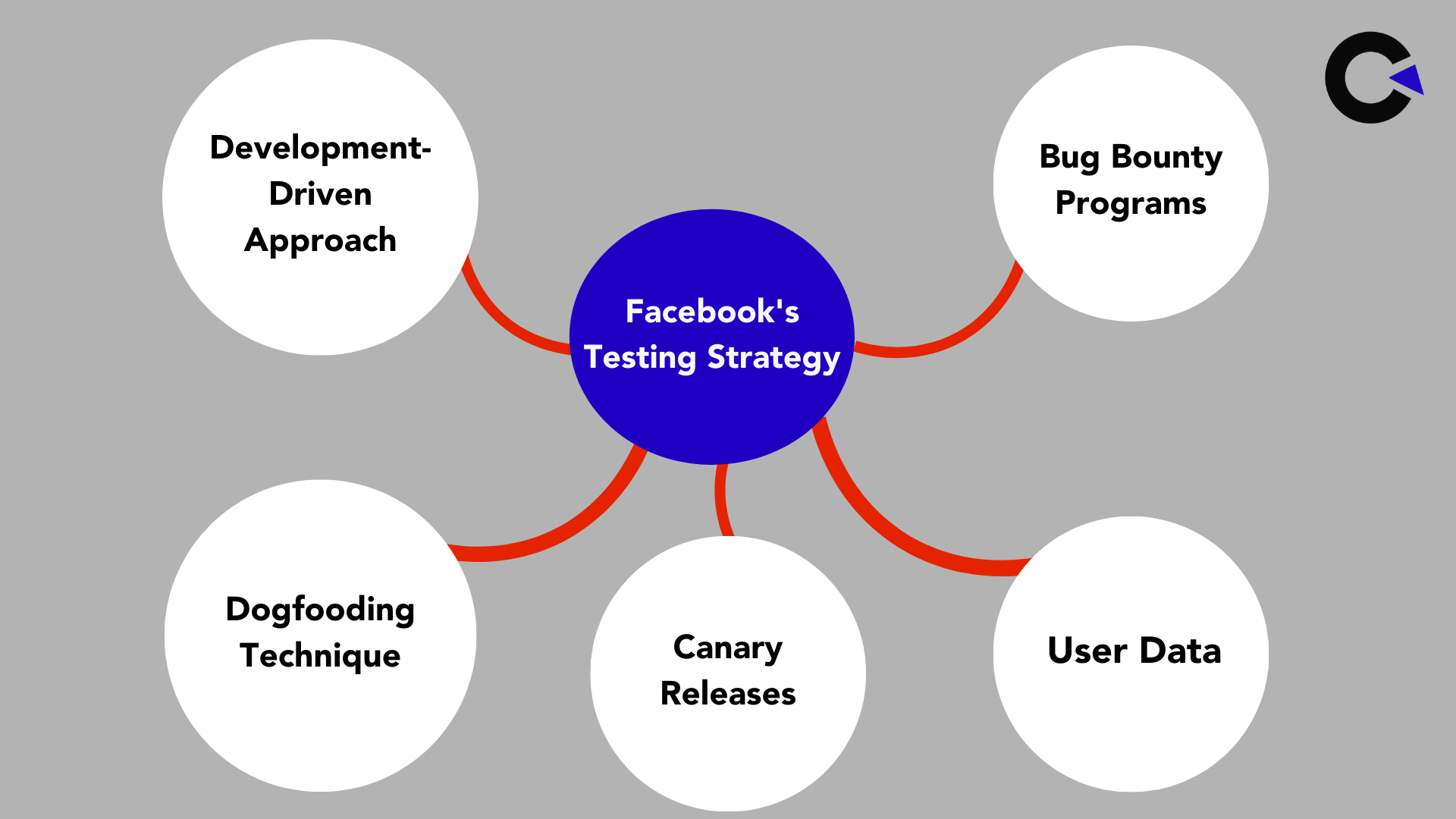
Development-Driven Approach
Facebook tries to reduce the number of bugs that get past the developers by making the developers test their own code and test each other’s code as well. Though developers will be more careful with their work, this method does lack the benefit of fresh and unbiased eyes reviewing the code.
Dogfooding Technique
Another one of Facebook’s Testing strategies is dogfooding all their employees by making them use the application. They are also provided with the required tools to report the bugs they find. So almost every employee is a tester in this scenario, but what makes it different is that testing alone isn’t their main task. Likewise, few employees will be focused more on QA, but that alone will not be their purpose.
Canary Releases
Facebook will not deploy any changes directly to their entire base. Instead, they make canary releases to their employees at first. If there are no reported issues, it is released to a smaller group of real-world users before it makes a worldwide release. Facebook’s various clients are also made to perform QA activities as their services are heavily reliant on the platform. Clients will be able to access the beta versions by visiting beta.facebook.com 24 hours prior to the release.
Bug Bounty Programs
As a part of Facebook’s Testing Strategy, they have been running bug bounty programs ever since 2011. It is used as a way to discover any major concerns that could have slipped past their existing tests. The prize amounts are calculated based on the severity and impact levels of the issues that are discovered. On the 10th anniversary of their bug bounty program, Facebook announced that had awarded over $1.98 Million for the winners. According to a former Facebook employee, they even have a few privileged channels through which ex-employees can report the issues they find. The employee also claimed that he reports around 13,000 bugs every month.
User Data
Owing to the larger user base, Facebook has large amounts of data at its disposal to monitor the performance of the newly deployed changes. Facebook has aggregated user reports and workflow success rates to analyze the success. It also keeps the existing users under check by using data like how many messages were sent during this hour of this week versus the previous week.
Are Testers not required?
Facebook’s Testing Strategy is in no way a perfect way to go about testing your product before a release. In fact, Facebook itself is aware of the shortcomings in its strategy. But they still follow it as Facebook feels social media is non-essential. This kind of approach shouldn’t come as a surprise as the motto for the company’s developers was “Move Fast and Break Things” until 2014. As a leading QA company, we believe that involving all the employees and developers to focus on testing makes it impossible for them to focus on their primary objectives to deliver their best. It is also a very messy plan that can be difficult to keep track of. A dedicated team can be instrumental in bringing down issues and costs in the longer run.

by admin | Nov 30, 2021 | Selenium Testing, Blog, Latest Post |
Now that Selenium 4 has been officially released, we thought it’ll be a great idea to compare the architecture of both Selenium 3 & 4 and explore the Selenium 4 New Features. As one of the leading automation testing companies, we have been using Selenium for years and years over numerous projects to deliver high-quality Automation Testing Services to our clients. We feel that the upgrades in Selenium 4 are all welcome features that will be useful in helping the software testing community. Now let’s kick start this blog by comparing the two architectures.
Selenium 3 Architecture:
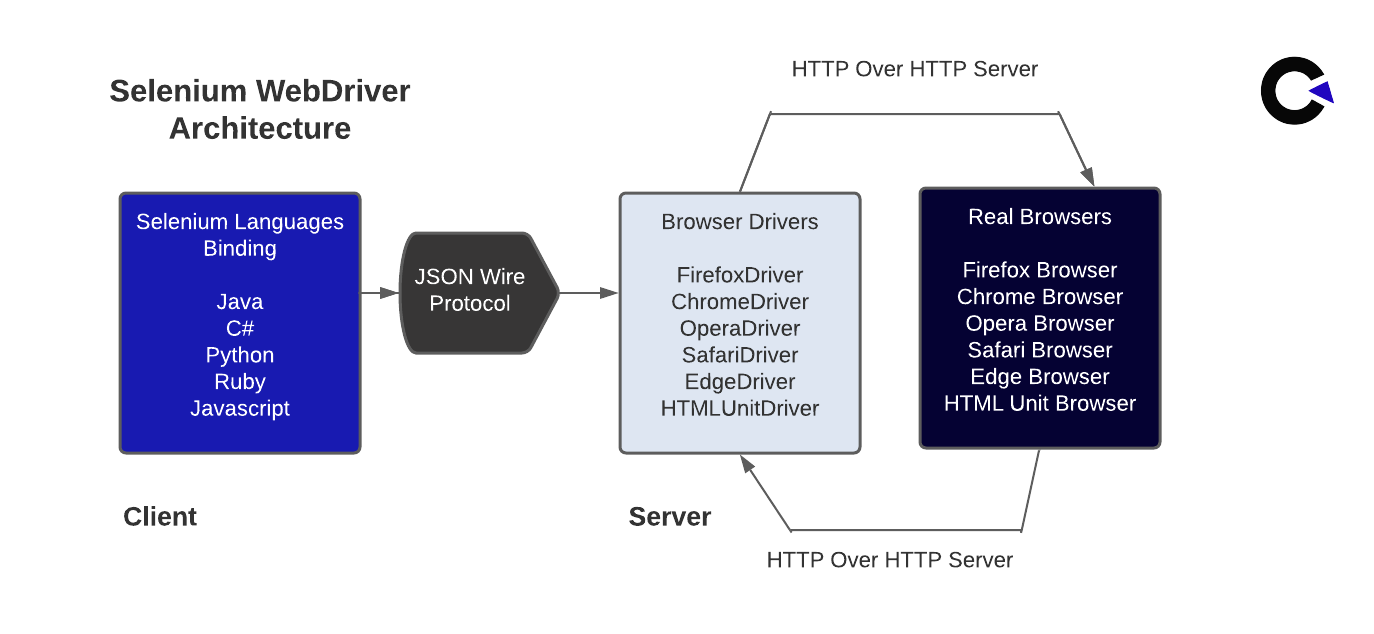
- The architecture for Selenium 3 includes the JSON Wire Protocol (JSON stands for JavaScript Object Notation).
- The JSON Wire Protocol operates as a mediator to transfer information from the client to the server over HTTP (HyperText Transfer Protocol).
- The Request is sent from the Selenium Client & the WebDriver Language Bindings module and received by the JSON Wire Protocol over HTTP. It is then secured by the Browser Driver module as shown in the above figure.
- Therefore the request command is delivered to a Web Browser module where the real automation takes place as shown in the above figure.
Selenium 4 Architecture:
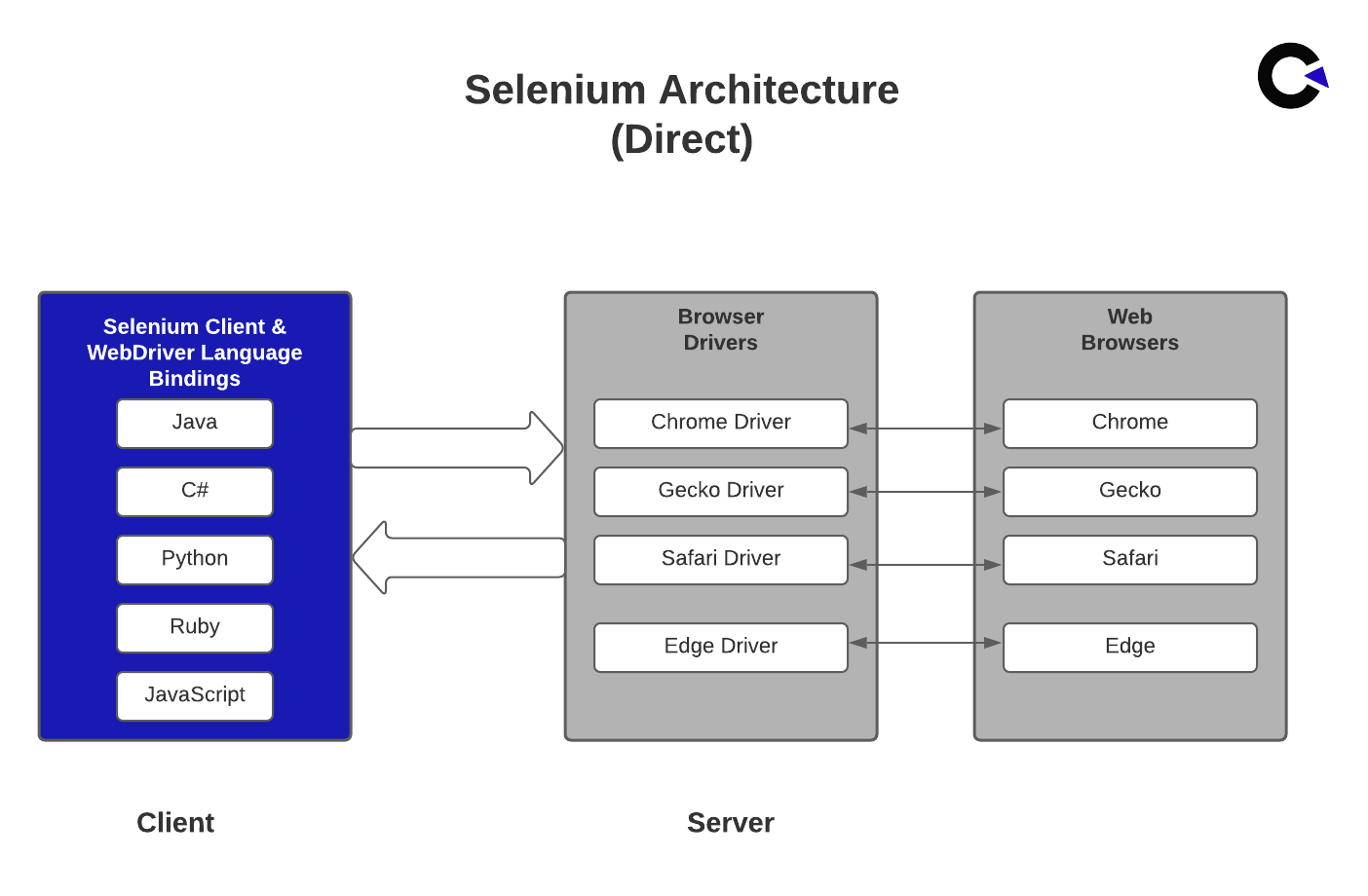
- Selenium 3 includes the JSON Wire Protocol as discussed above, whereas Selenium 4 has introduced the W3C protocol as the communication medium of the browser between the client and server.
- Here, the client has two parts called the Selenium Client and WebDriver Language Bindings. The Browser Drivers acts as the server as shown in the above figure.
- The Selenium Client sends out a request to perform a command.
- The Browser Drivers receives that request and then returns a response after an automation test script is executed on the web browser.
Selenium 4 New Features:
Now that we understand how both versions work, let’s explore what are the new features that Selenium 4 has to offer.
1. Selenium WebDriver:
It is an open-source API that the web driver allows to interact with the browser just like a real user.
2. Selenium IDE:
It enables us to record and playback the user interactions with the browser. The new version of Selenium IDE is now available with more features.
3. Selenium Grid:
It can be used to save time by distributing and running tests on multiple browsers, operating systems, and machines.
4. Using WebDriver Manager:
Prior to the release of Selenium 4, if you wanted to run Selenium WebDriver automation scripts in Chrome, you had to first download chromedriver.exe and then use the System.setProperty as shown below to set its path.
System.setProperty("webdriver.chrome.driver","/absolute/path/to/binary/chromedriver");
After Selenium 4 release
Step 1: Add the Maven Dependency for the WebDriver Manager
https://mvnrepository.com/artifact/io.github.bonigarcia/webdrivermanager
Step 2: Add the code
Instead of the “System.setProperty()” call, the class code for WebDriverManager should be used.
WebDriverManager.chromedriver().setup();
Step 3: We can also choose a specific version of the browser as shown below.
WebDriverManager.chromedriver().driverVersion(“92.0”).setup();
5. To Capture screenshot of specific web element in selenium 4:
Users being able to take a screenshot of a specific web element is another one of the best Selenium 4 New Features that can make life easier for testers. Earlier, it was possible to take a screenshot of the entire page, but there was no provision to take the screenshot of a specific web element. Though it is a simple upgrade, it can come in very handy during real-world usage.
WebElement logo =driver.findElement(By.xpath("//div[@class='logo_container']"));
File file=logo.getScreenshotAs(OutputType.FILE);
File destFile =new File(“codoid.png”);
FileUtils.copyFile(file,destfile);
6. To open the new tab on the browser in Selenium 4:
The users can save a lot of time as it is now possible to open a URL in a new tab along with the existing tab. Let’s take a look at the sample code for opening two URLs in two different tabs.
public class SampleTab {
    public static void main(String[] args) {
          System.setProperty("webdriver.chrome.driver","src/Drivers/chromedriver.exe");
        WebDriver driver = new ChromeDriver();
        driver.get("https://www.google.com/");
        driver.switchTo().newWindow(WindowType.TAB);
        driver.navigate().to("https://codoid.com/");
    }
}
7. To Open a new window on the browser in Selenium 4:
So it doesn’t just stop with new tabs, you can also open a new window on the same browser and access two applications at the same time in Selenium 4.
public class SampleWindow {
    public static void main(String[] args) {
        System.setProperty("webdriver.chrome.driver","src/Drivers/chromedriver.exe");
        WebDriver driver = new ChromeDriver();
            driver.get("https://www.google.com/");
            driver.switchTo().newWindow(WindowType.WINDOW);
            driver.navigate().to("https://codoid.com/");
    }
}
8. Relative Locators:
Selenium 4 has even added 5 relative locators that enable testers to find web elements relative to another element in the implemented DOM.
The Five locators newly added to Selenium 4:
- toLeftOf()
- toRightOf()
- above()
- below()
- near()
The Key Differences between Selenium 3 and Selenium 4
| S. No |
Selenium 3 |
Selenium 4 |
| 1 |
The Chrome Driver Extends Directly To The Remote Web Driver. |
The Chrome Driver Class Extends To The Chromium Driver That Has A Few Predefined Ways To Access The Dev Tool. |
| 2 |
The JSON Wire Protocol Operates As A Mediator To Transfer Information From The Client To The Server Over HTTP. |
Since It Uses The W3C (World Wide Web Consortium) Standard Protocol, The Driver And Browser Communication Follows The Standard Procedure. |
| 3 |
The Testers Always Have To Start The Hub And Node Jars Every Time They Perform Automation Testing. |
Testers Needn’t Have To Start The Hub And Node Jars Every Time They Perform Automation Testing. |
Conclusion
So it is very evident that the Selenium 4 upgrade has a lot of good improvements to offer including better documentation. By seeing the architectural changes, we hope you will be in a better position to use the tool more effectively. As a leading QA company, we always make it a point to know the tool inside and out as it helps us utilize the full potential of the tool.

by admin | Nov 29, 2021 | Automation Testing, Blog, Latest Post |
We live in a world where automation is already considered to be a huge advantage now for most companies. The same goes for testing mobile and web applications. You need to have the right tools that will help you automate many of the functions of testing so you can get a higher level of test coverage and execute them at a faster rate. Let’s look at some of the tools that quality teams are looking for when testing mobile apps and web apps.
Tools for Mobile App Testing
While most web developers and testers use the Selenium framework to write tests, there are many different tools for mobile app testing. The first question to ask when choosing a tool is whether it is open-sourced or closed-source. Since most mobile apps are built with open-source frameworks, it is best to select an open-source tool, if possible.
The next question is whether the tool runs on more than one OS or just on Android or just on iOS. You will probably write tests in a language that does not depend on OS, but you should remember that Android and iOS require different test frameworks.
Not every mobile app test framework is best for every application type: native apps, web apps with a mobile interface, and hybrid apps with heavy WebView use can require different tools.
If you are running into problems deciding which tool is best for your needs, keep in mind that many companies offer free trials or free versions of their products. Just do a little bit of research before you jump in headfirst.
Tools for Web App Testing
More and more businesses rely on their web applications to streamline their operations and improve their marketing efforts. The continuous, high load and growing market expectations require web apps to undergo a variety of tests to make sure that it’s compliant with the UI standards, as well as in terms of compatibility and usability. Web app testers need to use a variety of automated software testing tools that allow them to test their products from different perspectives.
Which Testing Tool to Use?
Before making a decision on which testing tool to use for your applications, you need to take into account all the other factors that could affect how your testing will go. Some of the questions you need to consider are:
- How many tests do you need to run?
- Who will run the tests?
- How frequently do you need to run them?
- How many users do you intend to simulate?
- What scripting languages do you have experience working with?
- What platforms and browsers do you need to cover?
- Are you testing a finished product or a pre-release version?
- How important is automation for you?
- Do you have a system of tracking and analyzing the results?
- How important is a visual reporting system for you?
Conclusion
Mobile and web app testing is a crucial step in software development where companies can’t afford to cut corners. The only way to make testing much more efficient is to use the right kind of tools for the job. This guide should help you decide what kind of tools you can use for testing that will help you automate many of its functions.
If you’re in need of a QA company with a seamless track record in web and mobile testing services, Codoid is your best choice. Every new software product deserves high-quality automation testing, and our team of highly skilled QA professionals can handle any job. When it comes to QA automation services, there’s no better choice than Codoid. Partner with us today!

by admin | Nov 26, 2021 | Software Testing, Blog, Latest Post |
Prevention is better than cure is a great saying that even applies to the software development lifecycle. But it is almost impossible to develop software without any bugs on the very first try. So in order to keep up with the ever-growing need for rapid software development, it is vital for us to minimize the time taken to fix a bug. So it is very important to know the different types of software bugs detected during software testing as the complete knowledge of the type of bug you are dealing with will be instrumental in helping you understand the severity and in turn sort your priorities accordingly.
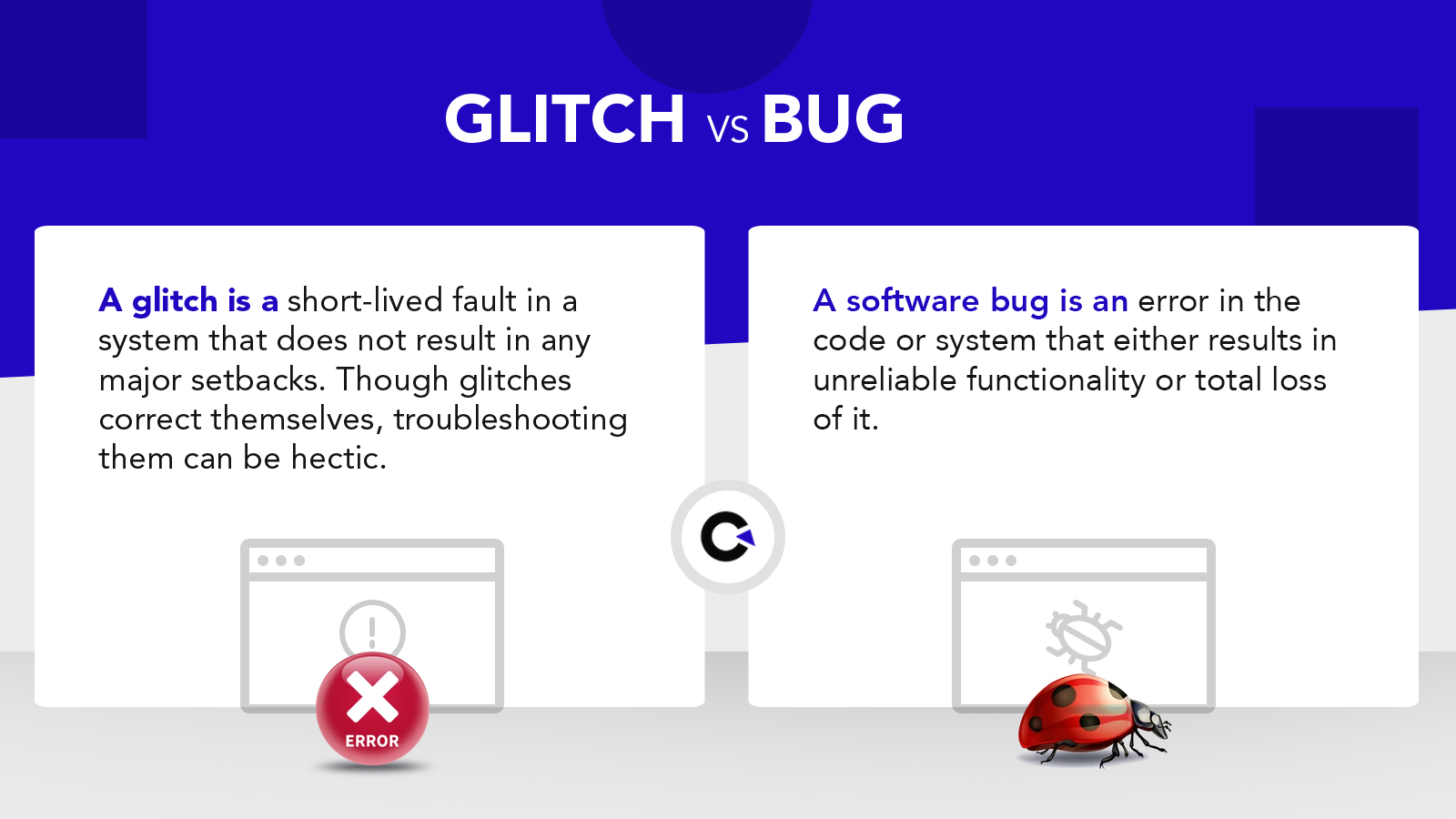
But before we explore the various types of software bugs, let’s first look into what classifies as a software bug. A software bug can be defined as an error or a fault that can render a computer program or even an entire system to crash or malfunction. So you will not get the desired or expected output despite providing a valid input. Though a glitch is different from a software bug, few might assume both to be the same. Due to the random nature of software glitches, it can be very difficult to find the cause and solve it like a software bug. But you might get lucky as glitches are known to correct themselves.
Origin of the Term ‘Bug’
Before dive in to explore the different types of software bugs, let’s take a look at some interesting trivia related to the term ‘bug’. The first-ever bug in a computer was reported by Grace Hopper back in 1946 and there is an interesting story behind how the term ‘bug’ came into use.

But some records suggest that the term ‘bug’ was used years back to denote an issue in a system.

What are the Different Types of Software Bugs?
Let’s take a list of the various types of software bugs and then explore them one by one.
- Functionality Bugs
- Performance-based Bugs
- Usability Issues
- Safety Issues
- Compatibility Issues
- System-Level Integration Bugs
- Unit Level Bugs
Functionality Bugs
Every element in an application or a website will have a purpose for its existence. At times, it is possible for a few of these elements to not function as per the need or expectations. So such errors can be termed as functional bugs. The severity of these types of bugs could also be in different ranges. To bring that into perspective, a random non-functioning button that isn’t responding to clicks is also a functionality issue, and a malfunctioning login functionality that isn’t letting the users use the software is also a functionality issue. Owing to the broad nature of this type of bug, it is one of the most common bugs you will encounter. You have to be careful and not list every single bug you find under this category. Instead, you should take a closer look and classify it accordingly.
Performance-based Bugs
But just because a function works, doesn’t mean that everything is fine. According to a report, a delay of just one second decreases the customer’s satisfaction by 16%. Now, let’s say you are at the payment gateway and have entered your password or the OTP. The payment has to be verified and a success message has to be displayed in a very short span of time. If it takes 5 minutes for the success message to be displayed, then the user would be livid with your software. Similarly, if it works smoothly only once every 5 times, you would have to be counting on your luck to get that successful message. So speed, stability, resource consumption, etc. are a few performance issues that one might face.
Usability Issues
Over the years the number of fields in the sign-up form has been on the decline and usability is one of the major reasons. If it seems like too much work, users might shy away from creating an account or using the product altogether. You might have developed a great feature that can make a task easier for the user. But if the feature is hidden away in some menu making it hard for the user to find, it most probably will remain unused. There can also be workflow bugs that can make navigation through the software very difficult.
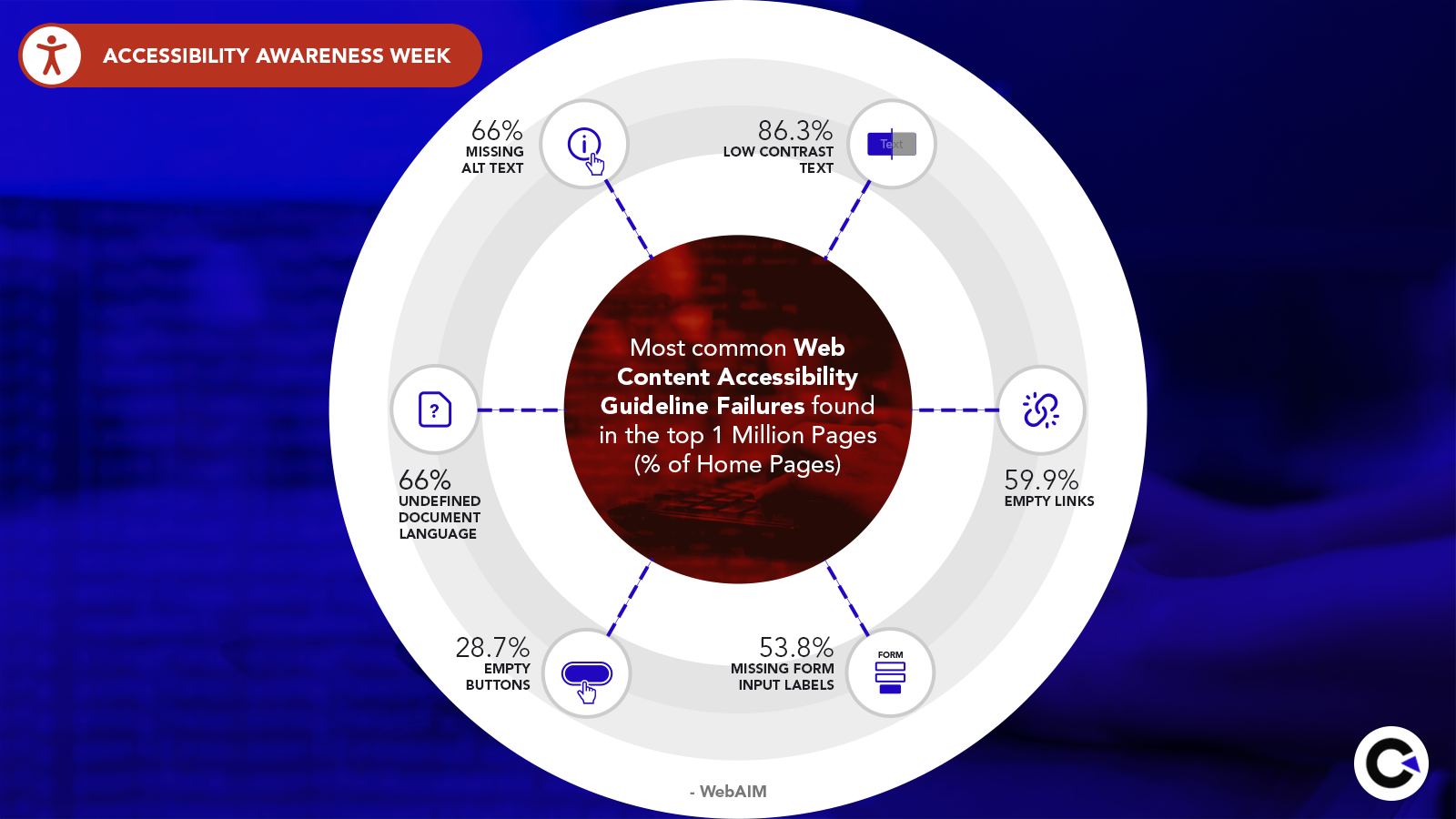
Accessibility issues are some of the most overlooked types of usability issues that make your product inaccessible to people with disabilities. As one of the leading QA companies, we provide the best web accessibility testing services and believe that everyone should have equal access to the various applications and websites in the market. Now let’s take a look at the few common accessibility issues that are usually found.
Safety Issues
With so much of our personal information at stake, safety and privacy have become major concerns for many users. The Covid-19 pandemic also resulted in a surge of security breaches as many products were left vulnerable due to their lack of focus on security. So make sure to look out for the following security issues.
- Encryption errors
- Buffer overflows
- Vulnerabilities in XSS
- Susceptibility to SQL injections
- Weak authentication
- Loopholes in role-based access
- Insecure deserialization
- Using components with known weaknesses
- Security misconfiguration
Compatibility Issues
If we take a mobile application as an example, compatibility is one mammoth challenge that the software development team has to overcome as there are so many mobile devices that are available in the market today. Each of these devices has its own display size & resolution, operating system, processors, and so on. So if you face any issues with a certain specification, then you would have to note it down. If you are developing a website, then you have to make sure it works fine across mobile devices, tabs, and computers. So just because everything works well in the defined circumstances, you can’t expect it to work the same way in real-world scenarios that have a lot of diversity.
System-Level Integration Bugs
Though the code for the different units of the software will be written by different software developers, it must all work together seamlessly. But it is not something that happens every time and you might encounter such issues when you are testing. You might something weird happening in the UI, or you might even witness memory overflow issues because of such bugs. So you can’t directly assume it is a UI issue as it might be caused due to the inconsistencies or incompatibilities across components. This makes it very hard to locate and resolve the issue as one would have to examine a larger chunk of code to identify the problem. So make sure to be extra careful when handling such complex issues.
Unit Level Bugs
Agile teams make use of unit tests to detect issues at the early stages of the software development so that they can be spotted and fixed easily. As a prominent agile testing services provider, we always focus on unit testing in all our projects. So it is highly important for you to know about unit-level bugs. If you are unaware of what unit tests are, they are nothing but the tests that are executed once a few models of the software have been developed. For example, if the sign-up page has been successfully developed, then the testers can verify that functionality alone with maximum coverage. Beyond the functionality, one could check if the data fields are accepting inputs as per the expectations. If the password must include both upper case and lower case letters, then it should not accept a password if this condition isn’t fulfilled.
The Other Different Types of Software Bugs
We have seen the major types of software bugs that you might come across while testing. Now we will be just skimming through the few other bugs that you should know about. The code might have syntax errors that prevent the code from compiling properly. Aspects like a missing character or bracket could cause such issues. Likewise, there might be unnecessary code duplication that is just making the software more bulky and slow. Apart from that, there could be logical errors in the code that can cause loss of functionality or even crash the application. Remember the example under the unit level bugs? You might face such out-of-bound bugs outside of unit testing too.
The Severity of the Different Software Bugs
By now you would have a pretty good idea of what types of software bugs will be severe and which ones have to be prioritized. Even if there is any confusion, the following example of a few bugs in an e-commerce website will help you get a crystal clear idea.
- Critical – If there is an issue that is preventing the users from even accessing the site due to a server issue or not allowing you to place an order, then that should be termed critical as all major functionalities have been blocked.
- High-level – This might also seem like a critical bug, but it is something that reduces functionality and not something that totally destroys it. For example, if you are able to access the site and place an order but not able to track the delivery. Here the main functionality is working, but still, there is a lot of inconveniences caused to the user while performing the main functionality (Shopping).
- Medium level – Minor or less important functionalities that impact a user’s experience with the product can be categorized here. A broken link or navigation issues are perfect examples.
- Low level – Bugs in this level will most probably be UI issues like alignment, typos, color issues, and so on.
Prioritization
Conventionally, many would assume that only the critical bugs should be resolved at the earliest. Though severity plays a major role in triaging which bugs to resolve first, complexity should also be considered. Critical bugs should get the main focus irrespective of how complex it is. But along with it, even small typos or issues that can be resolved much effort should also be fixed without any delay. It doesn’t matter if the bug is severe or not, a bug is still a bug and our plan should always be to fix it at the earliest. Highly severe bugs can be prioritized based on complexity. Whereas moderately severe bugs should be fixed by the next update.
Conclusion
We hope you had a good time reading our blog and now have a pretty good idea of the different types of software bugs you might have to deal with when testing. This is a list of the most common bugs you might face, there might be scenarios where you face bugs that are more complex or different in nature. But this list is a good place for you to start and then slowly up your skills as you move forward in your testing career.

by admin | Nov 23, 2021 | Mobile App Testing, Blog, Latest Post |
Do you believe in the myth that every test case or scenario can be automated completely and effectively, and that manual testing is no longer necessary? If you don’t, that’s good news. But if you do believe in that myth, it’s time to reassess your approach towards software quality. Not all test cases or scenarios can be automated properly, and at times though automation is possible to achieve, it will not be the right path for you because of factors like ROI, repeatability, and so on. We know for a fact that manual testing is still an irreplaceable and integral part of software testing that one has to master to attain maximum quality. It has been instrumental in helping us deliver the best Mobile Testing Services to our clients. So we have curated this blog by covering the various effective manual mobile-app testing strategies we have been using over the years.
Let’s lay a roadmap first and then work around the other aspects that one should concentrate on to perform effective manual mobile-app testing. You might have the greatest tool in your hand, but it will be of much use if you don’t use it correctly. Likewise, we should know when to use manual testing and when to use automation. The very first step would be to create an effective plan, and you should know the possible resources you can use to fulfill your vision.
Develop a Plan:
You have to understand the app very well to know what tests have to be run and where automation has to be used. Here are a few pointers to keep in mind.
- What makes manual testing stand apart from automation is the manual tester who is in control. Only a real human will be able to identify the usability issues in the app. Ultimately, it is not about passing a test that sees if the app is user-friendly, it is about if the app feels user-friendly.
- Exploratory testing is another approach where the tester at the helm plays a more significant role in comparison. The intuition and domain knowledge of the tester will be able to guide them through effective tests. This type of testing is almost impossible to achieve with automation.
- Make sure to analyze your test cases and see if it has to be run only once or if it has to be run multiple times. If it has to be run just once or twice and doesn’t consume much time, there is no point in spending extra effort to automate the process.
- Localization and Internationalization make the app more accessible across the globe. Manual tests can be preferred here as when different languages are used, the UI might be affected by the change in font and word lengths.
- Black-box tests that are done during the early stages of development will also benefit from manual tests. If frequent changes are being made to the app, then implementing automation can become cumbersome due to the constant changes you’d have to make to your test scripts.
- If you are tasked with checking the compatibility of the app across different devices, then manual testing will also come in handy as there will be many test cases or scenarios that aren’t repetitive.
Types of Mobile Apps
Your test strategy must also consider the types of mobile app that is being tested. There are 3 basic categories that we would have to know about, and they are,
- Native Apps – They are applications designed specifically to work on a specific platform like iOS or Android.
- Web Apps – They are actually a responsive version of the website that can work on mobiles through a browser instead of installing the application. So they are independent of the platform.
- Hybrid Apps – As the name suggests, it is a combination of both the above types. They do have traits of a web app, but it is ultimately merged with a native app that makes it possible to be downloaded onto the phone.
Use a Wide-Range of Devices
Now let’s take a closer look at how you can combat one of the biggest challenges when it comes to testing mobile apps (i.e.) the wide range of different mobile phones that are available.
Major players in the arena have their flagship mobile launches once a year, but they also launch mid-range and budget options at more frequent intervals and these are the models that are mostly used by the people. Apart from the fresh launches, people would also be using the older versions and the app must work well with that as well.
When it comes to software, they are primarily split into iOS and Android. Android is further split into brand-specific skins like OneUI, ColorUI, and so on. Hardware options are also innumerable as Apple has started using their own M1 chips, whereas Samsung has its own line of chips (i.e.) the Exynos and also have the Snapdragon variants. Mediatek chipsets are also becoming prevalent. We could keep going if we list all the variations in the devices. Now let’s progress move on to the solution.
Cloud-Based Solutions
Purchasing every single device in the market is not a possible solution. So it is more practical to opt for cloud-based solutions like BrowserStack that gives you a wide range of real Android and iOS devices that you can test with. It is also not that complicated as you can just upload the apk or ipa file of your application and choose the device and software version you want and begin testing as though the device is with you. If you are looking for a list of the best Cloud Testing Platforms that will suit your needs, don’t miss out on our blog where we have covered this topic in-depth.
So we can basically test the application on every single device that is available on the platform. But just because we can, doesn’t mean we should. Even with the right tools, it is important to use an approach that identifies the devices you should use to test your app. Here are a few tips to keep in your mind.
- Do proper research to identify the most widely used mobile variants in the market.
- Make sure to use mobile devices with different screen resolutions and sizes.
- Identify the target audience of your app and look for data that shows the type of devices used by them.
- Your device selection should cover the various OS options available in the market. We have already discussed the different variations in Android. So make sure it is not chosen as plain Android and iOS.
- The same applies to the hardware aspects and the various features like compatibility, memory size, connectivity, and so which vary from device to device.
Emulators
A more cost-effective way would be to use emulators that mimic the actual devices instead of using the actual devices. But the reduced cost does demand additional time and effort. The reason is that you would have to download emulators of all the devices you want to test with. The other major disadvantage is the reliability issue as emulators will not be able to mimic the real-world scenarios that might happen in the real device. In fact, you won’t even be able to perform basic gestures like pinch, swipe, long press, and so on. Network operations also can’t be tested in emulators.
But as stated earlier, emulators can be used if you are on a tight budget as there are various open-source options. Since emulators will be in your local machine, they will be better in terms of speed and function without the latency that can be seen at times with cloud-based options. You could go with emulators if you have very basic testing needs or if you will use them only during the early stages of development. If not, it is better to choose one from the list.
Proper Documentation
Documentation is a very crucial aspect of software testing itself. But when it comes to manual mobile app testing, make sure you create a well-defined click path. A detailed click path doesn’t just avoid any confusion while testing, it also optimizes the time needed for each test session. Once the bug is fixed, you can refer to the documentation to recreate the scenario and find out if the bug has been fixed or not. Since every single detail matters, ensure you write down everything important you have observed while testing without leaving out any data. Documentation shouldn’t feel like the end of a conversation that is written for the sake of it. As one of the best Manual Testing Companies, we always focus on our documentation in all projects and have seen good results every single time.
Beta Testing Phase
This is pretty much an add-on phase of testing that you can use to make sure no oversight issues get through to the final release. Nowadays we have a higher number of people volunteering to beta testing programs to try out the new features of an existing app or to test a new app itself. Since the beta users will not be software testers, you will be able to get a real-world preview of how good your app is. So make sure to identify people who resemble your target audience and not random people as the results may be misleading.
Conclusion
We hope you have a clear understanding of how you can effectively test your mobile apps by taking the manual approach. There is simply no option as good as manual testing when it comes to usability and accessibility testing. So using the above-discussed strategies, we believe that you will be able to perform quality manual mobile-app testing.