by admin | Aug 30, 2021 | Automation Testing, Blog, Latest Post |
Nowadays Appium is being prominently used for identifying Xpath or locators in both Android and iOS apps. But when it comes to iOS, we would have to spend a lot of time configuring the real device using Xcode for Building the WebDriverAgent. If in case we don’t have the latest iOS Version, iPhone Version, and Xcode version, then we will be facing configuration issues. This is where a cloud testing platform like BrowserStack comes into the picture as an easy solution and alternative to such problems. So if you were looking for the steps to use BrowserStack for inspecting a mobile app’s locators, then you’re in the right place. As a leading automation testing company, we have been using BrowserStack for a long time. So in this BrowserStack Tutorial, we will be showing you how to use BrowserStack as a UI inspector for both Android and iOS apps.
App Live
Make sure to install BrowserStack and keep it ready to do the following steps. If you are still on the fence about purchasing an account, you can still use their trial period to check out how well it fits your needs. So now let’s see how we can test our mobile apps and view the developer logs via DevTools and also identify the mobile elements using the ‘Inspect’ option in DevTools.
Navigate to App Live as shown in the image below,
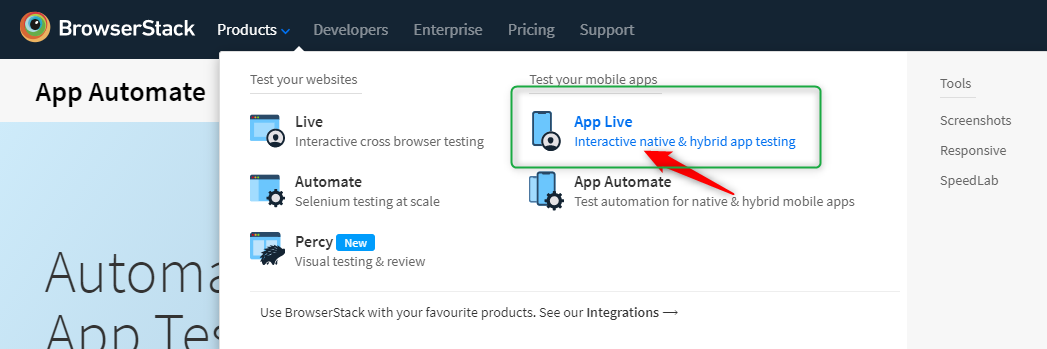
Let’s a look at the 7 easy steps that have to be followed in this BrowserStack Tutorial now,
i. Click on ‘Test with a Sample app’ as shown in the image.
ii. Upload your App using the given option. If it’s an Android app then upload your apk file here, if it’s iOS, upload your ipa file here.
iii. Select the device you want to test the app in.
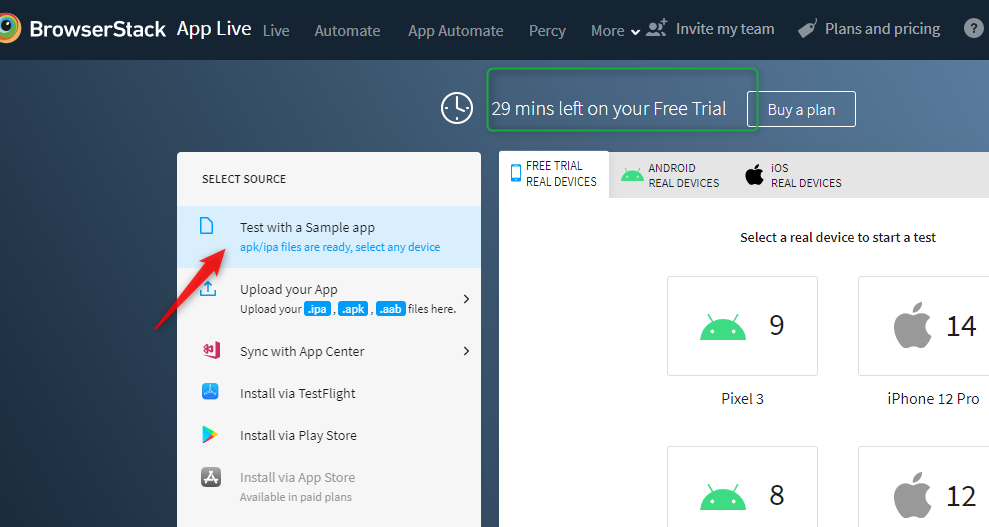
iv. Once you have chosen the Real Device that you want to test in, the App will launch.
v. You will get a split-screen view as you see in the below image.
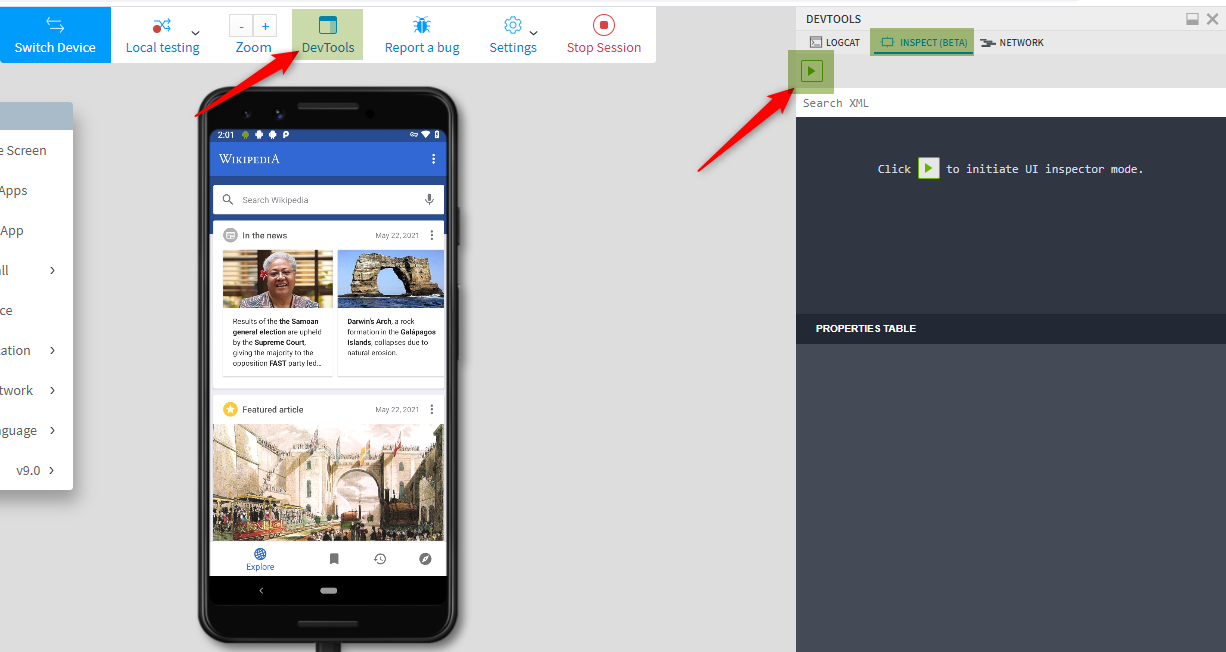
vi. So you will see a pane on the right side that will show the following three options, LOGCAT, INSPECT (BETA), and NETWORK
vii. Now, click on the ‘Inspect’ option, and then click on the ‘Play Button’ that appears to enable Inspector mode.
Inspector Mode
Once we have turned the Inspector mode on by clicking on the Play icon, we will easily be able to identify the locators and objects. All you have to do is hover the mouse over the element that you want to inspect on the mobile screen, and click on it. Once you have clicked, the XML snippet and the element we have selected will be highlighted as shown in the image below.
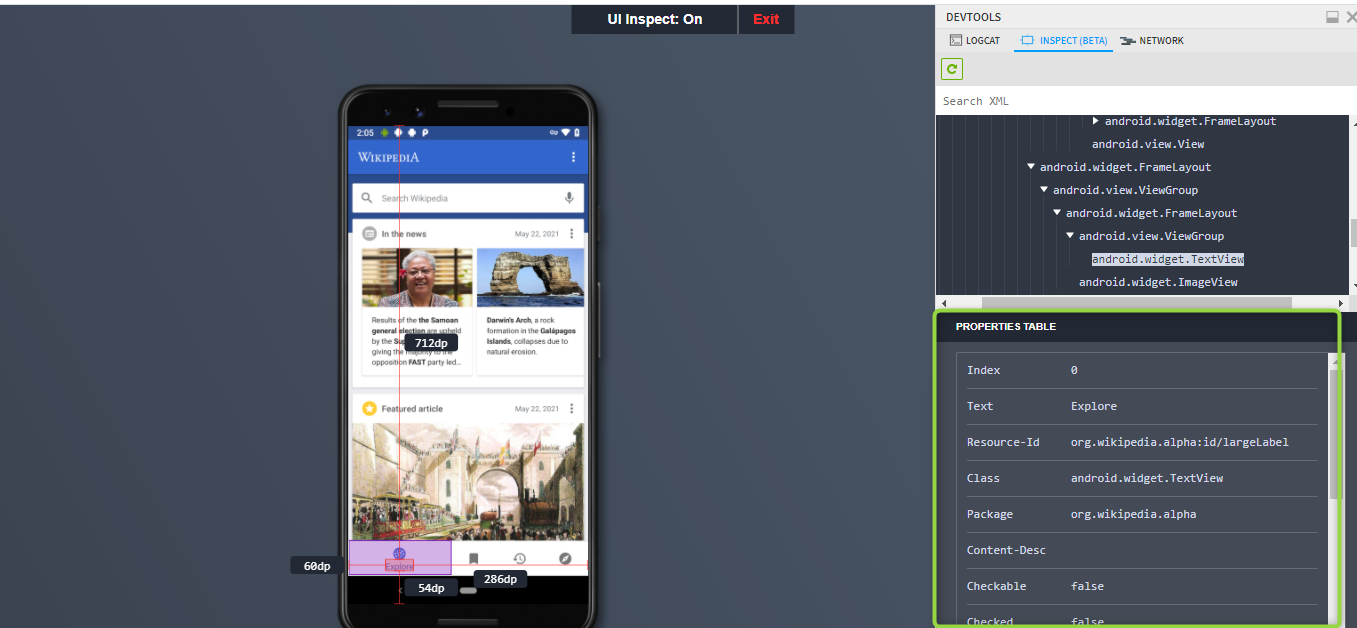
Right below the code snippers, we will be able to see the ‘Properties Table’ as well.
Highlighted XML code snippet:
  >android.widget.ViewGroup
    >android.widget.TextView
Properties Table:
The table will show attributes, keys, and values like the Resource-Id, Class name, Package Name, Index, Visible Text, etc…
Example:
Text: Login
Resource-Id: org.package:id/headerLabel
Class: android.widget.TextView
Package: org.package.alpha
Conclusion:
So using BrowserStack as a UI inspector is a very easy process that every tester must know. BrowserStack’s UI inspector has come in handy whenever there was any locator or object issue in the automation suite. We were able to come up with quick fixes and provide the best automation testing services to our clients as we were able to easily identify the locators and objects using BrowserStack. That is why specifically chose to cover that in this BrowserStack Tutorial. If you are looking to learn more about BrowserStack, kindly read our End-to-End guide on it.

by admin | Aug 23, 2021 | Automation Testing, Blog, Latest Post |
Dependency Injection is a design pattern used to create dependent objects outside a class and provide those objects to a class through different ways by implementing Inversion of Control. Using Dependency Injection, we can move the creation and binding of the dependent objects outside of the class that depends on them. JVM-Cucumber supports many different dependency injection frameworks, and one of them is Guice. As a leading QA company, we are always on the watch for new tools and frameworks to improve our testing process and so we tested out Guice as well. So in this blog, we will be showing you how to perform Cucumber Dependency Injection Using Guice.
Cucumber Dependency Injection Using Guice:
If you’re going to work in an automation framework from scratch or use an existing one, there are few aspects that you should keep in your mind. For example, you have to ensure that the framework is maintainable, easy to understand, helpful in avoiding coding duplicates, and quick to adapt to any changes. Though these are very basic aspects of a framework, it does require you to follow a few design principles and techniques in it. First off, let’s see why sharing the state between steps in Cucumber-JVM is a necessity.
Well, a Gherkin scenario is created by steps and each step depends on previous steps. That is why we must be able to share the state between steps. Since the tests are implemented as regular Java methods in regular Java classes. If steps are global, then every step in the same package or subpackage relative to the runner will be found and executed. This allows us to define one step in one class and another step in another class.
If you’re writing your first test, then there are high chances that you have just a few steps that can easily be fit into one class. But the real problem arises when there are a bunch of scenarios as it gets exponentially harder to maintain. So that is why dividing the steps between many classes is a good idea.
How do you share the state between different classes for Cucumber-JVM?
The recommended solution in Java is to use dependency injection. That is, inject a common object in each class with steps, an object that is recreated every time a new scenario is executed.
Note – Object State sharing is only for steps and not for scenarios.
Let’s take a look at an example scenario and find out how to share the state between multiple step definition files with a common object.
Example Scenario:
* David Orders a mobile phone from Amazon.
* He receives a defective product.
* He returns the product and requests a replacement.
* Amazon replaces the defective product.
Now, let’s split this example into the Gherkin format.
Cucumber-Guice\src\test\resources\Demo.feature
Feature: Replace the product
Scenario: Defective product should be replaced if user requests for replacement.
Given David orders the mobile phone from Amazon
When He returns the product for replacement
Then He will get a new product from Amazon
The example scenario we have seen talks about two different actions,
1. Purchasing a product from Amazon.
2. Returning a product.
So when we divide the implementation of the steps into different classes, the only file that gets affected is the steps definition. This is where Dependency Injection comes into play as we can use it to overcome this obstacle. So let’s see how to get it done using Guice.
The first change here would be to add new dependencies in the Maven POM File.
This is the dependency for Cucumber to use Guice:
<dependency>
<groupId>info.cukes</groupId>
<artifactId>cucumber-guice</artifactId>
<version>1.2.5</version>
<scope>test</scope>
</dependency>
This dependency to use Google Guice:
<dependency>
<groupId>com.google.inject</groupId>
<artifactId>guice</artifactId>
<version>4.1.0</version>
<scope>test</scope>
</dependency>
Maven POM File:
This is how the Maven POM file will look like:
pom.xml
<?xml version="1.0" encoding="UTF-8"?>
<project xmlns="http://maven.apache.org/POM/4.0.0"
xmlns:xsi="http://www.w3.org/2001/XMLSchema-instance"
xsi:schemaLocation="http://maven.apache.org/POM/4.0.0 http://maven.apache.org/xsd/maven-4.0.0.xsd">
<modelVersion>4.0.0</modelVersion>
    <groupId>org.example</groupId>
<artifactId>Cucumber-Guice</artifactId>
    <version>1.0-SNAPSHOT</version>
    <properties>
<java.version>1.8</java.version>
<junit.version>4.12</junit.version>
<cucumber.version>1.2.5</cucumber.version>
<selenium.version>3.7.1</selenium.version>
<maven.compiler.source>1.6</maven.compiler.source>
<maven.compiler.target>1.6</maven.compiler.target>
    </properties>
    <dependencies>
        <dependency>

<groupId>com.google.guava</groupId>
<artifactId>guava</artifactId>
            <version>22.0</version>
        </dependency>

        <dependency>
<groupId>info.cukes</groupId>
            <artifactId>cucumber-guice</artifactId>
<version>${cucumber.version}</version>
            <scope>test</scope>
        </dependency>

        <dependency>
<groupId>com.google.inject</groupId>
            <artifactId>guice</artifactId>
<version>4.1.0</version>
            <scope>test</scope>
        </dependency>

        <dependency>
<groupId>info.cukes</groupId>
<artifactId>cucumber-java</artifactId>
            <version>${cucumber.version}</version>
            <scope>test</scope>
        </dependency>

        <dependency>
<groupId>info.cukes</groupId>
<artifactId>cucumber-core</artifactId>
<version>${cucumber.version}</version>
            <scope>test</scope>
        </dependency>

        <dependency>
<groupId>info.cukes</groupId>
<artifactId>cucumber-junit</artifactId>
<version>${cucumber.version}</version>
            <scope>test</scope>
        </dependency>

        <dependency>
<groupId>junit</groupId>
<artifactId>junit</artifactId>
<version>${junit.version}</version>
            <scope>test</scope>
        </dependency>

        <dependency>
            <groupId>org.seleniumhq.selenium</groupId>
<artifactId>selenium-java</artifactId>
<version>${selenium.version}</version>
            <scope>test</scope>
        </dependency>

        <dependency>
<groupId>org.seleniumhq.selenium</groupId>
<artifactId>selenium-chrome-driver</artifactId>
<version>${selenium.version}</version>
            <scope>test</scope>
        </dependency>
</dependencies>
</project>
The next step would be to create two classes for the steps. Let’s call them CustomerSteps and ProductSteps.
The idea here is that these classes will share state between steps that depend on the result of an earlier step in the scenario. It is known that sharing state can be done in different ways, and we have used a new class that holds the common data here.
Example:
src\test\java\DemoGuice\Steps\DemoCotainer.java
package DemoGuice.Steps;
import DemoGuice.Pages.ProductPage;
import DemoGuice.Pages.CustomerPage;
import cucumber.runtime.java.guice.ScenarioScoped;
@ScenarioScoped
public class DemoCotainer {
    CustomerPage customerPage ;
    ProductPage productPage;
}
In the above code, the democontainer class is annotated with @ScenarioScoped. So Guice will be able to acknowledge it as something that should be created and made available in different classes.
If we want to use this common data in each step definition file, we can add a constructor that takes the democontainer as an argument. This is where the injection occurs and so let’s take a look at an example to understand it better.
Example:
src\test\java\DemoGuice\Steps\ProductSteps.java
public class ProductSteps {
    private DemoCotainer demoCotainer;
    @Inject
    public ProductSteps(DemoCotainer demoCotainer) {
        this.demoCotainer = demoCotainer;
    }
Now we can use the democontainer to access all of the common fields that are needed across the step definition classes. Here, we have annotated the field democontainer with @Inject. It is worth mentioning that you have the choice to annotate a constructor or a field to allow Guice to set the value. This enables the shared democontainer object to be available for all the steps definition classes.
Implementation of ProductSteps class:
src\test\java\DemoGuice\Steps\ProductSteps.java
package DemoGuice.Steps;
import com.google.inject.Inject;
import cucumber.api.java.en.Given;
import cucumber.api.java.en.Then;
import cucumber.api.java.en.When;
public class ProductSteps {
    private DemoCotainer demoCotainer;
    @Inject
    public ProductSteps(DemoCotainer demoCotainer) {
        this.demoCotainer = demoCotainer;
    }
    @Given("^David orders the mobile phone from Amazon$")
    public void davidOrdersTheMobilePhoneFromAmazon() {
demoCotainer.productPage.orderMobilePhone();
    }
    @When("^He returns the product for replacement$")
    public void heReturnsTheProductForReplacement() {
        demoCotainer.productPage.requestForReturn();
    }
}
Implementation of CustomerSteps class:
src\test\java\DemoGuice\Steps\CustomerSteps.java
package DemoGuice.Steps;
import com.google.inject.Inject;
import cucumber.api.java.en.Given;
import cucumber.api.java.en.Then;
import static org.hamcrest.CoreMatchers.is;
import static org.junit.Assert.assertThat;
public class CustomerSteps {
        @Inject
        private DemoCotainer demoCotainer;
        @Inject
        public CustomerSteps(DemoCotainer demoCotainer) {
                this.demoCotainer = demoCotainer;
        }
        @Then("^He will get new product from Amazon$")
        public void heWillGetNewProductFromAmazon() {
demoCotainer.customerPage.receiveNewProduct();
        }
}
Conclusion:
We hope you had an enjoyable read while also learning how to use Google Guice for performing cucumber dependency injection. Using Dependency Injection to organize our code better and share state between step definitions has been helpful in streamlining our process to provide the best automation testing services to all our clients. Make sure to stay connected with our blog for more informative blogs.

by admin | Aug 16, 2021 | AI Testing, Blog, Latest Post |
In recent years organizations have invested significantly in structuring their testing process to ensure continuous releases of high-quality software. But all that streamlining doesn’t apply when artificial intelligence enters the equation. Since the testing process itself is more challenging, organizations are now in a dire need of a different approach to keep up with the rapidly increasing inclusion of AI in the systems that are being created. AI technologies are primarily used to enhance our experience with the systems by improving efficiency and providing solutions for problems that require human intelligence to solve. Despite the high complexity of the AI systems that increase the possibility of errors, we have been able to successfully implement our AI testing strategies to deliver the best software testing services to our clients. So in this AI Testing Tutorial, we’ll be exploring the various ways we can handle AI Testing effectively.
Understanding AI
Let’s start this AI Testing Tutorial with a few basics before heading over to the strategies. The fundamental thing to know about machine learning and AI is that you need data, a lot of data. Since data plays a major role in the testing strategy, you would have to divide it into three parts, namely test set, development set, and training set. The next step is to understand how the three data sets work together to train a neural network before testing your AI-based application.
Deep learning systems are developed by feeding several data into a neural network. The data is fed into the neural network in the form of a well-defined input and expected output. After feeding data into the neural network, you wait for the network to give you a set of mathematical formulae that can be used to calculate the expected output for most of the data points that you feed the neural network.
For example, if you were creating an AI-based application to detect deformed cells in the human body. The computer-readable images that are fed into the system make up the input data, while the defined output for each image forms the expected result. That makes up your training set.
Difference between Traditional systems and AI systems
It is always smart to understand any new technology by comparing it with the previous technology. So we can use our experience in testing the traditional systems to easily understand the AI systems. The key to that lies in understanding how AI systems differ from traditional systems. Once we have understood that, we can make small tweaks and adjustments to the already acquired knowledge and start testing AI systems optimally.
Traditional Software Systems
Features:
Traditional software is deterministic, i.e., it is pre-programmed to provide a specific output based on a given set of inputs.
Accuracy:
The accuracy of the software depends upon the developer’s skill and is deemed successful only if it produces an output in accordance with its design.
Programming:
All software functions are designed based on loops and if-then concepts to convert the input data to output data.
Errors:
When any software encounters an error, remediation depends on human intelligence or a coded exit function.
AI Systems:
Now, we will see the contrast of the AI systems over the traditional system clearly to structure the testing process with the knowledge gathered from this understanding.
Features:
Artificial Intelligence/machine learning is non – deterministic, i.e., the algorithm can behave differently for different runs since the algorithms are continuously learning.
Accuracy:
The accuracy of AI learning algorithms depends on the training set and data inputs.
Programming:
Different input and output combinations are fed to the machine based on which it learns and defines the function.
Errors:
AI systems have self-healing capabilities whereby they resume operations after handling exceptions/errors.
From the difference between each topic under the two systems we now have a certain understanding with which we can make modifications when it comes to testing an AI-based application. Now let’s focus on the various testing strategies in the next phase of this AI Testing Tutorial.
Testing Strategy for AI Systems
It is better not to use a generic approach for all use cases, and that is why we have decided to give specific test strategies for specific functionalities. So it doesn’t matter if you are testing standalone cognitive features, AI platforms, AI-powered solutions, or even testing machine learning-based analytical models. We’ve got it all covered for you in this AI Testing Tutorial.
Testing standalone cognitive features
Natural Language Processing:
1. Test for ‘precision’ – Return of the keyboard, i.e., a fraction of relevant instances among the total retrieved instances of NLP.
2. Test for ‘recall’ – A fraction of retrieved instances over the total number of retrieved instances available.
3. Test for true positives, True negatives, False positives, False negatives. Confirm that FPs and FNs are within the defined error/fallout range.
Speech recognition inputs:
1. Conduct basic testing of the speech recognition software to see whether the system recognizes speech inputs.
2. Test for pattern recognition to determine if the system can identify when a unique phrase is repeated several times in a known accent and whether it can identify the same phrase when repeated in a different accent.
3. Test how speech translates to the response. For example, a query of “Find me a place where I can drink coffee” should not generate a response with coffee shops and driving directions. Instead, it should point to a public place or park where one can enjoy coffee.
Optical character recognition:
1. Test the OCR and Optical word recognition basics by using character or word input for the system to recognize.
2. Test supervised learning to see if the system can recognize characters or words from printed, written or cursive scripts.
3. Test deep learning, i.e., check whether the system can recognize the characters or words from skewed, speckled, or binarized documents.
4. Test constrained outputs by introducing a new word in a document that already has a defined lexicon with permitted words.
Image recognition:
1. Test the image recognition algorithm through basic forms and features.
2. Test supervised learning by distorting or blurring the image to determine the extent of recognition by the algorithm.
3. Test pattern recognition by replacing cartoons with the real image like showing a real dog instead of a cartoon dog.
4. Test deep learning scenarios to see if the system can find a portion of an object in a large image canvas and complete a specific action.
Now we will be focusing on the various strategies for algorithm testing, API integration, and so on in this AI Testing Tutorial as they are very important when it comes to testing AI platforms.
Algorithm testing:
1. Check the cumulative accuracy of hits (True positives and True negatives) over misses (False positives and False negatives)
2. Split the input data for learning and algorithm.
3. If the algorithm uses ambiguous datasets in which the output for a single input is not known, then the software should be tested by feeding a set of inputs and checking if the output is related. Such relationships must be soundly established to ensure that the algorithm doesn’t have defects.
4. If you are working with an AI which involves neural networks, you have to check it to see how good it is with the mathematical formulae that you have trained it with and how much it has learned from the training. Your training algorithm will show how good the neural network algorithm is with its result on the training data that you fed it with.
The Development set
However, the training set alone is not enough to evaluate the algorithm. In most cases, the neural network will correctly determine deformed cells in images that it has seen several times. But it may perform differently when fed with fresh images. The algorithm for determining deformed cells will only get one chance to assess every image in real-life usage, and that will determine its level of accuracy and reliability. So the major challenge is knowing how well the algorithm will work when presented with a new set of data that it isn’t trained on.
This new set of data is called the development set. It is the data set that determines how you modify and adjust your neural network model. You adjust the neural network based on how well the network performs on both the training and development sets, this means that it is good enough for day-to-day usage.
But if the data set doesn’t do well with the development set, you need to tweak the neural network model and train it again using the training set. After that, you need to evaluate the new performance of the network using the development set. You could also have several neural networks and select one for your application based on its performance on your development set.
API integration:
1. Verify the input request and response from each application programming interface (API).
2. Conduct integration testing of API and algorithms to verify the reconciliation of the output.
3. Test the communication between components to verify the input, the response returned, and the response format & correctness as well.
4. Verify request-response pairs.
Data source and conditioning testing:
1. Verify the quality of data from the various systems by checking their data correctness, completeness & appropriateness along with format checks, data lineage checks, and pattern analysis.
2. Test for both positive and negative scenarios.
3. Verify the transformation rules and logic applied to the raw data to get the output in the desired format. The testing methodology/automation framework should function irrespective of the nature of the data, be it tables, flat files, or big data.
4. Verify if the output queries or programs provide the intended data output.
System regression testing:
1. Conduct user interface and regression testing of the systems.
2. Check for system security, i.e., static and dynamic security testing.
3. Conduct end-to-end implementation testing for specific use cases like providing an input, verifying data ingestion & quality, testing the algorithms, verifying communication through the API layer, and reconciling the final output on the data visualization platform with the expected output.
Testing of AI-powered solutions
In this part of the AI Testing Tutorial, we will be focusing on strategies to use when testing AI-powered solutions.
RPA testing framework:
1. Use open-source automation or functional testing tools such as Selenium, Sikuli, Robot Class, AutoIT, and so on for multiple purposes.
2. Use a combination of pattern, text, voice, image, and optical character recognition testing techniques with functional automation for true end-to-end testing of applications.
3. Use flexible test scripts with the ability to switch between machine language programming (which is required as an input to the robot) and high-level language for functional automation.
Chatbot testing framework:
1. Maintain the configurations of basic and advanced semantically equivalent sentences with formal & informal tones, and complex words.
2. Generate automated scripts in python for execution.
3. Test the chatbot framework using semantically equivalent sentences and create an automated library for this purpose.
4. Automate an end-to-end scenario that involves requesting for the chatbot, getting a response, and finally validating the response action with accepted output.
Testing ML-based analytical models
Analytical models are built by the organization for the following three main purposes.
Descriptive Analytics:
Historical data analysis and visualization.
Predictive Analytics:
Predicting the future based on past data.
Prescriptive Analytics:
Prescribing course of action from past data.
Three steps of validation strategies are used while testing the analytical model:
1. Split the historical data into test & train datasets.
2. Train and test the model based on generated datasets.
3. Report the accuracy of the model for the various generated scenarios as well.
All types of testing are similar:
It’s natural to feel overwhelmed after seeing such complexity. But as a tester, if one is able to see through the complexity, they will be able to that the foundation of testing is quite similar for both AI-based and traditional systems. So what we mean by this is that the specifics might be different, but the processes are almost identical.
First, you need to determine and set your requirements. Then you need to assess the risk of failure for each test case before running tests and determining if the weighted aggregated results are at a predefined level or above the predefined level. After that, you need to run some exploratory testing to find biased results or bugs as in regular apps. Like we said earlier, you can master AI testing by building on your existing knowledge.
With all that said, we know for a fact that an AI-based system provides a highly functional dynamic output with the same input when it is run again and again since the ML algorithm is a learning algorithm. Also, most of the applications today have some type of Machine Learning functionality to enhance the relationship of the applications with the users. AI inclusion on a much larger scale is inevitable as we humans will stop at nothing until the software we create has human-like functionalities. So it’s necessary for us to adapt to the progress of this AI revolution.
Conclusion:
We hope that this AI Testing Tutorial has helped you understand the AI algorithms and their nature that will enable you to tailor your own test strategies and test cases that cater to your needs. Applying out-of-the-box thinking is crucial for testing AI-based applications. As a leading QA company, we always implement the state of the art strategies and technologies to ensure quality irrespective of the software being AI-based or not.

by admin | Aug 12, 2021 | Mobile App Testing, Blog, Latest Post |
Mobile apps are a lucrative way to focus your software, programming, and coding skills into a digital product. Earnings in the industry totaled more than 1 billion in late 2020. Apps make the current digital world operate daily, with more than 90 percent of mobile users online spending most of their time on apps.
If you’re a starting-level mobile app developer already working with a small team, your app, program, or software may benefit from third-party software testing services that can help you streamline your work, reducing potential conflicts and bugs. It may even hasten the product and cut costs by doing so. Here are some details:
Quality-Check Your App
Companies who create and invest in apps, software, programs, and games may find it more beneficial if they worked with a separate testing company to analyze their work. It could speed up their test process by collaborating with testers and get their programs checked to ensure their final product never goes through delays in revisions, bug fixes, or challenges in design and controls.
A third-party review also separates the company’s views from their work for a more thorough technical check.
This often happens in games and software. When released, games might be delayed before the release date due to error-fixing and patching. Ultimately, creating apps and programs and running the detailed tedious processes after are two separate endeavors. Any steps in testing and retesting your work can be shortened by using professional mobile testing companies that provide complete test results.
Whether your software is an app, a platform for mass use with a service, or dedicated inter-office software for use by a small company, QA services will help with faster analysis and testing to lessen costs, delays, and bugs.
Testing Facilities and Automation
App and software developers will later need teams to maintain and update their apps and programs. One solution offered to reduce costs and time issues is to use test automation services.
For testing and maintenance, updating, patches, or additions, these companies can provide the device test labs that most companies don’t have, which will be key to figuring out your next updates. The test team can see the results from various users and devices and make changes faster.
Automation services can help you save time running diagnostics and tests on software and app projects by providing reliable cloud services hosting these tools. This is another important next step and can affect the quality and delivery schedules.
Conclusion
Bringing your software, app, game, or program to the big stage without any running issues is the goal of many developers. But this will happen if you enlist QA services to see how well and error-free they run before your final deployment. Make sure you meet quality standards and learn all possible issues of your project so it can be fixed before it reaches the deadline.
Instead of testing without gathering the cause triggers of bugs patches and fixes, why not bring it to Codoid instead? We are one of the top automation testing companies online with an ISO 9001:2015 Certification—the strictest global-quality testing levels. Outsourcing your mobile application labs, testing, and maintenance is a good idea. Do ittoday.

by admin | Aug 11, 2021 | Automation Testing, Blog, Latest Post |
Nowadays, data transfer from a client to a server or vice versa has become more concerning and significant. From the very beginning, using XML (Extensible Markup Language) has been one of the best ways for transferring data. Be it a configuration file or a mapping document, XML has made life easier for us by making quick data interchange possible by giving a clear structure to the data and helping the dynamic configuration & loading of variables. Then came JSON (JavaScript Object Notation), a competitive alternative and even possible replacement to XML. As a leading Test Automation Company, we make sure to always use the best tools in our projects. So in this blog, we will be listing the top 5 JSON Libraries every tester must know about and back it up with the need. But let’s take a look at a few basics before heading to the list.
What is JSON?
JSON is a data format that is both easy to read and write for us humans and easy to understand for the machines. It is mainly used to transmit data from a server to a web or mobile application. JSON is a much simpler and lightweight alternative to XML as it requires less coding and is smaller in size. This makes JSON faster when it comes to processing and transmitting data. Although it is written in JavaScript, JSON is language-independent.
Why is JSON so popular?
What makes JSON so popular is that it is text-based and has easy to parse data formatting that requires no additional code for parsing. Thus it helps in delivering faster data interchange and excellent web service results. The JSON library is open source and what makes it even better is that it is supported in all browsers. If we take a look at the other advantages of JSON, it has very precise syntax, the creation & manipulation of JSON are easy, and it uses the map data structure instead of XML’s tree data structure. We have added a sample syntax of JSON below:
{
 “Id”: “101”,
 “name: “Elvis”,
 “Age”: 26,
 “isAlive”: true,
 “department”: “Computer Science”,
}
JSON Syntax Rules:
The syntax rules are very similar to the syntax rules of JavaScript, and they are as follows,
1. It should start and end with curly brackets.
2. Both keys and values must be indicated as strings.
3. Data are separated by commas.
Example:
4. Square brackets hold the arrays.
1. Jackson JSON Library
Jackson Library is an open-source library that is used by the Java community mostly because of its clean and compact JSON results that creates a very simple reading structure. In this library, dependencies are not required as it is independent. Mapping creation is also not required as it provides the default mapping for most of the objects which can be serialized. Though the system holds a large object or graph, it consumes a lesser amount of space to process and fetches the result.
Three steps to process the JSON by Jackson API
1. Streaming API
It enables us to read and write JSON content as discrete events. The implication here is that the JSON Parser reads the data and the JSON Generator writes the data. It can very easily be added to the maven repository by adding its dependency to the pom.xml file
<dependency>
    		<groupId>com.fasterxml.jackson.core</groupId>
    		<artifactId>jackson-core</artifactId>
    		<version>2.11.1</version>
</dependency>
2. Tree Model
It converts the JSON content into a tree node, and the ObjectMapper helps in building a tree of JsonNode nodes. The tree model approach can be considered equivalent to the DOM parser that is used for XML. It is the most flexible approach as well. So similar to the Streaming API, the tree model can also be added to the maven repository by adding its dependency to the pom.xml file
<dependency>
        	<groupId>com.fasterxml.jackson.core</groupId>
        	<artifactId>jackson-databind</artifactId>
        	<version>2.9.8</version>
    	</dependency>
3. Data Binding
Data binding lets us convert JSON to and from Plain Old Java Object (POJO) with the use of annotations. Here, the ObjectMapper reads and writes both types of data bindings (Simple Data Binding and Full Data Binding). We can add it to the maven repository by simply adding its dependency to the pom.xml file
<dependency>
    		<groupId>com.fasterxml.jackson.core</groupId>
    		<artifactId>jackson-annotations</artifactId>
    		<version>2.12.3</version>
</dependency>
2. GSON Library
GSON is also an open-source library that was developed by Google. This library is special among the other JSON Libraries as it is capable of converting a JSON String into a Java Object and a Java Object into an equivalent JSON representation without calling the Java annotations in your classes.
Features of GSON
1. Open Source library
2. Cross-platform
3. Mapping is not necessary
4. Quite fast and holds low memory space
5. No Dependencies
6. Clean and compact JSON results.
Also, in GSON, we have the same three steps to process the JSON, and they are
1. Streaming API
2. Tree model
3. Data Binding
Adding it to the maven repository also has the same procedure as we have to just add it to its dependency in the pom.xml file
<dependency>
<groupId>com.google.code.gson</groupId>
<artifactId>gson</artifactId>
<version>2.8.2</version>
</dependency>
3. JSON-simple Library
It is a simple JSON library that is used for encoding and decoding the JSON text. It uses Map and List internally for JSON processing. We can use this JSON-simple to parse JSON data as well as write JSON to a file.
Features of JSON-simple
1. Lightweight API, which works quite well with simple JSON requirements.
2. No dependencies
3. Easy to use by reusing Map and List
4. High in performance
5. Heap-based parser
If you want to use a lightweight JSON library that both reads & writes JSON and also supports streams, you probably should choose this JSON-simple library.
The same process of adding its dependency to the pom.xml life can be carried out to add it to the maven repository.
<dependency>
	<groupId>com.googlecode.json-simple</groupId>
	<artifactId>json-simple</artifactId>
	<version>1.1.1</version>
</dependency>
4. Flexjson
It is also another JSON library that is used to serialize and deserialize Java objects into and from JSON. What’s special about Flexjson is its control over serialization that allows both deep and shallow copies of objects.
Normally, to send an object-oriented model or graph, other libraries create a lot of boilerplate to translate it into a JSON object. Flexjson tries to resolve this issue by providing a higher-level API like DSL.
If you know for a fact that you will be using a small amount of data in your application that will only need a small amount of space to store and read the object into JSON format, you should consider using Flexjson.
As usual, we can add it to the maven repository by adding its dependency to the pom.xml file.
<dependency>
	<groupId>net.sf.flexjson</groupId>
	<artifactId>flexjson</artifactId>
	<version>2.0</version>
</dependency>
5. JSON-lib
JSON-lib is a java library for transforming beans, maps, collections, java arrays, and XML to JSON and back again to beans and DynaBeans. Beans are classes that encapsulate many objects into a single object (the bean), and DynaBeans, a Java object that supports properties whose names, data types, and values can be dynamically modified.
If you are about to use a large amount of data to store or read to/from JSON, then you should consider using JSON-lib or Jackson.
You can add the below dependency file to the pom.xml file to add it to the maven repository.
<dependency>
    		<groupId>net.sf.json-lib</groupId>
    		<artifactId>json-lib</artifactId>
    		<version>2.4</version>
</dependency>
Conclusion:
We hope you are now clear which of these 5 JSON libraries would be apt for your use based on the points that we have discussed. As providing the best automation testing services is always a priority for us, we always explore all the viable options to streamline our process and enhance efficiency. With these libraries, you can parse the JSON String and generate Java objects or create a JSON String from your Java Objects. If you are having web services or any applications that result in a JSON response, then these libraries are very important for you.
Ultimately, if you want to handle large data with a good response speed, you can go with Jackson. But if all you need is a simple response, GSON is better, and if you are looking for any third-party dependencies, then you can go with JSON-simple or Flexjson.

by admin | Aug 6, 2021 | Software Testing, Blog, Latest Post |
Being good at any job requires continuous learning to become a habitual process of your professional life. Given the significance of DevOps in today’s day and age, it becomes mandatory for a software tester to have an understanding of it. So if you’re looking to find out what a software tester should know about DevOps, this blog is for you. Though there are several new terms revolving around DevOps like AIOps & TestOps, they are just the subsets of DevOps. Before jumping straight into the DevOps testing-related sections, you must first understand what DevOps is, the need for DevOps, and its principles. So let’s get started.
Definition of DevOps
“DevOps is about humans. DevOps is a set of practices and patterns that turn human capital into high-performance organizational capital” – John Willis. Another quote that clearly sums up everything about DevOps is from Gene Kim and it is as follows.
“DevOps is the emerging professional movement that advocates a collaborative working relationship between Development and IT Operations, resulting in the fast flow of planned work (i.e., high deploy rates), while simultaneously increasing the reliability, stability, resilience, and security of the production environment.” – Gene Kim.
The above statements strongly emphasize a collaborative working relationship between the Development and IT operations. The implication here is that Development and Operations shouldn’t be isolated at any cost.
Why do we need to merge Dev and Ops?
In the traditional software development approach, the development process would be commenced only if the requirements were captured fully. Post the completion of the development process, the software would be released to the QA team for quality check. One small mistake in the requirement phase will lead to massive reworks that could’ve been easily avoided.
Agile methodology advocates that one team should share the common goal instead of working on isolated goals. The reason is that it enables effective collaboration between businesses, developers, and testers to avoid miscommunication & misunderstanding. So the purpose here would be to keep everyone in the team on the same page so that they will be well aware of what needs to be delivered and how the delivery adds value to the customer.
But there is a catch when it comes to Agile as we are thinking only till the point where the code is deployed to production. Whereas, the remaining aspects like releasing the product in production machines, ensuring the product’s availability & stability are taken care of by the Operations team.
So let’s take a look at the kind of problems a team would face when the IT operations are isolated,
1. New Feature
Let’s say a new feature needs multiple configuration files for different environments. Then the dev team’s support is required until the feature is released to production without any errors. However, the dev team will say that their job is done as the code was staged and tested in pre-prod. It now becomes the Ops team’s responsibility to take care of the issue.
2. Patch Release
Another likely possibility is there might be a need for a patch release to fix a sudden or unexpected performance issue in the production environment. Since the Ops team is focused on the product’s stability, they will be keen to obtain proof that the patch will not impact the software’s stability. So they would raise a request to mimic the patch on lower environments. But in the meanwhile, end users will still be facing the performance issue until the proof is shown to the Ops team. It is a well-known fact that any performance issue that lasts for more than a day will most probably lead to financial losses for the business.
These are just 2 likely scenarios that could happen. There are many more issues that could arise when Dev and Ops are isolated. So we hope that you have understood the need to merge Dev and Ops together. In short, Agile teams develops and release the software frequently in lower environments. Since deploying in production is infrequent, their collaboration with Ops will not be effective to address key production issues.
When Dev + Ops = DevOps, new testing activities and tools will also be introduced.
DevOps Principles
We hope you’ve understood the need for DevOps by now. So let’s take a look at the principles based on which DevOps operate. After which we shall proceed to explore DevOps testing.
Eliminate Waste
Anything that increases the lead time without a reason is considered a waste. Waiting for additional information and developing features that are not required are perfect examples of this.
Build Quality In
Ensuring quality is not a job made only for the testers. Quality is everyone’s responsibility and should be built into the product and process from the very first step.
Create Knowledge
When software is released at frequent intervals, we will be able to get frequent feedback. So DevOps strongly encourages learning from feedback loops and improve the process.
Defer Commitment
If you have enough information about a task, proceed further without any delay. If not, postpone the decision until you get the vital information as revisiting any critical decision will lead to rework.
Deliver Fast
Continuous Integration allows you to push the local code changes into the master. It also lets us perform quality checks in testing environments. But when the development team pushes a bunch of new features and bug fixes into production on the day of release, it becomes very hard to manage the release. So the DevOps process encourages us to push smaller batches as we will be able to handle and rectify production issues quickly. As a result, your team will be able to deliver faster by pushing smaller batches at faster rates.
Respect People
A highly motivated team is essential for a product’s success. So when a process tries to blame the people for a failure, it is a clear sign that you are not in the right direction. DevOps lends itself to focus on the problem instead of the people during root cause analysis.
Optimise the whole
Let’s say you are writing automated tests. Your focus should be on the entire system and not just on the automated testing task. As a software testing company, our testers work by primarily focusing on the product and not on the testing tasks alone.
What is DevOps Testing?
As soon as Ops is brought into the picture, the team has to carry out additional testing activities & techniques. So in this section, you will learn the various testing techniques which are required in the DevOps process.
In DevOps, it is very common for you to see frequent delivery of any feature in small batches. The reason behind it is that if developers hand over a whole lot of changes for QA feedback, the testers will only be able to respond with their feedback in a day or two. Meanwhile, the developers would have to shift their focus towards developing other features.
So if any feedback is making a developer revisit the code that they had committed two or three days ago, then the developer has to pause the current work and recollect the committed code to make the changes as per the feedback. Since this process would significantly impact the productivity, the deployment is done frequently with small batches as it enables testers to provide quick feedback that makes it easy to revoke the release when it doesn’t go as expected.
A/B Testing
This type of testing involves presenting the same feature in two different ways to random end-users. Let’s say you are developing a signup form. You can submit two Signup forms with different field orders to different end-users. You can present the Signup Form A to one user group and the Signup Form B to another user group. Data-backed decisions are always good for your product. The reason why A/B testing is critical in DevOps is that it is instrumental in getting you quick feedback from end-users. It ultimately helps you to make better decisions.
Automated Acceptance Tests
In DevOps, every commit should trigger appropriate automated unit & acceptance tests. Automated regression testing frees people to perform exploratory testing. Though contractors are highly discouraged in DevOps, they are suitable to automate & manage acceptance tests. Codoid, as an automation testing company, has highly skilled automation testers, and our clients usually engage our test automation engineers to automate repetitive testing activities.
Canary Testing
Releasing a feature to a small group of users in production to get feedback before launching it to a large group is called Canary Testing. In the traditional development approach, the testing happens only in test environments. However, in DevOps, testing activities can happen before (Shift-Left) and after (Shift-Right) the release in production.
Exploratory Testing
Exploratory Testing is considered a problem-solving activity instead of a testing activity in DevOps. If automated regression tests are in place, testers can focus on Exploratory Testing to unearth new bugs, possible features and cover edge cases.
Chaos Engineering
Chaos Engineering is an experiment that can be used to check how your team is responding to a failure and verify if the system will be able to withstand the turbulent conditions in production. Chaos Engineering was introduced by Netflix in the year 2008.
Security Testing
Incorporate security tests early in the deployment pipeline to avoid late feedback.
CX Analytics
In classic performance testing, we would focus only on simulating traffic. However, we never try to concentrate on the client side’s performance and see how well the app is performing in low network bandwidth. As a software tester, you need to work closely with IT Ops teams to get various analytics reports such as Service Analytics, Log Analytics, Perf Analytics, and User Interaction Data. When you analyze the production monitoring data, you can understand how the new features are being used by the end-users and improve the continuous testing process.
Conclusion
So to sum things up, you have to be a continuous learner who focuses on methods to improve the product and deliver value. It is also crucial for everyone on the team to use the right tools and follow the DevOps culture. DevOps emphasizes automating the processes as much as possible. So to incorporate automated tests in the pipeline, you would need to know how to develop robust automated test suites to avoid false positives & negatives. If your scripts are useless, there is no way to achieve continuous testing as you would be continuously fixing the scripts instead. We hope that this has been an equally informative and enjoyable read. In the upcoming blog articles, we will be covering the various DevOps testing-related tools that one must know.