Apple is one of the biggest technology companies in the world with over 1.8 billion active devices as of 2022. VoiceOver is an in-built screen reader that was first introduced by Apple in 2009. It is now available on all their devices like Macs, iPhones, iPads, and so on. So as an accessibility tester, knowing to use VoiceOver for testing is mandatory. Being a leading web accessibility testing services provider, we have written this VoiceOver Quick Reference Guide that will help you in using VoiceOver for your accessibility testing. So we will be covering the various VoiceOver shortcut keys you’ll need to know when it comes to Macs and the various VoiceOver gestures when it comes to iPhones & iPads.
How to Get VoiceOver Started?
So let’s start this VoiceOver Quick Reference Guide by seeing how to start VoiceOver across all the devices. On a Mac, you can start VoiceOver by either using the shortcut keys (Command + F5) or by Settings -> General Section -> Accessibility Menu -> VoiceOver.
If you are using an iPad or iPhone that is supported by Siri, then you could also boot it up using Siri. You can also triple press the side button or the home button to start VoiceOver, or turn it on by Settings -> Accessibility -> VoiceOver.
Rotor
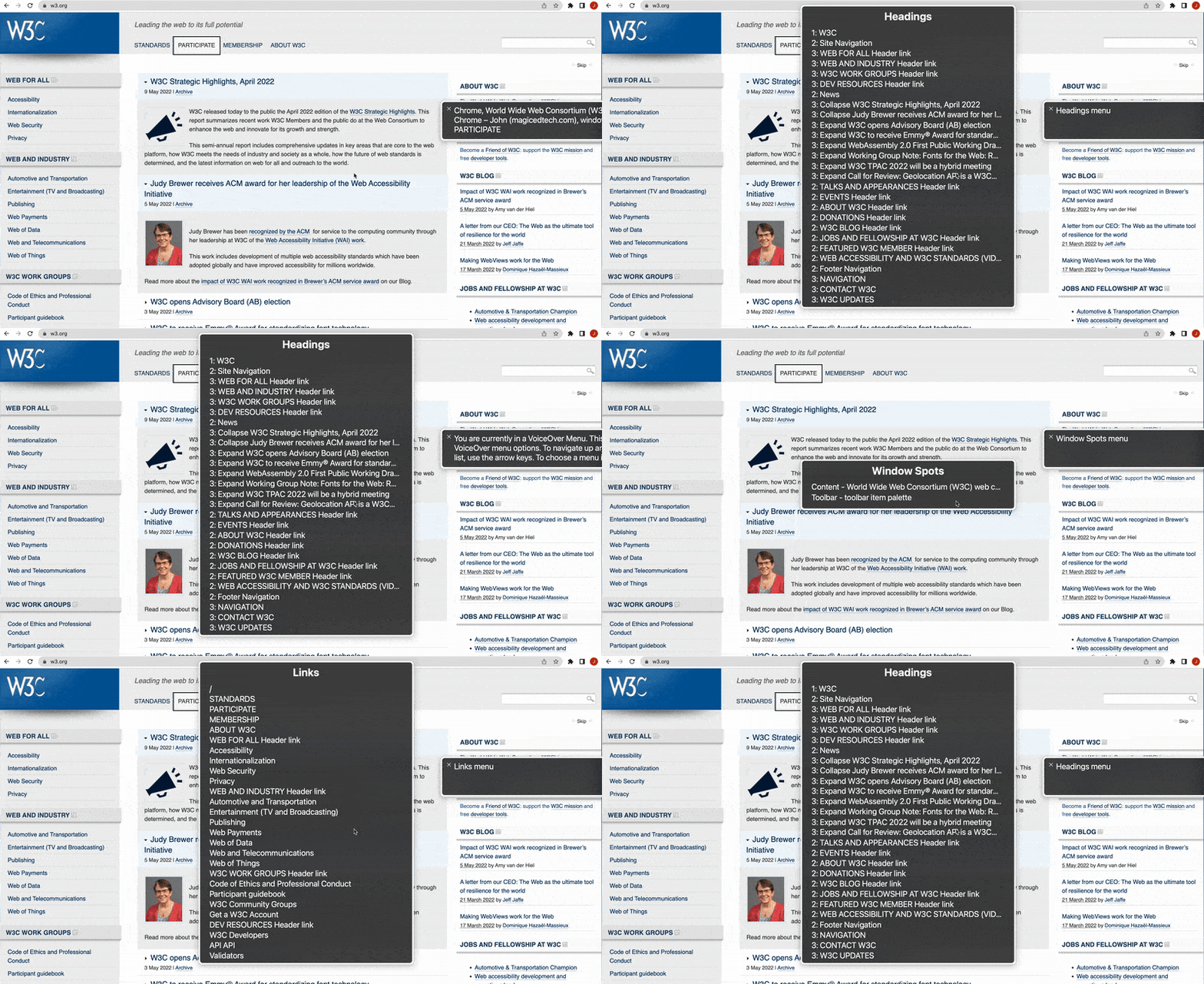
One unique feature in VoiceOver is the rotor, which can be described as a wheel of commands that is dependent on the context. So the user can choose what settings or navigation options that have to appear in the rotor. The rotor is highly customizable as the user can assign different navigation options such as headings, window spots, links, and so on as shown.
You can define the settings you want to display in the rotor by navigating to Settings -> General -> Accessibility -> Voiceover -> Utility -> Web -> Web Rotor.
When it comes to devices such as iPads and iPhones, you can also turn Rotor on by swiping two fingers on the touchscreen like how you would dial with a rotating dial pad. And you will get a similar functionality where you can define the navigation options you need and use them by performing the appropriate gestures.
Accessibility Testing Using VoiceOver
Screen readers are accessibility testing tools that are primarily assistive technologies used by people with disabilities to access the content. So knowing the basic VoiceOver keyboard shortcuts to operate it is a must. In addition to that, there are a few checkpoints that every accessibility tester should validate to ensure that the content is accessible. So in this VoiceOver Quick Reference Guide, we have categorized the VoiceOver keyboard shortcuts with reference to those checkpoints.
Content Navigation
Reading Content
Interactive Element Navigation
Table Navigation
VoiceOver Keyboard Shortcuts for macOS:
iMacs and Macbooks are the Apple devices where VoiceOver can be controlled using various keyboard shortcuts. Since devices like iPads and iPhones have a touch screen for the input, they will be using touch gestures to control VoiceOver. We will be covering those gestures later on the blog once we have seen the keyboard shortcuts.
Functional :
S. No
Actions
Commands
1
Start Or Stop VoiceOver
Command + F5
2
VoiceOver Activation Keys (Or VO Keys)
Control + Option (Referenced As VO)
3
Lock (Or Unlock) VO Keys
Control + Option + ;
4
Open Rotor
Control + Option + U
5
Choose Speech Setting Options Such As Speaking Rate, Voice, Pitch, Etc.
Control + Option + Command + Right Arrow / Left Arrow
6
Modify The Chosen Speech Setting
Control + Option + Command + Up Arrow / Down Arrow
7
Toggle Screen Curtain On/Off
Control + Option+ Shift +F11
Content Navigation
S. No
Actions
Commands
1
Go To The Top Of The Page (IMacs)
Control + Option + Home
2
Go To The Top Of The Page (Macbooks)
Control + Option + Fn + Left Arrow
3
Navigate To The Bottom Of The Page (IMacs)
Control + Option+ End
4
Navigate To The Bottom Of The Page (Macbooks)
Control + Option + Fn + Right Arrow
5
Go To The Next Heading
Control + Option + Command + H
6
Go To The Next Table
Control + Option + Command + T
7
Go To The First Item On Page
Control + Option + A
8
Scroll (Vertically Or Horizontally)
Shift Key + Scroll
9
Go To Previous (Heading, Table, Etc.)
Control + Option + Shift + Command + (H, T, Etc.)
Reading Content:
S. No
Actions
Commands
1
Start Reading
Control + Option+ A
2
Stop Reading
Control
3
Start Reading Continuously From This Point On
Control + Option + Down Arrow
4
Read The Entire Page
Control + Option + Up Arrow / Down Arrow
5
Read The Next Line, Word, Character
Control + Option + Right Arrow
6
Read The Previous Line, Word, Character
Control + Option + Left Arrow
7
Repeat The Last Spoken Phrase
Control + Option + Z
8
Read The Selected Paragraph
Control + Option + P
9
Read The Selected Sentence
Control + Option + S
10
Read The Selected Word
Control + Option + W
11
Spell The Selected Word Alphabetically
Control + Option + W + W
12
Spell The Selected Word Phonetically
Control + Option + Shift + Command + (H, T, Etc.)
13
Read From Top To Current Location
Control + Option +B
Interactive Elements Navigation:
If you are unsure of what interactive elements are, they are what the name suggests. They are web elements that a user can interact with or elements that respond to inputs from the user.
S. No
Actions
Commands
1
Go To The Next/Previous Focusable Item (Link, Button, Input, Etc.)
Read Column From VO Cursor Location To The Bottom Of Column
Control + Option + R + C
5
Move Up Or Down In A Column
Up Arrow Or Down Arrow
6
Move To The Left Or Right In A Row
Left Arrow Or Right Arrow
iOS VoiceOver gestures
Apart from the way VoiceOver is controlled on these touch-enabled devices, it does provide a very uniform experience across the Apple ecosystem. So let’s take a look at the various gestures in the same categorized view as before.
Functional
Content Navigation
Reading Content
Interactive Element Navigation
Text Editing
Table Navigation
Apart from the gestures that you will be seeing in this VoiceOver Quick Reference Guide, you will also have the option to enable typing feedback for VoiceOver to read out the words or characters that have been typed by Settings -> General -> VoiceOver -> Typing Feedback. Since VoiceOver changes the way gestures work on an iPad or iPhone, make sure to disable them in the Settings.
Functional:
S. No
Action
Command
1
Start Or Stop VoiceOver (When It Is Enabled)
Triple-Press Home Button Or Side Button (IPhone X +)
2
Gesture Help
4-Finger Double-Tap
3
Split Tap Quick-Activation
Select And Hold With One Finger, Tap With Another
4
Double-Press Button
Triple-Tap
5
Next/Previous App
4-Finger Swipe Right/Left
6
Drag Mode
Tap Twice And Hold
7
Toggle Screen Curtain On/Off
Three-Finger Triple-Tap
8
Item Chooser:
Two-Finger Triple-Tap
9
Choose Speech Setting Options Such As Speaking Rate, Voice, Pitch, Etc.
VO + Command + Right/Left Arrow Key
10
Modify The Chosen Speech Setting
VO + Command+ Up/Down Arrow Key
11
Open Rotor
Rotate Two Fingers
Content Navigation
S. No
Action
Gesture
1
Go To The Top Of The Page
Two-Finger Swipe Up
2
Navigate To The Bottom Of The Page
Two-Finger Double-Tap One-Finger Tap
3
Go To The Next Heading
Set Headings On Rotor And Swipe Down
4
Go To The Next Table
Rotor, Swipe Down
5
Go To Previous (Heading, Table, Etc.)
Swipe Up
6
Go Back, Close A Popup, Or Cancel The Last One.
Two-Finger Scrub
7
Go To The First Item On The Page
4-Finger Tap On The Upper/Lower Half Of The Screen
8
Scroll (Vertically Or Horizontally)
3-Finger Swipe Up, Down, Left, Or Right
9
Go Back To One Link, List, Table, Landmark, Heading, Etc.
Swipe Up
Reading Text:
S. No
Action
Command
1
Start/Stop Reading
Two-Finger Tap
2
Start Reading Continuously From This Point On
Two-Finger Swipe Down
3
Read The Entire Page
Two-Finger Swipe Up
4
Read Next Line, Word, Character
Rotor, Swipe Down
5
Read The Previous Line, Word, Character
Rotor, Swipe Up
6
Read The Selected Paragraph
Swipe Down – Two Fingers
7
Read The Selected Sentence
Swipe Down – Two Fingers
8
Read The Selected Word
Read The Selected Word
9
Read From Top To Current Location
VO + B
10
Toggle Speech On/Off
Three-Finger Double-Tap
Interactive Elements Navigation:
S. No
Action
Command
1
Go To The Next/Previous Focusable Item (Link, Button, Input, Etc.)
So as stated earlier, knowing how to use VoiceOver across all Apple devices is very crucial for an accessibility tester. The categorized tables can serve as an effective VoiceOver keyboard shortcuts guide for macOS or as a VoiceOver gestures cheat sheet for iOS. So we hope this VoiceOver Quick Reference Guide improves your accessibility testing skills. Make sure to subscribe to our newsletter to stay up to date with such informative content.
ChromeVox is an in-built screen reader developed by Google for Chromebooks. It can also be added to Chrome as an extension even if it is running on Windows or macOS. Since Windows and macOS have their own dedicated screen readers like Narrator and VoiceOver, you might not have the need to use ChromeVox. But if you are looking to test your website on a Chromebook, then knowing ChromeVox will definitely come in handy. As a leading web accessibility testing services company, we always make it a point to master all the resourceful tools for our accessibility testing projects. So we have written this guide to help you get started with accessibility testing using the ChromeVox Screen Reader and to explore all the important ChromeVox keyboard shortcuts.
There are two ways to run ChromeVox on your Chromebook.
1. You can click on ‘Options’ that can be found on the right side corner of your Chromebook and click on the accessibility symbol.
2. Or you can use the press shortcut keys Ctrl+Alt+Z to turn on ChromeVox.
ChromeVox Keyboard Shortcuts:
Once you have got ChromeVox up and running, you can use the various shortcuts to use it effectively. We have created a table of the most important ChromeVox keyboard shortcuts that you’ll need to know by categorizing them into different categories as well.
Main Content Navigation
Skimming through a page’s content is a very common activity that most of us do. So you have to test if your heading levels have been assigned properly as it will also impact regular reading as well. Once the user finds the part they want to be read out by the screen reader, they should be able to start the reading. So use the below ChromeVox keyboard shortcuts for easily testing all these aspects.
S. No
Functions
Shortcut Key
1
Heading Navigation
Search Bar + H
2
Previous Heading
Shift +H
3
Next Level 1 Heading
Search Bar + 1
4
Previous Level 1 Heading
Shift + 1
5
Next Level 2 Heading
Search Bar + 2
6
Previous Level 2 Heading
Shift + 2
7
Next Level 3 Heading
Search Bar + 3
8
Previous Level 3 Heading
Shift + 3
9
Next Level 4 Heading
Search Bar + 4
10
Previous Level 4 Heading
Shift + 4
11
Next Level 5 Heading
Search Bar + 5
12
Previous Level 5 Heading
Shift + 5
13
Next Level 6 Heading
Search Bar + 6
14
Previous Level 6 Heading
Shift + 6
15
Landmarks
Search Bar + Semicolon
16
Pervious Landmarks
Shift + Semicolon
17
Start Reading From Current Location
Search Bar + R
We also all know that not all users would want their screen readers to read everything that is on the display. So it is extremely important for you to test the Skip to main content feature. So once the user hits the enter or spacebar key, the focus should move to the main content area. It should also be verified on each and every page of your site without fail.
Line by Line Navigation
Being able to skim through the content alone isn’t enough. So we also have to test if line by line and word by word navigation also works well with your content.
S. No
Functions
Shortcut Key
1
Next Line
Search Bar + Down Arrow
2
Previous Line
Search Bar + Up Arrow
3
Next Word
Search Bar + Ctrl + Shift + Right Arrow
4
Previous Word
Search Bar + Ctrl + Shift + Left Arrow
Interactive Elements Navigation
The tab is the primary key when it comes to navigating through the different interactive elements in the page like links, forms, edit fields, menu items, and so on. You can access the interactive element that has the focus by pressing enter or spacebar. But if you are testing if there are any broken links or if the links have a proper anchor text, you can even navigate across just the links or even get a list of the links on the page by using the mentioned ChromeVox keyboard shortcuts.
S. No
Functions
Shortcut Key
1
Forward Navigation Of Interactive Elements (Links, Forms, Edit Field)
Tab
2
Backward Navigation Of Interactive Elements (Links, Forms, Edit Field)
Shift + Tab
3
Next Link
Search Bar + L
4
Previous Link
Search Bar + Shift + L
5
Next Visited Link
Search Bar + V
6
Previous Visited Link
Search Bar + Shift + V
7
Show Links List
Search Bar + Ctrl + L
8
Show Form List
Search Bar + Ctrl + F
9
To Move Focus To Pop-Up And Dialog
Alt + Shift +A
Table Navigation
Since tables can have many rows and columns, navigation around each cell using the search bar and arrow keys could turn out to be difficult and confusing. But since we can’t leave any content on the page untested, we have specified the ChromeVox keyboard shortcuts that will help you navigate any table with ease.
S. No
Functions
Shortcut Key
1
Show Table List
Search Bar + Ctrl + T
2
Next Table
Search Bar + T
3
Previous Table
Search Bar + Shift +T
4
First Cell In The Table
Search Bar + Alt + Shift + Left Arrow
5
Last Cell In The Table
Search Bar + Alt + Shift + Right Arrow
6
First Cell In The Current Row
Search Bar + Alt + Shift + Ctrl + Left Arrow
7
Last Cell In The Current Row
Search Bar + Alt + Shift + Ctrl + Right Arrow
8
First Cell In The Current Column
Search Bar + Alt + Shift +Ctrl + Up Arrow
9
Last Cell In The Current Column
Search Bar + Alt + Shift + Ctrl + Down Arrow
Multimedia Content
There is almost no page that doesn’t have images and videos making alt text, transcripts, and audio descriptions key factors to check. You can use the shortcuts to quickly navigate to all the graphic images and test if proper alt text has been used.
S. No
Functions
Shortcut Key
1
Next Graphic Image
Search Bar + G
2
Previous Graphic Image
Search Bar + Shift + G
If there is a video on the webpage, keyboard playback controls must be available for the user to pause or play the content easily. Audio descriptions are important for videos that rely on visual cues to convey meaning.
Advantages of the ChromeVox Screen Reader:
Docked and full-screen Magnifier:
As a leading Accessibility Testing Company provider, we understand that Screen readers are not just for people who have total loss of vision. So you have to test your content with ChromeVox’s two types of screen magnifiers that will enable low-vision users to view and read the content of the page without any difficulties.
Of the two types, one is a full-screen magnifier and the other is a docked magnifier. Once the full-screen magnifier is enabled, the entire page is magnified with a zoom level that can be changed as per the need. So if the webpage isn’t optimized for this feature, then the content will start overlapping to create a bad user experience. Since the full screen is getting magnified, it should also be possible to navigate the content with ease at any given zoom level. So make sure to use the Ctrl + Alt + Arrow keys to test that as well.
Since not all users will require the entire page to be magnified, ChromeVox’s Docked Magnifier allows the users to magnify the part of the page where the cursor is. These are a few of the add-on features that are exclusive to the Chromebook that cannot be used in any other system. So make sure to test the content on your page and see if it is compatible with these features as well.
The ChromeVox Screen Reader Chrome Extension
Apart from these exclusive features for the Chromebook, ChromeVox can be added as an extension to Google Chrome on other platforms like Windows and Macs. Installing the ChromeVox extension is no different from installing any other Chrome extension. Though the extension does not have all the features the full version does, it surely has its own benefits as it offers some basic screen reader functionalities.
ChromeVox’s Speech Viewer
Once the ChromeVox Screen Reader has been turned on, the speech viewer will automatically be displayed on top of the screen. This is a great advantage in ChromeVox when compared to other screen readers such as NVDA that don’t have a separate speech viewer as it will overlap the web content.
Disadvantages of ChromeVox:
As you can see, the search bar key and the shift key are important when it comes to ChromeVox keyboard shortcuts.
For Example: Unlike other screen readers, pressing the H key without pressing the search bar key will not move to the heading levels.
But the major drawback in the ChromeVox Screen Reader when it comes to testing is taking screenshots as the content in the speech viewer will not be covered. So you would have to rely on videos for your bug reports. Videos for major bugs are fine, but it will be a cumbersome task to add videos even for small bugs.
Apart from the few disadvantages, ChromeVox is a great screen reader for testing your content on a Chromebook. The unique ChromeVox Screen Reader Chrome extension might also turn out to be useful in rare scenarios. So we hope you are now clear on how you can use ChromeVox to get effective web accessibility testing done using the various ChromeVox keyboard shortcuts. If you are looking to test your content across various platforms and screen readers, there are various options such as JAWS, NVDA, Narrator, OKRA, Voice Over, and so on.
A screen reader is an assistive technology that helps people with disabilities such as blindness, vision impairment, and low vision. The screen reader renders the various webpage elements like the text, buttons, and images as speech and braille output. There are various types of screen readers for different environments. As one of the leading accessibility testing companies, we make it a point to familiarize ourselves with all the top tools. And JAWS is definitely one of the best options out there. So in this JAWS Testing Tutorial, we will be exploring the important JAWS Hotkeys and have a step-by-step guide to get started with JAWS for testing purposes.
Did You Know?
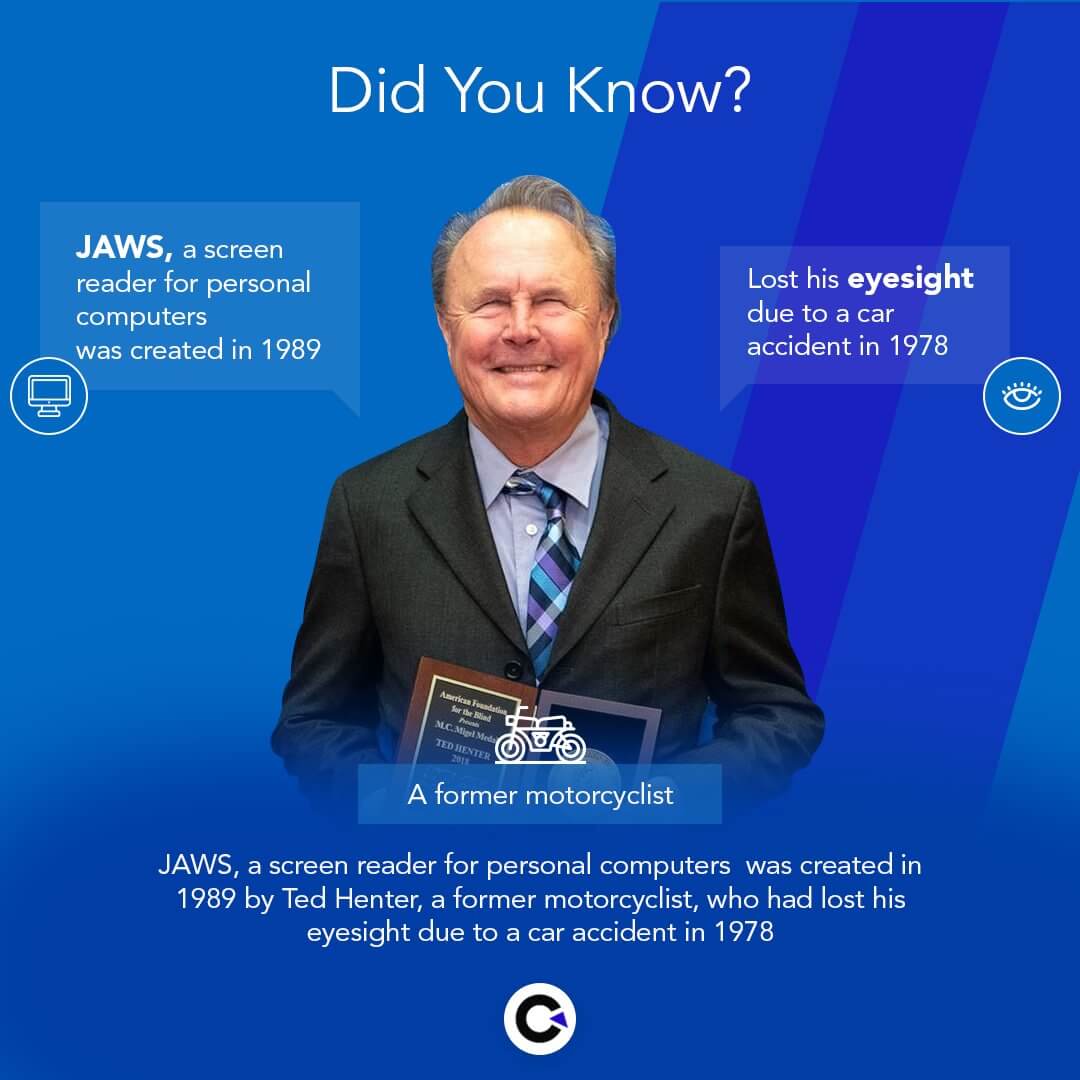
JAWS was created by Ted Henter in 1989 who is a former motorcyclist who lost his eyesight due to a fatal car accident in 1978.
Why JAWS?
Jaws (Job Access With Speech) is the most popular screen-reading tool available in the market. It can be used to read the content in documents, web apps, emails, eBooks, and so on. It is available in over 10 different languages and has multilingual Eloquence & Vocalizer expressive synthesizers that enhance the overall experience. It helps a visually disabled user to read the content by just using the standard keys, has skim-reading capabilities, and has screen magnification options that make it a complete package. So, we can use JAWS without any second thoughts to ensure that the web pages have been designed according to the accessibility norms and regulations.
How to Install JAWS?
The installation process we will be covering is for a Windows machine.
Download the latest version of JAWS from their official website.
Open the downloaded exe file.
Click on “YES” in the popup dialog box that appears.
Click on the checkbox to accept the agreements and click “Install”.
Once the installation has been completed, close the window and restart the computer when prompted.
Now that we have seen the installation process, let’s take a look at the JAWS Hotkeys you’ll need to know.
JAWS Hotkeys/Keyboard Shortcuts:
S. No
Functions
Shortcut Key
1
Start Reading
Insert+Down Arrow Key
2
Stop Reading
Ctrl
3
Heading Navigation
H
4
Direct Heading Navigation (H1 To H6)
1 To 6
5
Landmarks
R
6
To Go To Main Content Region
Q
7
Tables
T
8
Data In The Table
Ctrl+Shift+Right/Left/Up/Down Arrow Key
9
List
L
10
Items In A List
I
11
Previous Line
Up Arrow
12
Next Line
Down Arrow
13
Previous Word
Left Arrow
14
Next Word
Right Arrow
15
Links And Form Controls To Navigate Forward
Tab
16
Links And Form Controls To Navigate Backward
Shift + Tab
17
To Activate Links And Form Controls
Enter/Space
18
Select From A Group Of Radio Buttons
Up/Down Arrow Key
19
To Submit A Form
Enter
20
To View The History Of Speech Viewer
Insert+Space+H
21
Page Refresh
F5/Shift+F5
22
Select And Deselect Checkboxes
Space
23
Go To Graphic
G
24
Unvisited Link
U
25
Visited Link
V
We have listed only the most important JAWS Hotkeys you’ll be needing here. If you can’t find a JAWS keyboard shortcut combination you are looking for or want to explore all the JAWS Hotkeys, kindly use this file.
How to perform JAWS testing?
To test a website using JAWS, you have to open a browser and navigate to the website you’d like to test, and start using JAWS. Though it sounds simple, you might feel lost and not know what to do to get conclusive results. Thanks to our years of experience in providing the best web accessibility testing services to all our clients, we have created this list that will help you get started with JAWS testing.
Navigation
Being able to access the entire page and understand the content is one of the most basic actions that every user must be able to do. You can check that by navigating the page using the TAB key to ensure that all interactive elements receive tab focus. Also, verify if non-interactive elements don’t receive tab focus. Check if the focus order is from left to right or right to left.
Just like how we try to skim through the article by seeing the headings to get an idea, people using JAWS should also be able to do that. Since the screen readers can’t convey the visual representation, make sure to check the heading tag’s flow as if it is not in order from H1 to H6.
Once you’ve checked that, move down the page using the down arrow key and observe if all the content is read properly in a meaningful sequence without any repetitions or sections getting skipped. You also have to make sure that everything works well when going back to the previous lines using the up arrow key.
Multimedia Content Alternatives
Websites don’t shy away from using various multimedia content like photos, videos, and so on to make an impact. As a first step, verify if all the images receive focus. If they do, check the alt text (alternative text) and see if it is relevant and if it describes the image well enough.
Videos that have voiceovers or dialogues will not be much of an issue as it can be understood by listening to the audio. But if the video has burnt in the text without any voice-over, then you have to make sure to add a transcript that can be read by JAWS for the user to understand. Likewise, if the video is entirely visual, you can add an audio description to make it possible for the user to get at least an idea. It is recommended to not have videos auto-play when the site is opened. So it must be possible to control the playback of the videos using your keyboard.
Videos that have voiceovers or dialogues will cause much of an issue as it can be understood by listening to the audio. But if the video has burnt in the text without any voice-over, you have to make sure to add a transcript that can be read by JAWS for the user to understand. Likewise, if the video is entirely reliant on the visual, you can add an audio description to make it possible for the user to get at least an idea. It is recommended to not have videos auto-play when the site is opened. So it must be possible to control the playback of the videos using your keyboard.
Other Content Types
Internal and external links are very common on all web pages. So ensure that the change of context is clear and avoid vague lines like ‘Click Here’ or ‘Read More’ out of nowhere.
If there are any lists on the webpage, then it will be read properly only if the content has been fed as an ordered or unordered list. Likewise, if there are any tables, you should check if JAWS reads all the content with the respective rows and columns using standard keys.
Check if the table row and column headers are read out for each table cell to make it easy to understand. Verify if all form fields, links, and buttons are accessible when using the space/enter key.
Avoid Visual Reliance
It’s a common practice to make certain words, phrases, or even lines appear bold to emphasize their importance. But since they are only visual cues, they will not be picked up by the screen reader. So make sure to use ‘strong’ and ’em’ tags when needed. The same applies to any color variations used for the same purpose.
Yes, Captcha is an important feature in a website. But that doesn’t mean you have to use only visual options as it will not be possible for JAWS to pick it up.
Though flashy signs and calls to action are of the past and can no longer be found on many websites, it is still important to check for them. JAWS will have a tough time if an image with the words download is hovering over a vague hyperlink text like ‘Click Here’.
General JAWS Testing Checks
Make sure if your page has a bypass block, the main content, and a landmark region.
Verify if all the ARIA attributes have been implemented properly.
Ensure that there are no black hat SEO techniques such as using hidden text to boost ranking as it will disrupt JAWS.
Check if all the content is in a single language and if there are any different languages used, do mention it in your code to avoid confusion. It is also a good practice to use a language attribute to mention the language.
We hope you have found this JAWS Testing Tutorial and the JAWS Hotkeys to be helpful and now have an idea of how to test your website’s accessibility by using JAWS. You can even check out our blog that explains how you can easily test your website for accessibility. Though those easy checks will not be enough, it is always good to get started as you yield the twin benefits of fulfilling a person with disabilities their right to information and reaching a wider audience.
Performing comprehensive web accessibility testing for any website is no easy task. There are so many guidelines to be followed to become compliant with standards like WCAG. But at the same time, you have to at least make sure to make your website is accessible on a basic level. So we have created this basic Website Accessibility Testing Checklist with reference to the easy checks issued by W3C. Though they are not definitive methods, it’s definitely a great place to start and evolve from that point onwards.
A Basic Website Accessibility Testing Checklist
Page Title and Content Headings
Alt Text and Multimedia Alternatives
Moving and Flashing Content
Text Size and Contrast ratio
Keyboard access
Page Title and Content Headings
Since Page Titles appear in search results, browser tabs, bookmarks, and so on, make sure to make it clear and unique. See if the main content is properly visible in all these places and use a screen reader to see if it read properly. Unclear page titles will make it very hard to navigate across different pages.
Using headings in a random order will make it hard for the user to understand the structure of your content. So in addition to confusing regular readers, it will also confuse the screen readers and cause them not to function properly.
Alt Text and Multimedia Alternatives
Alt Text and Multimedia Alternatives are key points in our Website Accessibility Testing Checklist as websites are now filled with a lot of visual content. Visually impaired users won’t be able to see any graphical content that you use on your webpage. So if you are adding an image, make sure to add appropriate alt text to the images as that will help the user understand the purpose of the image using words. Similarly, make sure to add closed captions and transcripts for videos based on the type. The media shouldn’t always start to play as soon as the page opens. Even if it does, then make sure to make it easy to pause it by adding keyboard controls for the playback.
Moving and Flashing Content
Carousel posts on websites have become a very commonly used feature. Flashing contents are instrumental in helping certain content stand out from the rest. But you have to make sure that the content doesn’t flash more than 3 times every second as it might cause seizures. Moving content and carousel content shouldn’t be too rapid that it becomes incomprehensible for your users. Similar to the media controls, the user must also be able to control the moving content to prevent the features from becoming a distraction.
Text Size and Contrast ratio
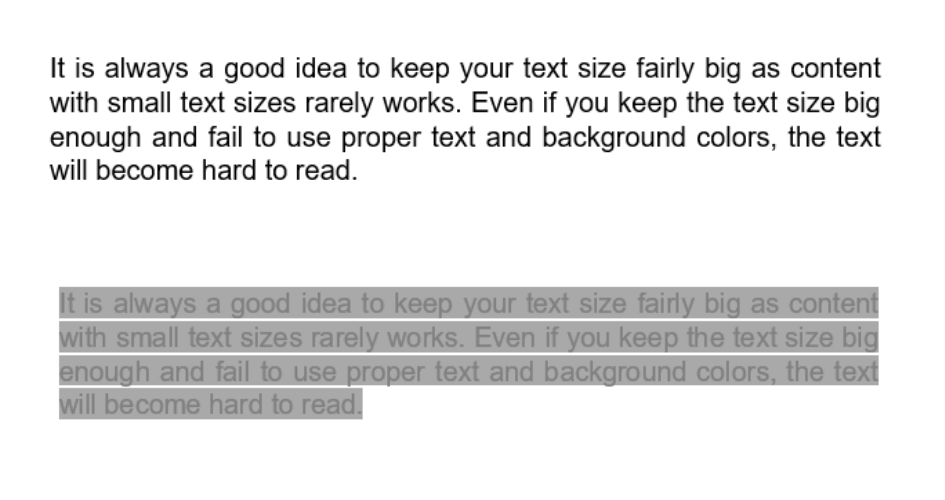
It is always a good idea to keep your text size fairly big as content with small text sizes rarely works. Even if you keep the text size big enough and fail to use proper text and background colors, the text will become hard to read. You should also test it from the perspective of a person with color blindness to see there are no contrast issues. There is even a tool called the Color Contrast Analyzer that you could use to check if the contrast ratio will pass the required standards. Few people will be able to read the content only when the text is enlarged beyond the regular size. So make sure there is enough spacing in places you add the text and not cram in too much content. Keep it simple, yet catchy.
Keyboard access
We have added this factor to our Website Accessibility Testing Checklist as it is one of the most overlooked aspects. Not everybody will be able to navigate through your website using a mouse. So make sure it is possible to navigate to the different elements like drop-down lists, text fields, menus, and so on. The labels used for text boxes should convey the requirement and be on the left side of the box for left-to-right languages. Make sure to highlight mandatory fields with the asterisks (*) sign and not just color to differentiate it.
So this is a basic Website Accessibility Testing Checklist that you can concentrate on, to begin with. But they are in no way sufficient to get a proper standardization as your website might pass all these checks and still have major accessibility issues. If your website isn’t accessible, there are possibilities of getting sued based on the part of the world you are in. Why go through all the hassle and be at risk when you can simply outsource the web accessibility testing to one of the best web accessibility testing service providers like us? Making your product accessible is no longer a choice you can ignore as it is an important part of making your product available to a wider audience and enhancing the product’s overall usability.
It is not a simple yes or no question as it depends on a lot of factors like the core purpose of the website, who runs it, and the country it is used in. Though the Web Content Accessibility Guidelines (WCAG) are the universally accepted standards to be followed on the web, it is not a global law followed in every country. Countries like the United States of America do have accessibility-related laws, but there are no dedicated laws when it comes to the web. So in this blog, we will explore the various Web Accessibility Laws around the world to see how WCAG non-compliance can end up becoming a punishable offense.
The Web Accessibility Laws in Different Regions
So if you are located in the U.S and if the website belongs to a federal agency or their contractors, those websites must comply with WCAG 2.0. But if the website belongs to a private business, the website definitely has to be accessible as per the ADA. The Americans with Disabilities Act (ADA) requires every place of public accommodation to be accessible in terms of infrastructure (Wheel Chair accessible Entry elevators, and so on). Though websites do come under this category as a place of public accommodation as the users do visit the website to obtain information, make a purchase, and perform such activities, there are no defined guidelines or standards that the websites have to adhere to.
Likewise, if you are in countries like Canada, New Zealand, or Australia, only government sites have to meet the WCAG guidelines. There are no defined standards for public sites with a few exceptions in certain areas. Argentina requires their public sites to be compliant with WCAG 1.0 and Ecuador’s public sites have to comply with WCAG 2.0. The European Union is where we can find the best Accessibility standards. They have created the Web Accessibility Directive which is in many ways similar to WCAG 2.0. It even has a few additional requirements where users should be able to report such issues, and so on. Though it was initially launched with only government sites to be compliant in 2016, by 2018 even public websites have been instructed to meet the standards.
There are also numerous countries that do not have any prominent Web Accessibility Laws. But if you are running a business website, it is always better to have a site that is accessible as there is always a possibility of getting sued by the consumer.
The Case against Dominos
Companies have been sued in the past for having inaccessible websites and apps. For example, Domino’s was sued by a visually impaired man when he was unable to order pizza from their website despite using a Screen Reader. Despite the case being very strong on the plaintiff’s side, it took more than 3 years for the judgment to come through. The court ruled Dominos’ website to be inaccessible and ordered them to meet the compliance. But the real question here is why would Dominos fight the case instead of just making their website accessible.
The Business Angle
Any company that doesn’t consider people with disabilities as viable customers are missing out on a lot of business. According to a report by Forbes, 1 in every 4 Americans have some form of disability, and about 57 million Americans have a disability that hinders their ability to view and use online services. In the digital age we live in, it wouldn’t be wise to leave out such a huge part of the population assuming it is not essential. But beyond the business aspect
So it is evident that the Web Accessibility Laws are different in different areas of the world. But what if you have a website that functions on a global scale? The only solution here would be to have your website meet the highest standards of accessibility so that you wouldn’t have to worry about any disputes. You could achieve this goal by outsourcing the task to one of the best web accessibility testing service providers like us. If we do take a look at it beyond the business aspect, fulfilling the rights of people with disabilities should be a moral responsibility that shouldn’t be overlooked.
To help you understand why Accessibility Testing is the need of the hour, we have answered a few important W&H questions like What, Why, Who, When, and How with regard to Accessibility. As a leading QA company, we wanted to make sure that we left no stone unturned for our readers by creating a blog that will be a comprehensive introduction to Accessibility, as accessibility makes it possible for the content on the world wide web to be created in a way it is inclusive to the 1 Billion people around the world who have some form of disability or impairment. So let’s begin by defining what Accessibility is.
WHAT is Accessbility?
What does it mean by “Accessibility”? It is nothing but the “ability to access”. When it comes to the engineering context, both software and hardware should be designed in a way that makes it easy for a user with a disability or impairment to use it. For example, computers, mobile phones, webpages, and so on. Beyond the textbook definition, Accessibility is what fulfills the people with disabilities their right to information. Therefore, Accessibility shouldn’t be viewed as something optional, but rather it should be an integral part of any content or functionality that is fully available to and usable by people with disabilities. This refers to individual elements, features, or the whole web experience.
“The one argument for accessibility, that doesn’t get made nearly often enough, is how extraordinarily better it makes some people’s lives. How many opportunities do we have to dramatically improve people’s lives just by doing our job a little better?”
-Steve Krug, an User Experience Professional and the author of Don’t Make Me Think: A Common Sense Approach to Web Usability.
Accessibility can even be termed as Freedom, Independence, or even as a Breakthrough for people with disabilities. That is why a11y has become a global movement that is not seen as regulations or laws of any specific country. Now that we have been introduced to Accessibility, let us explore the central topic of this blog which is why Accessibility testing is the need of this hour.
WHY is Accessibility Testing needed?
As per a recent WHO report on Disability, About 15% of the world’s population lives with some form of disability, of whom 2-4% experience significant difficulties in functioning. That’s one billion people, and they form the world’s largest minority. Things come into perspective when you realize that your creation will not be accessible to about 20% of all internet users. The mind-numbing fact is that these figures are expected to double by 2050. This figure emphasizes the importance of accessibility for the disabled population and how our ignorance in such an aspect could have grave effects.
As stated above, accessibility is not optional as access to information is defined as a basic human right by the United Nations Convention on the Rights of Persons with Disabilities (CRPD). Article 9 (Accessibility) of the Convention on the Rights of Persons with Disabilities (CRPD) says the following,
1. To enable persons with disabilities to live independently and participate fully in all aspects of life.
2. To promote other appropriate forms of assistance and support to persons with disabilities to ensure their access to information;
3. To promote access for persons with disabilities to new information and communications technologies and systems, including the Internet;
4. To promote the design, development, production, and distribution of accessible information and communications technologies and systems at an early stage so that these technologies and systems become accessible at minimum cost.
WHO is in need of Accessibility?
“For people without disabilities, technology makes things easier. For people with disabilities, technology makes things possible.”
– IBM training manual 1991
Accessibility testing which is a subset of usability testing, is not only geared towards normal users, it also focuses on users with disabilities like Visual, Blind (Low Vision, Color-blind), Auditory (Deaf, Deafblind), Motor Disabilities, Speech Disabilities, Cognitive Disabilities, Reading Disabilities, Seizures, and Multiple Disabilities. Making the digital content accessible doesn’t just benefit the individuals with disabilities, it is also great for businesses, and society on the whole.
Surprisingly, the other added advantage is that people using mobile devices and having slow network connections will also be able to benefit from this. So one can say that accessibility testing supports social inclusion for the underprivileged as well.
WHEN?
Accessibility did not begin with any rule or out of compulsion. It all started out of compassion when Pellegrino Turri built the first mechanical typewriter in 1808 to help a blind friend write legibly. But acts of compassion alone will not be enough, and so the world witnessed its first legislation for accessibility in 1990. One could argue that the 1973 Rehab act was where it all started as the law stated there should be no discrimination against people with disabilities in federal employment. But the 1973 act was not a widespread law that helped out in all scenarios. So let’s take a look at all the crucial developments in the world of accessibility beginning from 1990.
1990 – The Americans with Disabilities Act (ADA) was passed sowing the seed for all things that came after that.
1995 – The Unified Web Site Accessibility Guidelines marked a new beginning for Web Accessibility.
1997 – The World Wide Web Consortium (W3C) launched the Web Accessibility Initiative (WAI) to achieve Web functionality for people with disabilities and also to let everyone know its importance.
1998 – Section 508 is added to the Rehabilitation Act of 1973, requiring that government agencies make their websites more accessible to people with disabilities.
1999 – World Wide Web Consortium (W3C) released Web Content Accessibility Guidelines (WCAG).
WCAG
The introduction of WCAG will forever remain as one of the most important steps taken in providing global web accessibility. The internet’s boom enabled the world to be at our fingertips as it provides unprecedented opportunities and interactions, especially to people with disabilities. If we try to recall the pre-internet days, we can only imagine how a person with disabilities would have been able to access information from a newspaper, e-commerce, and so on.
The WCAG has evolved and grown over the years fixing its many shortcomings with a vision to create the best accessibility.
2008 – The first step in the evolution of WCAG to what it is today came with the launch of WCAG 2.0 that overcame the drawbacks of its predecessor.
2015 – Though Accessible Rich Internet Applications (ARIA) does not come under WCAG, it is still an important aspect of web accessibility as it has greatly improved the ability of screen readers to read the web content ever since its launch.
2018 – WCAG 2.1 was released after a lot of refinement, and the promising Project Silver which will focus on IoT was also launched. The significance of Project Silver is that it has already started laying the groundwork for what is to come when IoT is implemented on a larger scale.
The WCAG 2.1 guidelines are accepted worldwide when performing Accessibility Testing despite many countries having their own government policies for accessibility like the ADA(American Disability Act) and Section 508 that we mentioned earlier, EN 301 549(European Accessibility Standard), the BITV(German Govt Standard), RGAA(French Govt Standard), and so on. The proliferation of guidelines and governmental policies paved the way to the inception of many web accessibility tools, which ensures and enables the person with disabilities to access all the information.
The Origin of JAWS
Another example that is similar to the typewriter case is a testament that these guidelines and laws weren’t the only motivational factors. Ted Henter, the man who created the infamous JAWS screen reader for personal computers was a motorcyclist. He had lost his eyesight due to a fatal car accident in 1978 which put him on the path for creating such a feature.
HOW to create Web Accessibility?
Now we are about to answer the final question in this blog, the question of how we can make web content accessible to every single person. We have to start laying the groundwork for better web accessibility by implementing web accessibility guidelines in the initial stages of the project. It can be made an integral part in the way the content is written, the way the website is designed, and also most importantly coding techniques and processes. Fixing an in-accessible website requires huge cost and effort during accessibility testing, making it an unviable option in most scenarios. This is one of the major roadblocks that any person or company would face when they try to make their content accessible in the later stages.
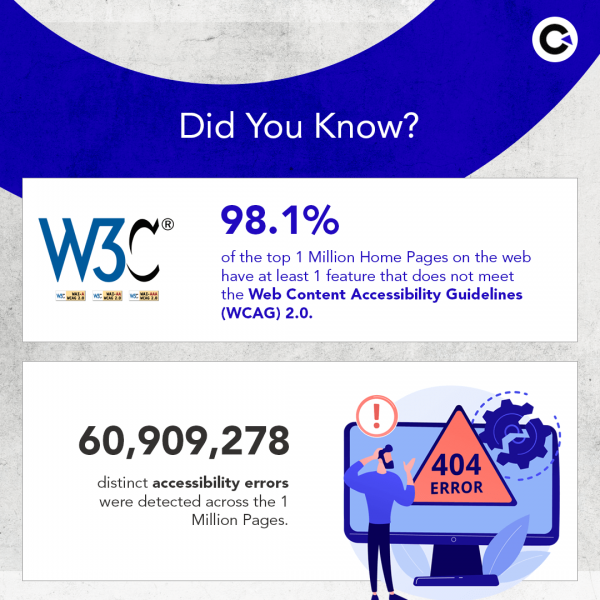
According to a recent survey by webAIM annual accessibility analysis
The designer is the one who is responsible for the graphic and UI design of web pages and apps. Applying accessibility during the budding stages of a project is required in order to ensure that the color, font style, graphical interface designs meet the accessibility requirements.
We have listed a few good practices to help a designer/developer meet the WCAG requirements. For example:
1.Low Contrast Text
One of the most common errors found in 86.3% of the homepages that webAIM tested was using contrast text. Usually, in the design stage, it is a common mistake to just focus on the aesthetic appeal the colors create or even make a conscious decision to incorporate the brand colors in the web pages no matter what. But if the user is a person with color blindness, then the low contrast text creates inaccessibility.
2.Include alternative text for images
Providing alternative text for all informational and functional images is extremely important for people using screen readers. One word or under descriptive alt texts will not be useful and so it is important to write descriptive alternative text for all important images.
Ensuring the order of elements in the code matches the logical order of the information displayed. If you have typed codes for a webpage or used tools like WordPress, then you would be familiar with the heading tags. Many don’t quite give the focus it deserves when they are writing content for the webpage as a jumbled-up order will not have direct impacts visually, but it will definitely affect the screen reader a person with disabilities might use
4.Never use Empty Links
The ability to hyperlink content on the web is very useful when we are looking to add references and so on. But the way it is implemented is also a key factor here as if there is no descriptive text that denotes the reason for the hyperlink and also the page that the link will take the user to. Without this information, visually challenged users will not be able to have any clue as to why the link has been added.
WCAG – Meaningful Sequence 1.3.2
5.Write code that adapts to the user’s technology
Using responsive designs to adapt to various zoom states and viewport sizes, like on mobile devices and tablets. Why is it important you might ask? A few visually challenged people might have medical conditions that make them partially blind or have tunnel vision and so on. So they will be able to benefit by zooming into the content beyond regular usage requirements.
WCAG – Resize text 1.4.4, Consistent Identification 3.2.4
6.Avoid CAPTCHA where ever possible
Providing more than two ways to solve the CAPTCHAs is very important because there might be a user who is visually impaired who can pass the test if it is an audio CAPTCHA. The same applies to the opposite scenario as well. There should be a way in providing access to a human representative who can bypass the CAPTCHA or there should be an option where CAPTCHAs can be avoided for authorized users.
WCAG – Non-text Content 1.1.1
As mentioned earlier, a website can be tested for accessibility compliance even after it is developed. It can be achieved with various Website Accessibility Evaluation Tools available in the market. The tools are of different types and each type can be used for specific purposes.
The tools can be filtered by criteria like the guidelines being followed, the language that is in use, the type of tool (includes Authoring Tool plugins, API, Browser Plugin, Online service), supported formats, and so on. It depends on each organization, the project, and team requirements as well.
Why is Accessibility Testing the need of the hour?
A website that is compliant with all the accessibility guidelines directly proportional to a good user experience. Consumers will drive the requirements for the predictable future, by drifting towards more human-centric designs making accessibility testing more important.
Accessibility testing simplifies how easily a user can navigate, access, and understand the content irrespective of the kind of disability. Like any other type of testing, Accessibility testing can be achieved through manual testing as well as with the help of automation tools. A tester’s goal should be to make sure that the guidelines are fulfilled and thereby making the website accessible to the user. Being one of the best Accessibility testing services providers, our testers perform a WCAG Web Content Review and provide recommendations to improve your application and make it accessible to one and all. We hope you have enjoyed reading this blog. Make sure to stay tuned to all our latest blogs for such informative content.
PS: EVERY BUG YOU MISS DURING ACCESSIBILITY TESTING DEPRIVES A PERSON WITH DISABILITIES OF THEIR RIGHT TO INFORMATION.