
by admin | Jan 23, 2020 | Automation Testing, Fixed, Blog |
If you follow automation testing best practices religiously it will eventually decrease rework. Nowadays, BDD frameworks have strong automation testing user base. BDD framework enables effective collaboration and automation. If your team is following Agile methodology, then make sure you automate Acceptance Criteria of each story within the sprint. The reason being if any automation test script is being developed with effective collaboration, it will produce high-quality output. Let’s say you have missed to automate a couple of stories in the current sprint, then the non-automated acceptance criteria becomes a technical debt and you may face difficulties to connect with your team members to discuss about old sprint stories.
If you are automating existing regression tests pack, you can use BDD framework only for automation without collaboration. Writing BDD test scenarios is an art. None of your team can understand if a Gherkin scenario is too long. Following best practices is an essential for successful automation testing with BDD.
Feature Template
Feature: [One line describing the story]
[Optional — Feature description]

Scenario: [One line describing the scenario]
Given [context]
And [some more context]…
When [event]
Then [outcome]
And [another outcome]…
BDD Scenario Best Practices
- Given-When-Then should be in sequence.
- Each scenario should ideally have only one ‘When’ clause that clearly points to the purpose of the test.
- Use past tense for ‘Given’ clauses, present tense for ‘When’ and future tense for ‘Then’.
- Use ‘And’ clause to add multiple Given and Then steps.
- Put scenarios prerequisite steps in ‘Background’. Note: If the prerequisite steps are more technical, then use Before hook.
- Scenarios should be more functionality oriented rather than UI/UX actions.
- You can also write BDD Styled Acceptance Criteria for web services. However, you need to ensure it is understood by the product owner.
- Write scenarios after talking to business people.
- Use declarative steps rather than imperative.
Declarative
Given I pass the header information for SSN
When the client request the URL with data
Then the response code should be 200
Imperative
Given I pass the header information for SSN
When client request POST "<ServiceURL>" with json data "<RequestFile>"
Then the response code should be 200
And the SSNcached result should be same as valid transaction response "<ResponseFile>"
Tagging
Grouping test scenarios from different features is must. In order to select the tests for different execution types, tagging is important. Nowadays, we have many test cases managements plugins for Jira. Updating automated test execution result in Jira is vital. Managing manual and automated executions result in test case management tool is helpful to collect test metrics and improve the test coverage. As one of the leading test automation companies, we tag BDD scenarios with Test ID, environment (qa, stage, 7 prod), and testing purpose (Smoke, Integration & regression). Using Test ID, we can push the automated test execution status in test case management tool.
Feature Narrative Description
Feature: Title (one line describing the story)

 Narrative Description: As a [role], I want
, so that I [benefit]
Step Definitions dos and don’ts
- Don’t call a step definition method from another method.
- Never hard code any test data in step definition.
- Learn how regular expression is used to match a Gherkin step and a Step Definition method.
- Chain the assertions to enable code readability.
assertThat(fellowshipOfTheRing).filteredOn( character -> character.getName().contains("o") )
                               .containsOnly(aragorn, frodo, legolas, boromir);
Use Cucumber Lambda expressions to simplify the step definitions.
Given("I login as (.*)$",(String name)-> System.out.println(name));
Reporting
BDD Reporting is important to trouble-shoot the failures and collect test automation metrics. You can use Serenity BDD reporting, ExtentReporter for BDD, Report Portal, and Allure Reporting.
In Conclusion
We, as a test automation services company, use Cucumber, Behave, SpecFlow, and Serenity BDD frameworks for our automation testing projects. Following automation testing best practices has helped us to deliver high-quality test automation scripts to our clients with precision. We suggest that you prepare a training plan for your automation testers and make them understand how anti-patterns impact test automation. Writing BDD scenarios which are too long will not add value to the team and it increases script maintenance. If your team is comfortable using DSL, then the output of your test automation scripting will be concise, which will enable the effective collaboration between Developers, Testers, and Business.

by admin | Feb 7, 2020 | Automation Testing, Fixed, Blog |
People think of automation to gradually reduce time-consuming repetitive and manual work. It is a known fact that automation testing reduces time, improves productivity, generates reports automatically, etc. Fundamentally one should have some level of expertise in coding to write automation test scripts and subsequently run it without any hassles, you need to have so many things handy while setting up a framework, say for instance you should have technical know-how of integrating necessary plugins, creating a proper folder structure for your code, selecting tools and IDE’s, etc. A newbie software tester with less coding knowledge will be overwhelmed with these setups and potentially neglect automation testing.
We’ve seen a lot of testers, QA engineers using Postman/Insomnia/Paw to test their REST API endpoints manually because they do not know how to automate them. Automating API testing is a more complex procedure, setting the initial process and running it successfully is often one of the most challenging parts of the process, one must be ready to face a series of challenges like parameter validation, a sequence of API calls, testing the parameter combination, etc.
Our engineers gave it a go with many API frameworks like RestAssured, SOAP UI, Katalon Studio and Karate. We have always been excited while working with Karate framework because Karate framework is promisingly a mature framework since API tests are written using plain text Gherkin style as it is built on top of Cucumber and is written in Java.
Why we recommend it
Java knowledge is not required and even non-programmers can write tests with ease ( it runs on JVM)
It supports JSON and XML including JsonPath and XPath expressions,
Re-use of payload-data and user-defined functions across tests is possible.
Simple latency assertions can be used to validate non-functional requirements like performance requirements. (for ex. it is used to measure the performance of the API when it is executed multiple times by measuring the response time)
How to Setup Karate framework
Let us see the step by step guide on setting up Karate framework
Start up your favorite IDE. (we are taking InteliJ IDEA in this example.)
Go to File> New> Maven Project and take the defaults on the first screen.
Under New Maven Project, click on Add Archetype
Enter the following info:
Archetype Group Id= com.intuit.karate
Archetype ArtifactId= karate-archetype
Archetype Version=0.9.4
Click Ok
It should find Karate-archetype. Click on Next.
Enter the ‘Groupid’ and ‘Artifactid’ for the project and click on Next.
Select the maven version and click on Next
Finish the Setup
Now the default karate project will be created with the ‘Feature and config files’.
Karate-config.js
One has to check whether karate-config.js exist on the ‘classpath’. A ‘classpath’ is a place where the important configuration files are expected to be in place by default, karate-config.js contains JavaScript function which will return a JSON object. The values and keys in this JSON object are available as script variables. The below sample JavaScript will tell you how one can get the value of the current ‘environment’ or ‘profile’, and then set up ‘global’ variables and helps you to understand the Karate configuration.
function fn() {
  var env = karate.env; // get java system property 'karate.env'
  karate.log('karate.env system property was:', env);
  if (!env) {
    env = 'dev'; // a custom 'intelligent' default
  }
  var config = { // base config JSON
    appId: 'my.app.id',
    appSecret: 'my.secret',
    someUrlBase: 'https://some-host.com/v1/auth/',
    anotherUrlBase: 'https://another-host.com/v1/'
  };
  if (env == 'stage') {
    // over-ride only those that need to be
    config.someUrlBase = 'https://stage-host/v1/auth';
  } else if (env == 'e2e') {
    config.someUrlBase = 'https://e2e-host/v1/auth';
  }
  // don't waste time waiting for a connection or if servers don't respond within 5 seconds
  karate.configure('connectTimeout', 5000);
  karate.configure('readTimeout', 5000);
  return config;
}
A Global variable can be initialized in the config file which can be used in the test feature file. Also based on the environment we can set the global URL from the config file.
package animals.cats;
import com.intuit.karate.junit4.Karate;
import org.junit.BeforeClass;
import org.junit.runner.RunWith;

@RunWith(Karate.class)
public class CatsRunner {
    @BeforeClass
    public static void before() {
        System.setProperty("karate.env", "e2e");
    }
}
Note: By default, the value of karate.env when you access it within karate-config.js – would be null.
Testing the status code
Let’s write a scenario that tests a GET endpoint and checks if it returns a 200 (OK) HTTP status code:
Background:
    * url 'http://localhost:3000/api'
Scenario: get all users and then get the first user by id
    Given path 'dishes'
    When method get
    Then status 200
Here we have the common URL in the Background, in the given path ‘dishes’ will be the route to the URL.
This works obviously with all possible HTTP status codes.
Testing the Response
Let’s write another scenario that tests that the REST endpoint returns a specific response:
Scenario: Testing the exact response of a GET endpoint
Given url 'http://localhost:8097/user/get'
When method GET
Then status 200
And match $ == {id:"1234",name:"John Smith"}
The match operation is used for the validation where ‘$’ represents the response. So the above scenario will check that the response exactly matches ‘{id:”1234?,name:”John Smith”}’.
We can also check specifically for the value of the id field:
The match operation can also be used to check if the response contains certain fields. This is helpful when only certain fields need to be checked with values or when not all response fields are known:
Scenario: Testing that GET response contains specific field
Given url 'http://localhost:8097/user/get'
When method GET
Then status 200
And match $ contains {id:"1234"}
Validating Response Values with Markers:
At times, when we don’t know the exact value that is returned, we can still validate the value using markers — placeholders for matching fields in the response.
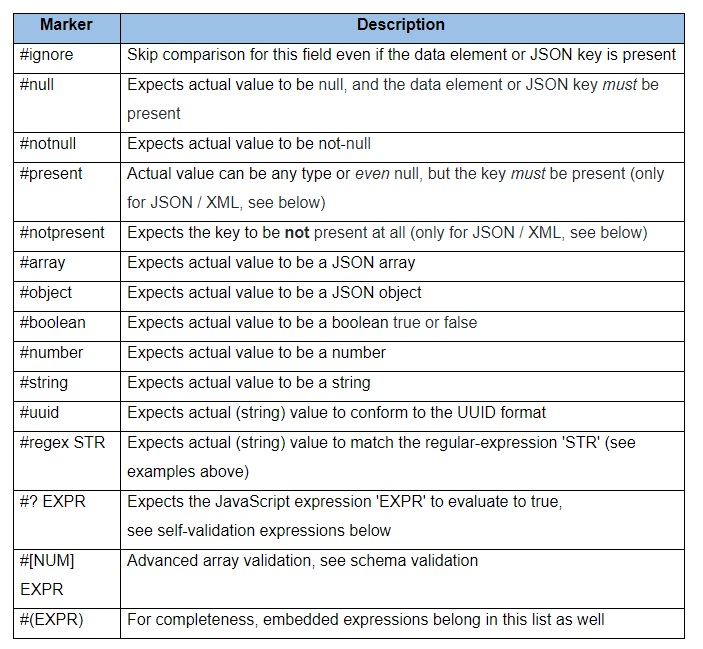
Ex.
Scenario: Test GET request exact response
Given url 'http://localhost:8097/user/get'
When method GET
Then status 200
And match $ == {id:"#notnull",name:"John Smith"}
And match $ contains {id:”#notpresent”}
Testing a POST Endpoint with a Request Body
Let’s look at a final scenario that tests a POST endpoint and takes a request body:
Scenario: Testing a POST endpoint with request body
Given url 'http://localhost:8097/user/create'
And request { id: '1234' , name: 'John Smith'}
When method POST
Then status 200
And match $ contains {id:"#notnull"}
Schema Validation:
Karate provides a simpler, user-friendly and more powerful response validation using Json as a variable to validate the structure of a given payload.
* def foo = ['bar', 'baz']
# should be an array
* match foo == '#[]'

# should be an array of size 2
* match foo == '#[2]'

# should be an array of strings with size 2
* match foo == '#[2] #string'

# each array element should have a 'length' property with value 3
* match foo == '#[]? _.length == 3'


# should be an array of strings each of length 3
* match foo == '#[] #string? _.length == 3'

# should be null or an array of strings
* match foo == '##[] #string'
We have been using the Karate framework for quite some time now and this framework comes with a very rich set of useful features that enables you to perform Automated API Testing very easily and quickly. It eases the testing process by allowing script developers or testers without any programming knowledge to script the sequences of HTTP calls. We believe that through this tutorial you have gained a lot of useful insights and got a basic understanding of Karate‘s features. Please feel free to reach out for your API testing needs, we are glad to help.

by admin | Feb 8, 2020 | Automation Testing, Fixed, Blog |
Python Automation testing is gaining popularity these days. As a test automation services company, we have setup a strong training plan to train our automation testers to learn automation testing using Python. In this blog article, you will learn how to start Python automation testing, what are all the tools required, and how to create a test automation career road-map.
Automation Scripting IDE
We use PyCharm Community Edition to create and manage automated test scripts. Download the latest version of PyCharm Community Edition and install. The installation is simple enough. The paid version of PyCharm has more features. However, the community edition is sufficient to build automation framework. There are a lot of good script editors in the market. However, nothing can compete with PyCharm.
Python Installation
When you are installing Python, make sure you select the stable version. Installing in Windows requires a lots of trail and error. First install the interpreter, then pip package, at last install virtualenv package. Use separate Python environment for automation testing. So that you can try new version of Python packages in other environment instead of corrupting the stable environment which is used for automation script execution. Read error messages if any when you are installing Python. You need to know how to setup Python Test Automation code base in other machine or Continuous Integration tool quickly.
Core Python
If you are being trained by someone, please be patient. Don’t rush them to cover Selenium and automation topics. Without Core Python knowledge, it is impossible to deliver high quality automation test scripts. As an automation testing company, we always ensure our automation testers’ scripting quality with a strict review process. Once you are familiar with Core Python, learn Data Structure and Python Algorithms. Never skip this step. If you want to excel in Python Test Automation career, learn how to apply algorithms in programming.
BDD Framework
Behave, Freshen, Radish and Lettuce are BDD frameworks for Python. However, the most popular one is Behave BDD framework. BDD framework enables effective collaboration in your team. Write BDD Scenarios with declarative steps rather than imperative. Tag the scenarios in order to select the tests for different execution types. Before using BDD Frameworks, learn BDD best practices for automation testing. Don’t write BDD scenarios without talking to business people.
Feature Template
Feature: [One line describing the story]
[Optional — Feature description]

Scenario: [One line describing the scenario]
Given [context]
And [some more context]…
When [event]
Then [outcome]
And [another outcome]…
Selenium WebDriver
Selenium WebDriver has client library for Python. Learn the below Selenium concepts in order to become an automation tester:
- Launching browser locally and remotely.
- Desired Capabilities for various browsers.
- Windows and frame handling.
- Locators – XPath, CSS Selector, ID, Name, Class Name, and Link Text.
- Selenium Wait Commands.
- Mouse Hover, Drag & Drop, Double-click actions.
- Selenium Exceptions.
- Executing scripts on Cloud Platforms like (SauceLabs, BrowserStack, and Kobiton)
- JavaScript Alert Handling.
- Selenium Event Listeners.
- Executing Selenium scripts from Maven.
- JavaScript Executor Commands.
- Selenium Grid.
Object Locating Techniques
As an automation testing services company, we have mitigated several failed automation testing projects. Most of them were failed due to object locators. If you don’t know how to construct XPath and CSS Selector to identify a webelement uniquely, then you can’t deliver quality automation test scripts. To avoid false positives, object locators should be robust enough. To expertise in object locating, create an HTML file with all available tags, apply styles to them, and embed JavaScript events. Once you are familiar with HTML and basics of CSS, you will get to know how XPath and CSS Selector work in Selenium WebDriver.
Page Object Pattern
Let’s say a step is repeated in multiple methods in a Step Definition file, then it will definitely increase script maintenance effort. Because a small change in the step needs update at multiple lines. When you use Page Object Pattern, you can define all the required objects and action methods in a class file. To create an automated test script, call the Page object methods. Consider an element’s ID is changed, now you need to make the change in Page Object Class not multiple steps in Step Definition.
Create a Base Page Object Class and write all the reusable wrapper methods like click, setValue, and selectDropdown. And then inherit the base class in all the page object classes. The advantage what we get from this approach is if Selenium or Appium release new functionalities which impact your scripts, then you will have to change only the base class not the other page object classes.
Reporting
Behave creates Json report file for you. As a test automation engineer, you can understand what are passed and failed, However, you need to make the report visible and readable to your team. Use Report Portal, Allure Python Report, and Extent Report to create beautiful, interactive and detailed reports for your tests.
Continuous Integration
Once you are familiar with executing Python Test Automation scripts in command prompt, configuring and executing in Continuous Integration tool like Jenkins is a cake walk. Learn how to schedule Python automation testing execution and email the reports from a CI tool.
Career Road-map
After learning the basics of Python automation testing, start focusing on framework development and how to deliver high-quality scripts consistently. Continuous learning is must to stay long lasting in this career. Spend at least 30-60 mins everyday to learn new trends in software testing and automation testing. AI applications are getting released in the market. Learn how to write test cases for AI applications and think how to automate AI test cases.
In Conclusion
We, as an automation testing company, train the new recruits rigorously in Python Automation Testing to deliver high-quality automation scripts. If you are a recent graduate and passionate about test automation field, contact us for more details.

by admin | Feb 11, 2020 | Automation Testing, Fixed, Blog |
As we pass by the different industry revolutions the usage of machines in doing the manual activities has helped in their transformation. Similarly, in the software revolution, usage of tools to do the manual testing activity has literally increased the industry throughput due to the following factors.
- Automation doesn’t only help a team in reducing the man-hours spent in business but also helping us the cost.
- With the implementation of automation in a project, we can conduct thorough testing quite frequently to ensure nothing breaks in the system right after quick sprints in the agile model of SDLC.
- It’s quite evident that the system never tires with the multiple executions that we can ensure greater accuracy.
What is Automation testing?
In layman terms it is the usage of tool which can mimic the user action on the software application and perform functional validation without any human intervention or with minimal human intervention.
Levels of testing
Below are a few of test types that are performed as they are required in the Software Testing Life Cycle.
Unit testing:-This is the basic level of testing as soon as a software component is built. The purpose of Unit testing is to ensure that the component does what it is expected to function. This is basically taken care of by the development team and most of it is automated (Example – J-unit, N-unit, jasmine).
System testing: These are the end to end tests that the independent QA writes to ensure the application is best tested and also to uncover any minimal flaw that exists in the system. These tests can fall under UI validation, API validation and DB validation (Example – Selenium, UFT, Test Complete, Tosca, etc.)
Acceptance testing: This is the final level of testing which is taken care of by the Business team to certify the business requirement is met. Mostly Automated scripts developed in System testing will be utilized for Acceptance Testing as well. Acceptance testing scenarios will most probably the subset of System testing scenarios
All these levels of testing can be automated depending on the organization culture and commitment
Types of Automation testing:
Given a careful study of the above different levels of testing it’s time to look at the type of testing in which automation can be achieved.
UI Automation:-This test adds a lot of value to the business considering the fact that the UI is the main layer through which the user interacts more. This is all about impersonating the user actions by clicking on a button, checkbox and sending some information to the text fields and finally saving and navigating across pages. This has widely opted in the business as it has the ability to find the defects that can be foreseen to happen at the user site.
API Automation:- Application Programming Interface is the middle layer between UI and DB. Data is transferred between the database and User Interface is mostly through API calls.
Eg: Rest/ SOAP API tests
Database Automation:- These tests are used to validate the recordset of the database based on certain conditions and with the certain expected results based on certain events.
Eg: JDBC- connecting to the DB and performing validations
Windows Automation:- Given the limitation of selenium- web driver can only talk to browser through http protocol, there are cases where we need to perform some interactions with windows, in that case, we have some test tools which helps us achieve the tasks. We can even integrate with other tests as needed
Eg: Eg: Coded UI, Sikuli, AutoIT
Identifying Automation Candidate:
So far we understood that Automation can help us in lot better ways to conduct different levels of testing in quick time and very accurately. But in order for this approach to be more beneficial, we must take care of certain things before we get into automation.
ROI (Return on investment): – We should understand what way we get benefitted in return when we spend resources to perform the Automation. We gather information like frequency of releases, # of a test to execute, cost to perform one round of test execution and cost to perform a round of automated execution.
Tool identification through Feasibility study: – This is must and can’t be avoided. A feasibility study is assessing Application under test with the set of identified automation tools to validate the best tool to be used for Automating the Application
Application stability: – Ideally in order to automate the application in best standards we must consider its. If there are frequent crashes, Application slowness due to infrastructure issues, etc would not yield the better results that we are looking for.
Setting up the Tool Infrastructure
Below are the points to consider which helps in deciding the tool Infrastructure.
- Nature of Organization, it’s business and their security consideration
- Application types, release frequency, Technology stacks, 3rd party plugin, and customization
- Overall timeline taken for testing / release / Application
- Volume of Test cases / Application and its frequency of usage for each release
- Current tool stack it has from the Test Management perspective
- Environment Management and tool procurement process
- Automation feasibility outcome based on evaluation
- Organization willingness to spend on tools procurement
- Budget required to train and upskill the resources/resource need for Automation
Based on the above pointers and based on the ranking of tool evaluation and other cost consideration Organization has to decide which tool stack it can rely on to maximize the Automation coverage.
Initiate the discussion with the vendor to set up tools in their premise.
Automation Framework:
Automation framework is the set of rules, guidelines, and templates which when implemented helps an automation tester to write the script with ease to get the desired outcome of code re-usability, portability by reducing script maintenance cost.
Pre-requisite for Framework
Below are the components of Framework
- Programming language
- IDE
- Automation tool
- Build tool
- TestRunner
- Dependency management tool
- Version control system
- Reports and logging generation
- CI/CD
Programming language:-This can be chosen by considering the development technical standards and also keeping in mind that whether or not the selection is cost-oriented or an open-source one and finally there has to be a community to overcome certain challenges if we face and support from vendor if it is commercial
Eg; java,c#, python, ruby, perl..etc
Java- widely used because of its open-source feature and rich library and best community than many other languages
IDE:-This is an acronym for an integrated development environment, based on the language and need we should be selecting the proper one to make the assignments hassle free
Eg: Eclipse, Intellij, Visual studio
Eclipse is widely used as it has got more community and rich features and an open-source one, IntelliJ is used mostly as well, it has got open as well licensed editor
Automation Tool:- based on the type of test and type of application and after analyzing the capabilities of a tool we should be picking this.
Eg: Selenium-webdriver, katalon studio, serenity, protractor, Rest API, RPA..etc
Build tool:- Build tools help to pull the latest code from source control, compile it and package it to trigger the execution
Eg: Maven, Gradle, Ant
Maven is widely used given its capabilities and the community it has
Test runner:- When we write some program it’s important to be executed as we need to verify the outcome of what it is being designed for. When developing a framework to trigger tests we should have the best test runner to help with more options to execute tests better such as executing tests multiple times, group execution, passing parameters and so on.
Eg: TestNG, Junit, N-Unit, jasmine are some test runners that are used, but with selenium, it is advised to go with testNG
Dependency management tool- When a sophisticated framework is developed, we may require so many third-party libraries and it is essential to integrate them as well. In order to achieve this, we should have the jar files from those libraries loaded into the binary path of the project, so that the project can recognize them. Loading on to the system may cause a greater problem as it may incur problem when it’s opened in a separate system, how do we overcome?
The concept of dependency management, can help us overcome the problem with the use of the tool Maven or Gradle. It provides a file called (POM.xml) when a maven project is created and we must mention the information of a particular dependency, then it goes and check in the local repository if it doesn’t present it automatically downloads for us locally through the internet. So when we share the project to someone else and opened the POM.xml does the same thing i.e. download things to the system from maven central repository if they don’t exist That way we can ensure the centralization of a dependency across the team. Also, it helps us to have the same and right information in the project.
Version Controlling system:- This system helps us to ensure the changes done to the code base by various teammates are properly merged. With the concept of pulls and pushes to the branches to the repository, we can achieve this. This brings a centralized system where all the persons in the team should look up. There are a few tools which help us doing this
Eg: Git Hub, Bit Bucket, SVN
Reports and logging mechanism:- Without reporting and logging mechanism no framework is completed. While reporting helps us understanding the test results in more easy fashion logging will help us in understanding what happened with a particular test.
Report tool:- Extent reports, allure reports and testing reports
Logging tool:- Log4j
CI/CD:- Continuous integration and deployment is buzzing in recent times as this is believed as a best standard to follow to ensure the code base is built properly and very frequently execution is happening. We can set the goals and pre-actions, Triggers and post- actions with this tool.
Eg: Jenkins, Teamcity
Roadmap for a manual tester to become automation tester
First of all fingers crossed!!!
First please set up a mind that every automation tester today is a manual tester before in some or other way in his/her previous assignments. It’s all about having an open mind to upskill and believing in themselves. Below steps would help in getting that done by self-exercise
Analyze your skillset first as what is known and then what should be learned from the above-mentioned toolset.
Start working on learning basics of a programming language with some real-time tasks for implementation (focus should only be on programming language –java, C# as per choice)
Interact with Automation tester as what concepts are widely used and focus on learning those concepts
Do more practical exercise on the topics that you have learned
Browse and understand the problems faced by people related to the topics learnt and implement to get those refined
Try to study the pain areas and try to improvise code written by using the concepts learned in the programming language (Oops – for instance)
Learn different frameworks available in the market and implement those
Learn other tool integration and practice
Do a mock project covering all the learned topics and demonstrate to the colleagues and get a suggestion for improvement
Provide training sessions on these tools to the beginners and clarify all their queries
Voila, you are an automation tester!!!!

by admin | Feb 14, 2020 | Automation Testing, Fixed, Blog |
As the software industry mature, delivery and operations team come closer for quick and seamless delivery. With the growth and strong practice of Agile based delivery which are followed throughout the software industry the need for reduction in testing life cycle without compromising the quality and coverage is necessary and thereby a lot of tightly integrated tools evolved in the past decade and skills needed for Automation testing also changed rapidly with the growing needs. This blog is going to describe the basic skills needed for Automation Testing irrespective of timeline.
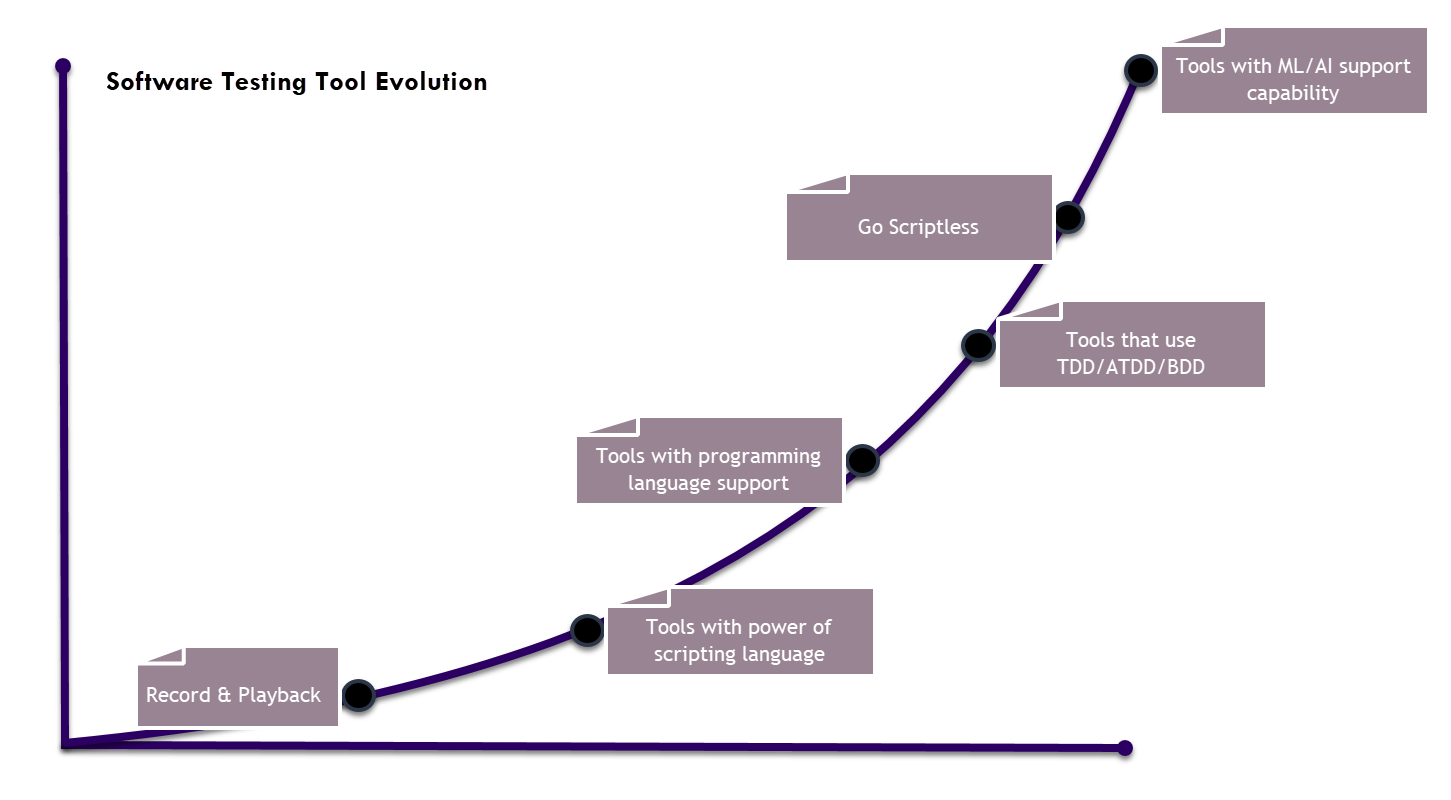
Software Testing tools evolved with the introduction of Record and Playback feature which mimics the user actions on the Applications under test. During initial days tools do not have additional features except with Application object management control. Software tester does not need programming expertise to utilize this tool.
Later tools evolved with the power of scripting language support where the Software tester would need scripting language knowledge and to understand the tool features like exception handling, regular expression along with basic framework creation capability.
2005 – 2010, many tools were introduced in the Market like Selenium which was backed by Programming language with OOPS conceptual support. Many Open source tools also come into play which needed programming language understanding along with complex framework creation. This needed a Software tester to have some development skills so that robust Automation scripts can be created.
There was a paradigm shift with the introduction and implementation of Agile adopted widely in the Software industry which necessitated the change of direction from testing to Business process validation and involvement of Business Analyst, Developers and Ops team to contribute to testing and TDD / BDD / ATDD evolved with continuous testing capability. These capabilities can be achieved only when Software Tester has a strong craving for programming. Roles like SDET came into play and DevOps as well evolved post-2010.
There was a need to do a release every fortnight and software testing timeline is shortened without compromising quality with increased testing coverage. This need necessitated the introduction of the scriptless tool in the market. Not only Record and Playback feature like the olden days, but also these tools come with DevOps capability with plug and play feature. This helped in increased automation productivity.
Future is going to be tools with AI and ML capability . This means a tester should have more Analytical skills, Mathematical knowledge along with the coding skills. With the industry evolved from normal web development to IoT, Mobile, Clouds, BigData, etc, Automation tester should have the understanding of Architecture of IoT devices, Clouds, etc along with Microservices which is evolving recently which sits in the middle layer to communicate between various devices.
Below are the Top-notch technology trends in 2020:
- Hyper Automation (Automation tools with AI and ML capability)
- Multi experience (Usage of Augmented Reality, Virtual Reality, multiple touchpoints, multi-channel touchpoint)
- Cloud Infrastructure
- Blockchain
- IoTs
Analytical and Logical Reasoning:
This is one of the very basic requirements for any Automation Tester. This skill helps in breaking the problem into small packets and helps in coherently defining automation solutions. The more analytical and Logical reasoning skill an Automation Tester has the simpler and effective the solution he/she is going to give.
This helps in understanding the Business objective behind automation and helps in providing a solution to the team.
Domain Skills:
Whatever be the domain he/she is put up with, effective time should be spent in learning this domain. This helps in understanding the project in a better way and able to understand the scope.
Domain skills cover the following areas:
- what is the business process involved in that domain
- How the business outcome is measured in that domain
- Who are the consumers involved and their skillset requirement (Operational Users related to this domain and their domain skills will help in understanding the End User perspective of that project)
- What will be the future trend in that domain
Analysis should be done on External certification in that area and every Automation Tester should complete at-least basic external certification will help them in sustaining in that domain and be a better Automation Tester.
This skills helps in Automation Tester to play a crucial role in the team as nowadays with the reduction in team size, they will be the ever needed person for any project they work with.
Application Architecture:
With the understanding of Application architecture, Automation tester will play a crucial role in defining the right and long-lasting solution. Example ) The functional Testing team would have written Test cases for Web UI whereas underlying communication is done through Microservices which does the same functionality as UI. Automating Microservices is easy and stable and takes less effort as well. The understanding right solution to be targeted through Automation reduces the effort and helps Client as well in reaping the benefit of Automation.
This skill helps Automation Tester to enter as a Solution Architect.
Manual Testing:
This is one of the core skills required by any tester and is applicable for Automation Tester as well. Predominantly this helps in defining the data-driven approach and writing better re-usable to increase the coverage. It also helps in handling exceptions and reporting requirements in a better way. Every Automation Tester should work at-least in 1 Manual Testing project so that he can understand the Testing concepts and design principles in a better way which helps in Test effectiveness and efficiency. These skills help in writing better scripts with less maintenance effort.
Programming Language:
Since the underlying of any Automation tool is a language, every Automation tester should know at least one programming language. This skill in a language should be as good as a developer so that implementation will be better. Since most of the language is Object Oriented. Thorough knowledge of OOPS is a must and thorough implementation of all these OOPS concepts is a must. In order to evolve as an Automation Solution Architect, at-least 3 programming language with the skillset of a developer is a must Below is the trend in 2020 (Java, Python, JavaScript, Angular JS) and should aim to acquire this skill.
Knowledge of DevOps:
In the era of Continuous Testing, this knowledge is a pre-requisite for any Automation Tester.
Below are the core areas which Automation Tester should have an understanding
How to source control works. (Extensive knowledge on GiT, SVN, TFS tools and working knowledge of Distributed and Centralized source control is mandatory)
Knowledge of Development paradigm (Automated code review, Build creation, Build deployment, Build Monitoring and Release Management) helps an Automation Tester to sync up easily with the developers and communicate in a better way.
Automation Framework
Automation Framework should be stable and scalable to meet DevOps demand and hence building a robust Framework is a must
Handling data (Based on DevOps implementation there could be a limitation in tool infrastructure and knowledge on better data management like alternatives to Excel as XML or JSON skills are needed. A framework should have this capability
Test Management interface (Interfacing with Test Management for any Automation Framework is a must to have skills, knowing Test Management API calls can help in communicating with different modules of Test Management tools and helps in interfacing part)
Agile
Last but not the least, knowing Agile is a must. More than 80% of the project across the world uses Agile in their project and is now a must to know. Different techniques like Scrum, Lean, Kanban, XP, FDD are some of the popular Agile practices in the world. Every Methodology has different techniques of Estimation, gather requirements, defining scope, creating a backlog, etc. Awareness of these is a must.
Softskill
So far we have talked about Technical and Functional skills and now is the time to discuss soft skills needed for any Automation Tester
Oral and Written Communication skill (Within a team, with Management and with Client stakeholders)
Should be flexible to take up more work and adaptable to situation
Problem-solving skills
Team player (Able to gel well with the team)
Should be dependable and Trustworthy to sustain in the project
Managing self (Few areas like Time Management, Work-Life balance) is very critical

by admin | Feb 20, 2020 | Automation Testing, Fixed, Blog |
It is an Open-source UI based automation library to test your application which runs on Windows OS. It wraps almost all of the libraries used in the Microsoft UI Automation Test Library. We can use FlaUI libraries to automate win32, WinForms, WPF and Windows Store apps.
The below are the libraries provided by FlaUI, we will see the uses of those libraries against each one of them:
FlaUI.core – This Library will has base elements used in the concrete implementations of FlaUI.
FlaUI.UIA2 – This Library is used to automate win32 and winforms applications.
FlaUI.UIA3 – This Library is used to automate WPF and windows store apps.
Prerequisites: – You should have Visual Studio IDE installed in your machine.
Installation of FlaUI:
1. Create a New Project in Visual Studio
2. Right-click on the project and select “Manage NuGet Packages” (Using NuGet Package Manager)
3. Select the ‘Browse’ tab and Search for FlaUI, it will display the FlaUI libraries.
4. Install the below libraries from NuGet package manager
FLAui.core, Flaui.uia2, Flaui.uia3.
NOTE: The downloaded libraries are limited to the project, which means it is not available by default for all projects.
How to launch the application using FlaUI:
1) To start testing one should implement the static method “Launch” from the “Application” class which is available in FlaUI.Core library.
2) You should pass the application path (the application you installed in your machine and you want to automate) as a parameter to the Launch method as given in the below example.
Example:
var msApplication = Application.Launch(@"C:Program FilesMicrosoft OfficeOffice16WINWORD.EXE");
var automation = new UIA3Automation();
var mainWindow = msApplication.GetMainWindow(automation);
The above code tells you
1. How the launch method is implemented using the Application class, and how the application path is passed as a parameter (First Line).
2. In the second line, we are specifying the Automation Library Type (UIA3) used to automate the app.
3. The third line describes getting the main window instance from the application instance.
Searching an Element in the Application:
1) To find the element in the application, we need to specify the treeScope of the AutomationElement.
2) We can specify the AutomationElement by providing conditions like ConditionFactory, ControlType, and action to be performed as explained in the below example.
ConditionFactory cf = new ConditionFactory(new UIA3PropertyLibrary());
mainWindow.FindFirstDescendant(cf.ByName("Text Editor")).AsTextBox().Enter("FlaUI Tutorial");
Code Explanation:
1. The first line is creating the “ConditionFactory” instance, the “ConditionFactory” is the class from “FlaUI.Core”, “ConditionFactory” identifies the element based on the condition.
2. We are specifying the TreeScope {FindFirstDescendant()}, ConditionFactory{ByName()}, ControlType {AsTextBox()} and action {Enter()} of the automation element.
The above helps us to install FlaUI and run an application. We must know how to inspect an element using FLAUInspect. We need the Chocolatey package manager to install Flauinspect, we will see the step by step process of the implementation below.
1. Chocolatey is the package manager for windows. The Flauinspect is a package under the Chocolatey package manager. So it is mandatory to install Chocolatey to inspect the AutomationElement.
2. Go to https://chocolatey.org/install and follow the instructions to install Chocolatey.
3. After installing chocolatey, run this command “choco install flauinspect” in command prompt to install Flauinspect.
4. To launch Faluinspect, run this command “flauinspect”, it will open the Flauinspect application.
Working with Flauinspect:
There are three ways for inspecting an element
Open Flauinspect > go to “Mode” >
1. Hover Mode (Press ctrl and move your mouse pointer focus on the target element)
2. Focus Tracking ()
3. Show XPATH, (combine with any mode listed above) and it will show only the absolute XPath.
Capture Screenshot with FlaUI:
Flaui provide a “Capture” class for the screenshot
Capture.screen();
// It will capture the full screen

Capture.Element("That Element ");
//It will capture the specific element

Capture.Rectangle("Specify the height, width and length")
//It will capture the specific block you specified in the parameter.
We can store the screenshot in a file by using the below lines of code:
var image = Capture.Screen();
image.ApplyOverlays(new MouseOverlay(image.DesktopBounds));
image.ToFile(@"c:tempscreen.png");
NOTE: ToFile(“Your_Location”) method can be used to store the screenshot in a user-specified location.
Perform Mouse Action using FlaUI
The Flaui provides the Mouse Class with different methods as follows:
1. Mouse left click
Mouse.LeftClick();
// left click where the mouse pointer is currently pointed to.
2. Point
Point point = new Point(2435, 234 )
// This will provide the location of the mouse pointer (X-axis and Y-axis).
3. Middle Click
Mouse.Click(MouseButton.Middle, point);
4. MoveTo and MoveBy and Position
Mouse.MoveTo(point)
// Will position the mouse pointer to the New location
Mouse.MoveBy(point)
// it will take the current location and add the point specified in the method then drag the mouse to the location specified.
Mouse.Position(point)
// the traces of the mouse pointer are not displayed.
5. Scroll
Mouse.Scroll(10)
// positive value to scroll up ; Negative Value to scroll down

Mouse.HorizontalScroll(40);
Mouse.VerticalScroll(30);
Perform Keyboard Action using FlaUI
To perform any action the application via Keyboard, the FlaUI provides the Keyboard class with the following methods:
Keyboard.Type("Hello Flaui");   // for a string
Keyboard.Type(VirtualKeyShort.Key_B, VirtualKeyShort.Key_C);
Keyboard.Press(VirtualKeyShort.BACK)  // backspace

//For Combinations of multiple keystrokes (To press a key and release a key)
Keyboard.Pressing(VirtualKeyShort.CONTROL);
Keyboard.Press(VirtualKeyShort.Key_A);
Keyboard.Release(VirtualKeyShort.CONTROL);

//Another Way for the combinations key
Keyboard.TypeSimultaneously(VirtualKeyShort.CONTROL,VirtualKeyShort.KEY_A);
NOTE: VirtualKeyShort is available in “FlaUI.Core.WindowsAPI” package
How to highlight the element in FlaUI:
Flaui provides the “DrawHighlight” method which will highlight the AutomationElement.
Automation_Element.DrawHighlight();
Thank you for reading the above article, we would love to hear your comments. Please write to us if you face any issue in using FlaUI, we are happy to help. Happy Testing!
Frequently Asked Questions
-
What is FlaUI?
FlaUI is an open-source .NET library based on the native UI automation libraries of Microsoft that can be used to automate UI-based testing of Windows applications such as win32, WinForms, WPF, and Windows Store apps.
-
Is FlaUI open source?
Yes, FlaUI is indeed an open-source UI-based automation library that can be used to perform Automated UI testing of Windows applications such as win32, WinForms, WPF, and Windows Store apps.
-
How do I install the FlaUI library?
1. Create a new project in Visual Studio.
2. Right-click on the project and select “Manage NuGet Packages”.
3. Select the ‘Browse’ tab and Search for FlaUI.
4. Install the FLAui.core, Flaui.uia2, Flaui.uia3 libraries.